Survey Form
Create, configure, and send NPS and star-rating surveys to your customers — all from within your Monday.com board.
Creating a Survey Form
In the SmartForm board view, create a new form and select Survey Form to build one alongside your existing Item, Subitem, and Action forms.
The Form Editor
The Survey Form editor uses a three-panel layout:
| Area | Purpose |
|---|---|
| Left sidebar | Jump between the three build steps: Survey Page, Email Invite, and Field Mapping |
| Center canvas | Three stacked, inline-editable cards — the survey page, the invitation email, and the success screen |
| Right panel | Context-aware controls for Field Mapping and Settings |
A tab switcher at the top moves between Edit and Settings (form metadata, access, and automation).
Changes are saved automatically. The left sidebar shows an amber indicator on Field Mapping when a required mapping is still missing.
Survey Page
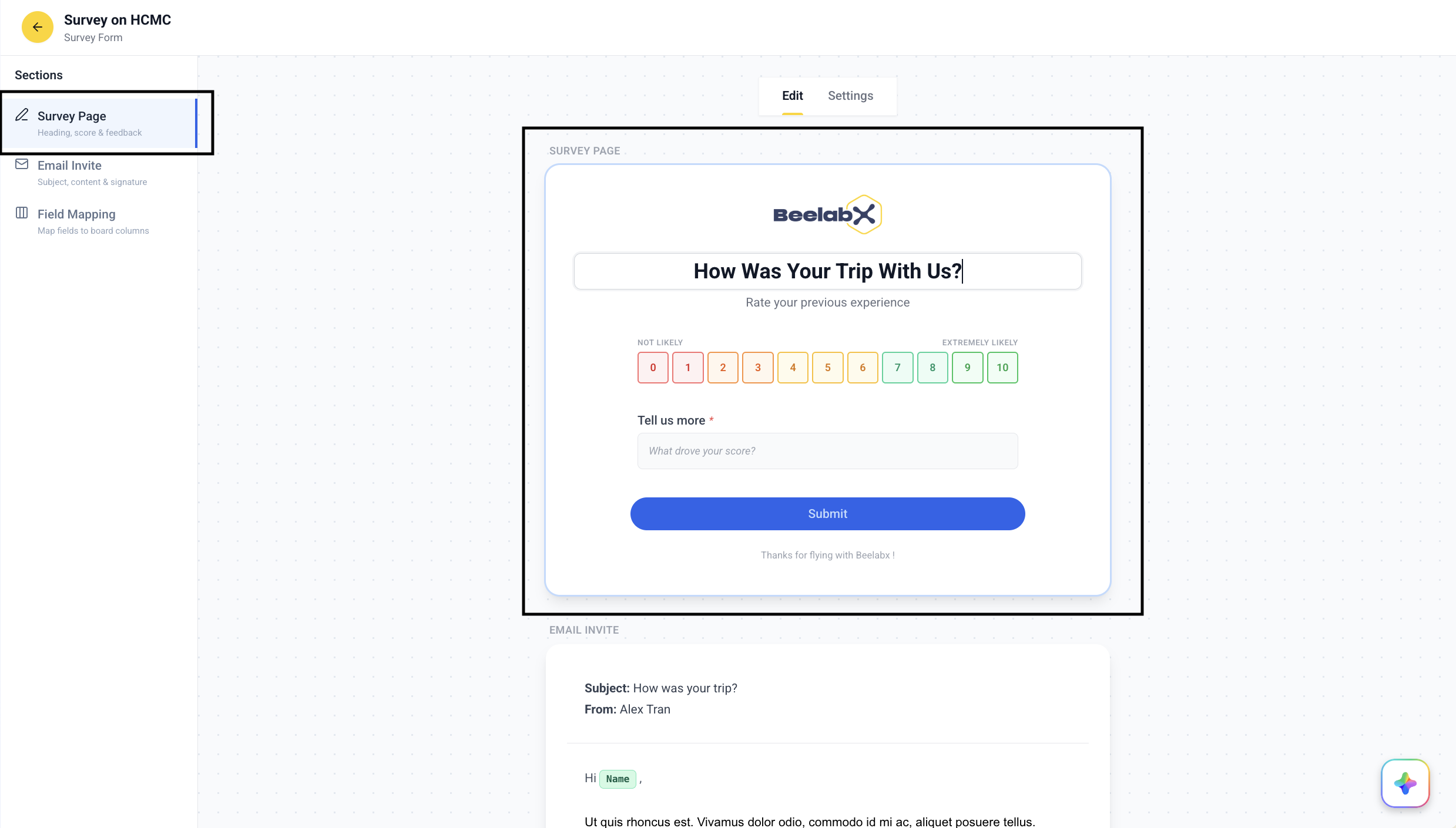
The first card on the canvas is the survey your respondents will see and submit. Everything is edited inline — click an element to edit it.
Logo
Hover the logo area and click the edit icon to choose:
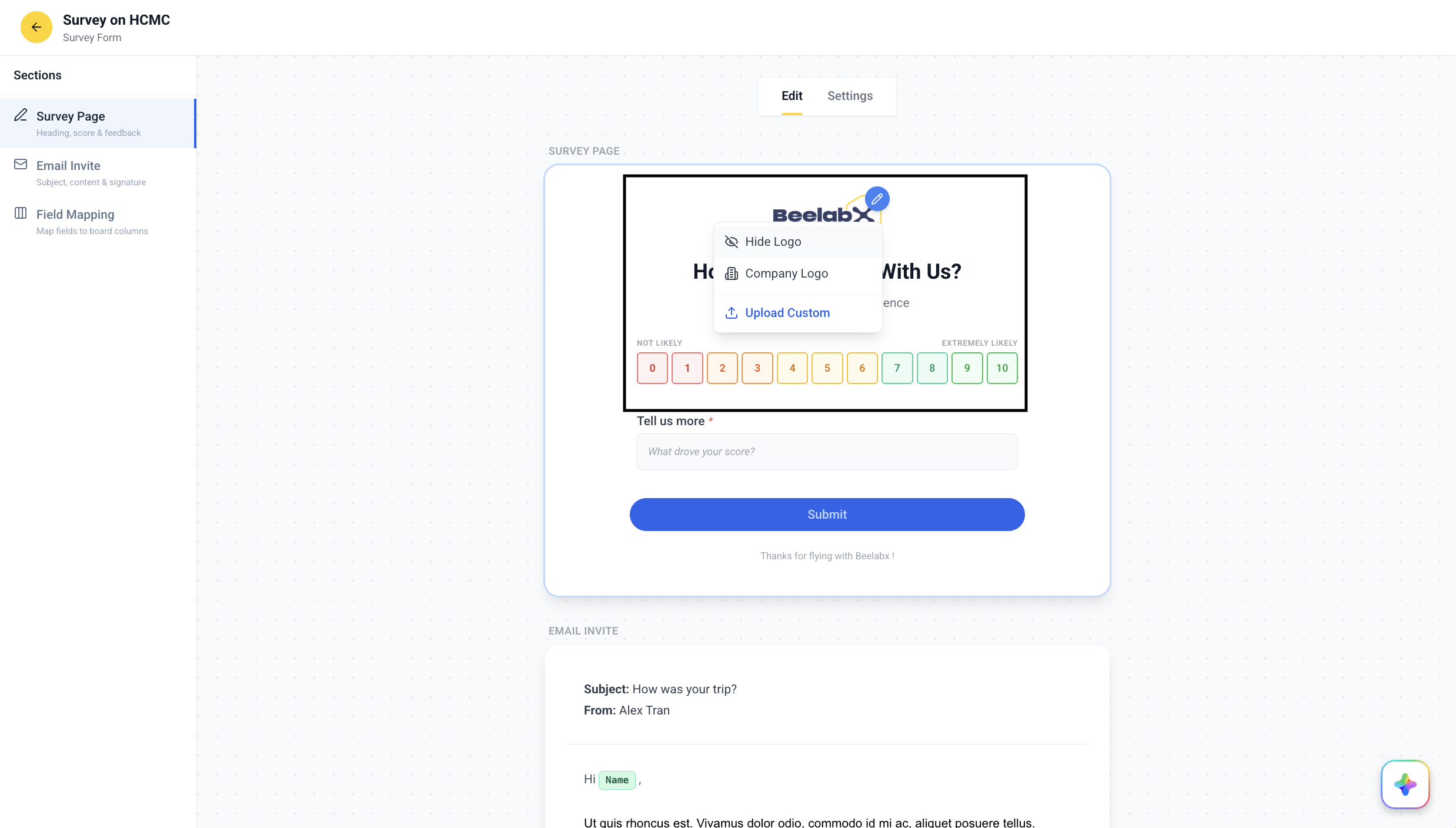
| Option | Description |
|---|---|
| Hide Logo | No logo — minimal, distraction-free appearance |
| Company Logo | Uses your organization’s default Monday.com logo |
| Upload Custom | Upload a survey-specific image (JPEG, PNG, GIF, WebP, SVG — max 5 MB) |
Heading & Score Title
Click the heading and the score title to edit them inline (e.g., “How likely are you to recommend us?”). Leaving either empty hides it on the public survey.
Score Type
Click the score widget to choose the scale:
| Type | Description |
|---|---|
| NPS · 0–10 | Numeric scale with color-coded buttons — red, orange, yellow, and green |
| Stars · 1–5 | Classic star-based scale for quick satisfaction ratings |
Use NPS Score for standard Net Promoter Score measurement. Use Stars for simpler satisfaction surveys.
Comment Field
Click Add comment field (or the existing comment area) to configure an open-text response:
| Setting | Description |
|---|---|
| Comment field | Toggle the field on or off |
| Label | The question shown above the comment box (e.g., “What’s the main reason for your score?”) |
| Placeholder | Hint text shown inside the empty box |
| Required | When enabled, respondents must complete the field before submitting |
Submit Button & Footer
Click the submit button to rename it inline (default: “Submit”). Click the footer to add small print below the survey — leaving it empty hides it.
Email Invite
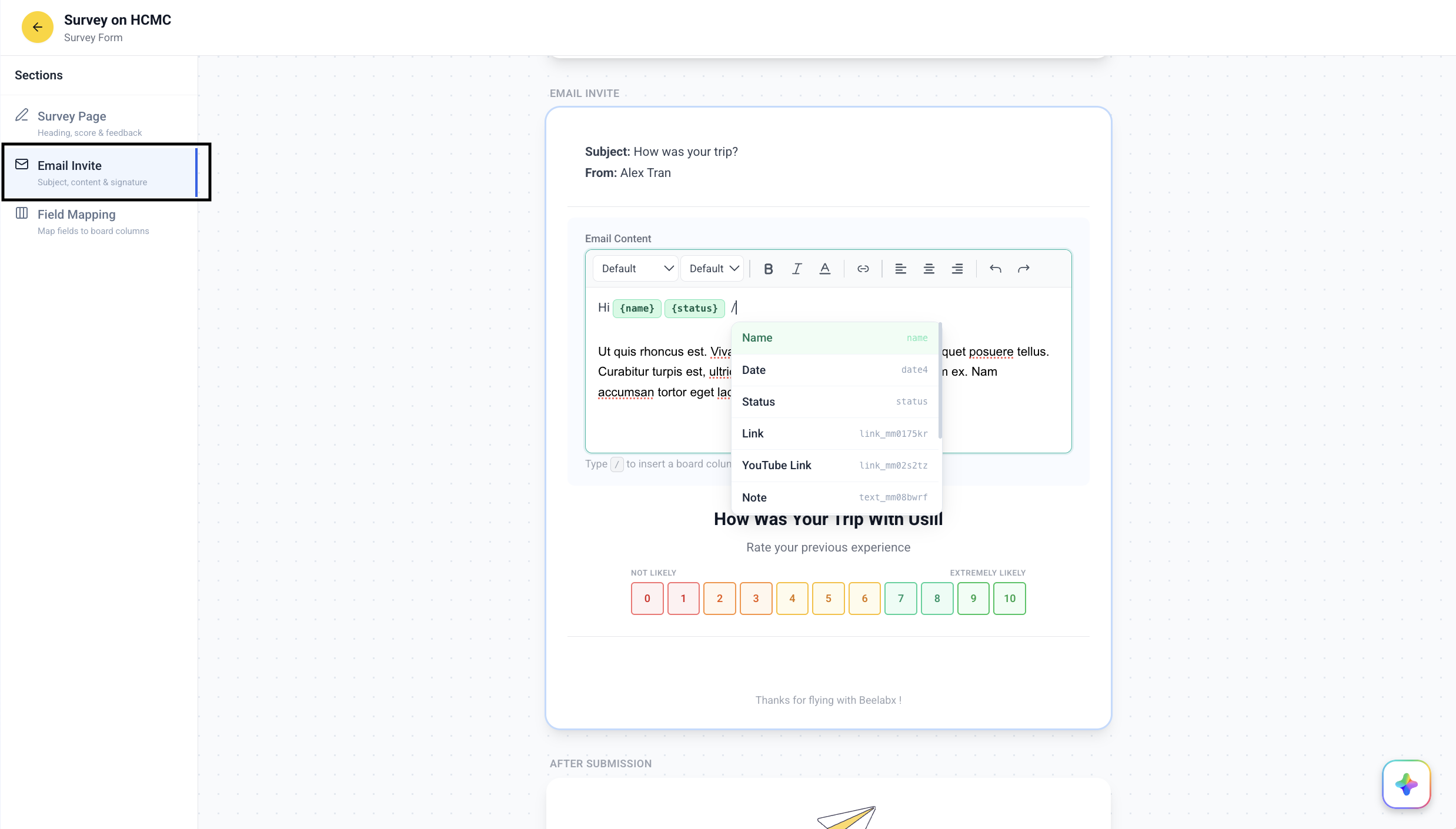
The second card is the invitation email recipients receive. Click any zone to edit it inline.
Email Configuration
| Field | Description |
|---|---|
| Email Subject | Subject line shown in the recipient’s inbox |
| From | Display name of the sender |
| Email Content | Body text of the email — supports dynamic column references |
| Email Signature | Appended at the bottom — supports links, images, and formatting |
The email preview also mirrors your survey’s heading, score title, and score widget so you can see exactly what recipients receive.
Dynamic Column References
Personalize your emails by inserting values from your Monday.com board columns.
Type the / key
While editing the Email Content, press / to open the column reference menu.
Select a column
Choose from the list of available board columns (e.g., “Client Name”, “Company”).
Token is inserted
A column token (e.g., {client_name}) is inserted into the text. At send time, it is replaced with the actual item value.
Supported Column Types
Only columns matching the types below will appear in the / reference menu. Other column types are not supported for dynamic references.
| Column Type | Monday API Name |
|---|---|
| Text | text |
email | |
| Long Text | long-text / long_text |
| Numbers | numeric / numbers |
| Status | status / color |
| Link | link |
| Date | date |
| Phone | phone |
| Location | location |
| Rating | rating |
| Item Name | name |
Some types have multiple aliases (e.g., long-text / long_text, numeric / numbers, status / color) to handle inconsistencies in the Monday API naming.
Not supported: Timeline, People, Dropdown, Checkbox, File, Hour, Week, World Clock, Tags, Country, Mirror, Formula, Dependency, Board Relation, and Subitems columns cannot be used as dynamic references.
Success Screen
The third card previews the After Submission screen respondents see once they submit.
| Field | Description |
|---|---|
| Success Title | Heading shown after submission (default: “Thank you!”) |
| Success Message | Message shown below the heading (default: “Your response has been recorded.”) |
Field Mapping
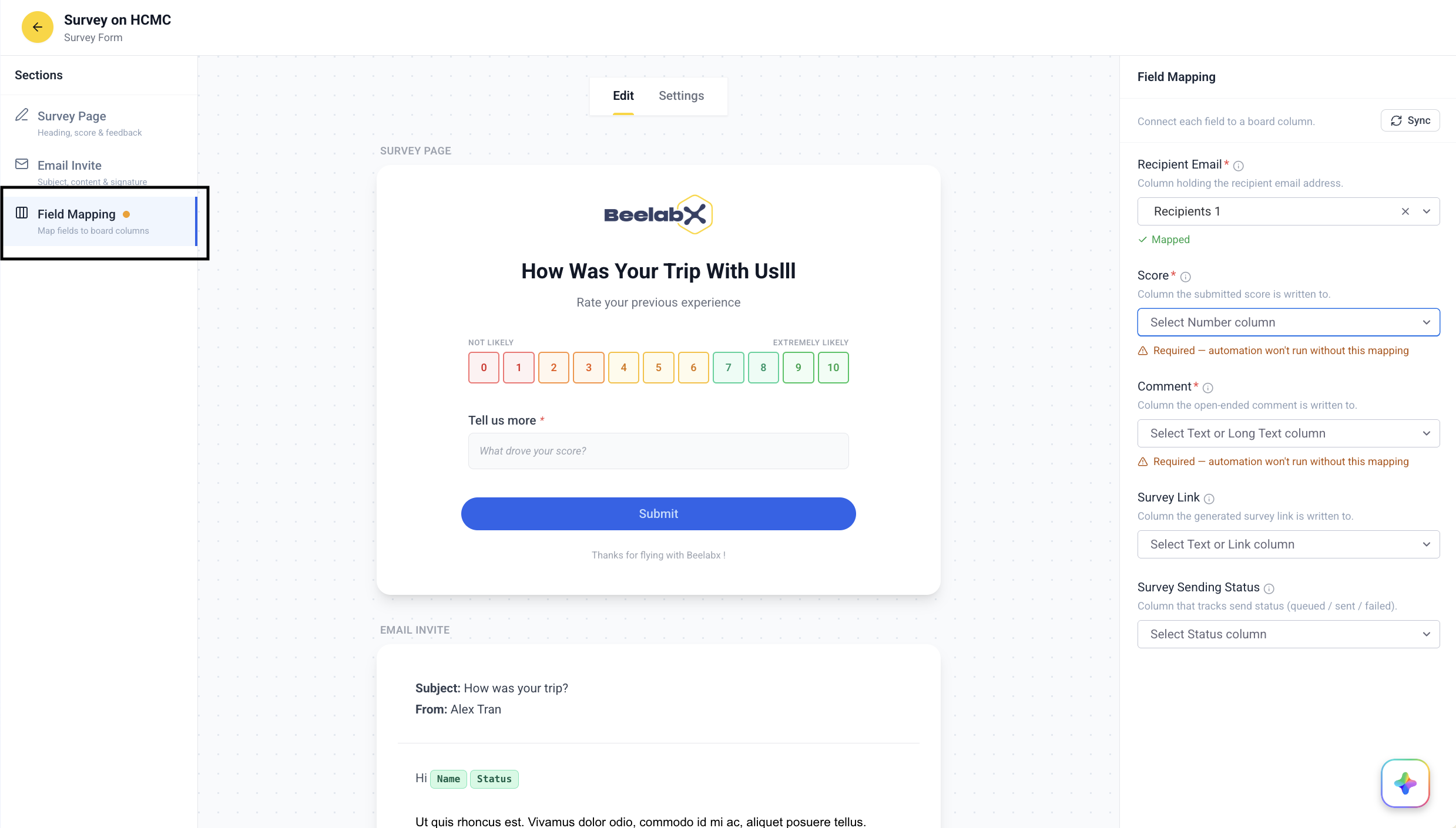
Select Field Mapping to connect survey fields to columns on your Monday.com board. This determines where responses are stored. The controls appear in the right panel.
Field Requirements
| Survey Field | Required | Allowed Column Types | Purpose |
|---|---|---|---|
| Recipient Email | Yes | Email, Text | Stores recipient email addresses |
| Score | Yes | Number, Rating (star only) | Stores the score value |
| Comment | Conditional | Text, Long Text | Stores feedback text — required if the comment field is enabled |
| Survey Link | No | Text, Link | Stores the generated survey URL |
| Survey Sending Status | No | Status, Color | Tracks email sending state |
Recipient Email and Score are required mappings. The automation will not run without them.
Add New Column & Sync
Each dropdown includes an Add new column option that opens the Column Center, so you can create the right column type inline. If you change your board columns in Monday.com, click Sync to refresh the column list.
Score Type Switching
When switching from Stars to NPS Score, any mapped Rating-type column is automatically cleared — Rating columns only support 1–5 values, which are incompatible with the 0–10 NPS scale.
A green check (Mapped) means the field is mapped successfully. An amber warning means a required field is still unmapped. Columns already in use are excluded from other dropdowns.
Settings
Open the Settings tab to configure the survey’s metadata, access, and automation.
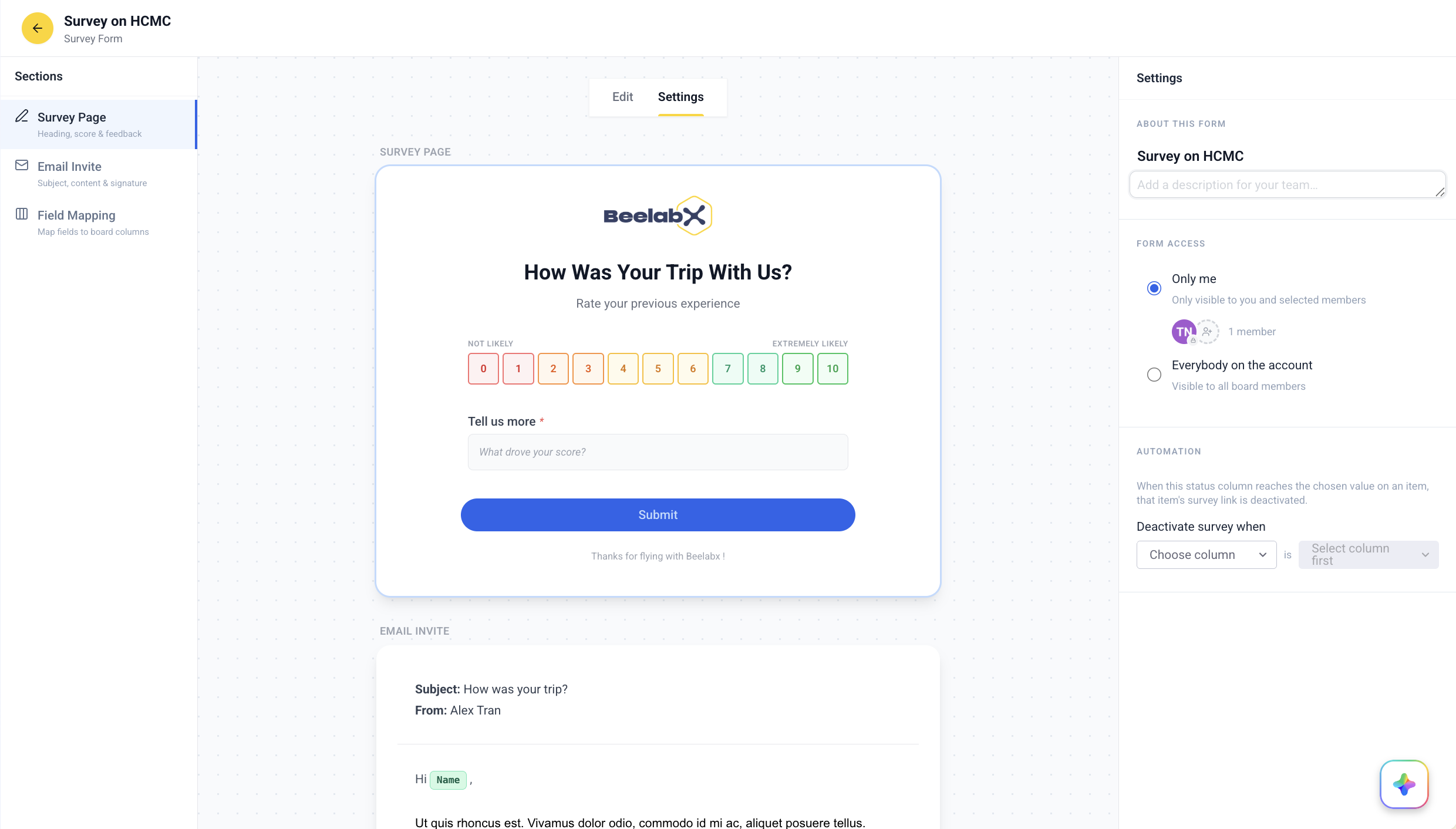
About This Form
| Field | Description |
|---|---|
| Form Name | Internal name to identify your survey (e.g., “Q2 Customer NPS”) |
| Form Description | Optional internal notes for your team |
Form Access
| Level | Description |
|---|---|
| Only me (default) | Only you and selected members can view and edit this survey |
| Everybody on the account | All board members can view and edit this survey |
Before deactivating a user who created surveys with Only me access, switch them to Everybody on the account first. Otherwise the survey becomes permanently inaccessible.
Automation — Deactivation Condition
Automatically disable a survey link when a status column reaches a chosen value.
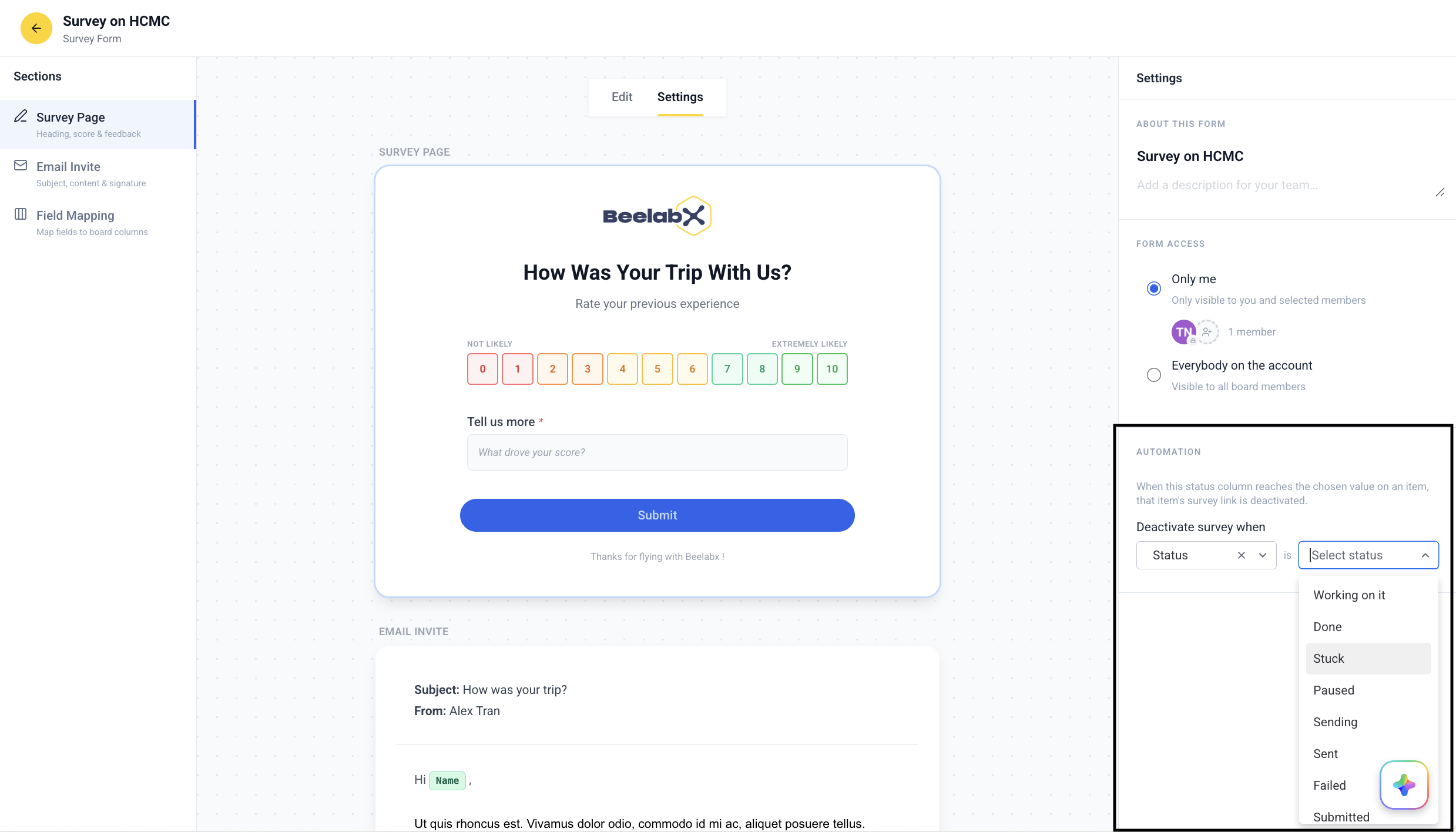
Choose a Status Column
Under Deactivate survey when, select which status column to monitor.
Choose the Deactivation Value
Select the specific status value that triggers deactivation.
Example: Set deactivation to trigger when “Support Status” reaches “Resolved” — this prevents customers from submitting surveys after their ticket is closed.
Sending Survey Emails
Survey emails are sent using Monday.com automations. This connects your survey configuration to actual email delivery.
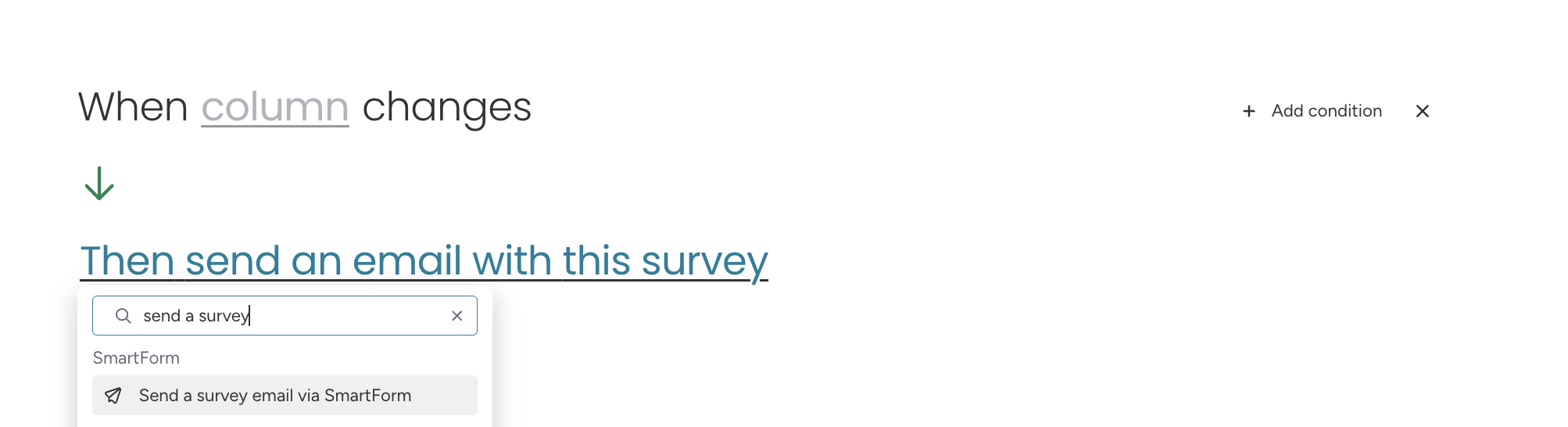
Setting Up the Automation
Go to Integrations
Open your board’s Integrations section in Monday.com.
Configure the trigger and action
- When: a specific status column changes to a specific value
- Then: send a survey email via SmartForm for the selected survey form
Save the automation
Your automation is now active and will send survey emails whenever the trigger condition is met.
What Happens When Triggered
When the automation fires, SmartForm reads the recipient email from the mapped column, generates a unique survey link tied to the board item, sends the invitation email, and updates the sending status column (if mapped).
Each board item generates a unique survey link tied to that specific recipient and item. This ensures responses are tracked per-item on your board.
Survey Submission
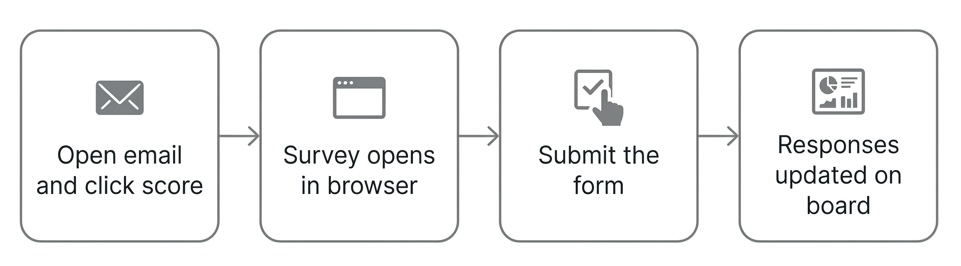
This section covers the recipient experience — from receiving the email to submitting their response.
What Happens When Submitted
The recipient opens the email, selects a score, optionally fills in the comment field, and clicks the submit button. Their response is written to the mapped Score, Comment, and Link columns, and they see the configured success screen.
Error States
The survey form handles edge cases with clear error messages:
| Error | Cause |
|---|---|
| Form Not Found | Survey was deleted by an admin |
| Inactive Form | Survey was disabled by an admin |
| Inactive Link | The item’s deactivation condition was met |
| Subscription Expired | App subscription needs renewal |
Contact Support
Need help with Survey Forms or other SmartForm features?
Need Assistance?
Our dedicated support team is ready to help you get the most out of SmartForm. Whether you have questions about setup, configuration, or advanced features, we’re here to assist.
Contact Support Team →