Copy Paste Master User Guide

Copy data from one or multiple columns, combine with custom formatting, and paste into any target column
Introduction
Copy Paste Master is a powerful Monday.com app that enables you to copy data from one or multiple columns, combine it with custom formatting, and paste it into any target column.
Core Capabilities
Item-Level Operations
- • Copy from item columns to item columns
- • Copy to mirror columns
- • Copy from mirror columns
- • Combine multiple data sources
Subitem Operations
- • Copy between subitem columns
- • Copy from items to subitems
- • Copy from subitems to parent items
- • Batch update all subitems
Advanced Features
- • Custom text formatting
- • Multiple column combinations
- • Formula calculations
- • Mirror column support
Automation Triggers
- • On column change
- • On status change
- • On item/subitem creation
- • On name change
Note: Not all column types are supported. See the Supported Columns section for details.
Getting Started
Copy Paste Master provides preset automation recipes that you can configure directly from your Monday.com board’s Integration center.
Step 1: Open your Monday.com board
Navigate to the board where you want to set up Copy Paste Master.
Step 2: Choose a preset integration or create a custom automation
Go to the Integration Center of your board and install the Copy Paste Master app
The app offers multiple integration recipes organized by use case. Each recipe is designed for specific column combinations and data flows.
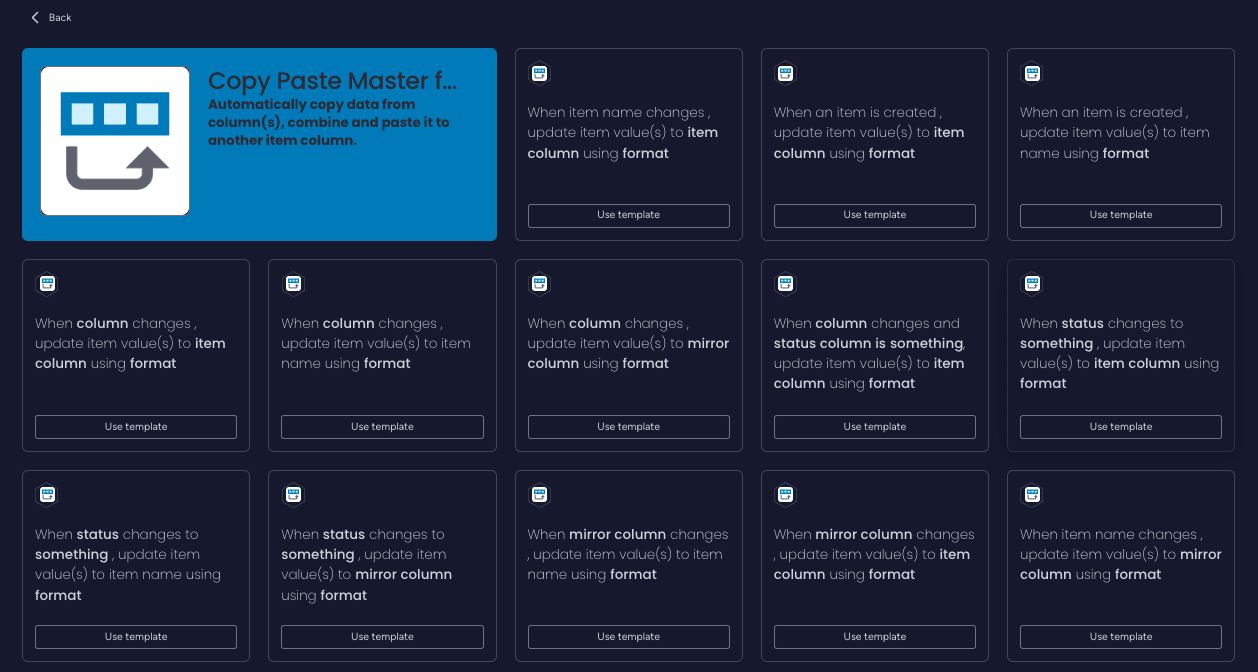
Tip: Start by identifying your source columns (where to copy from) and target column (where to paste to), then select the matching recipe.
Automation Recipes
1. Item to Item Column
Copy data from item column(s), combine with formatting, and paste into another item column.
Overview
Available Integrations
✓ When item name changes, update item value(s) to item column using format
✓ When an item is created, update item value(s) to item column using format
✓ When an item is created, update item value(s) to item name using format
✓ When column changes, update item value(s) to item column using format
✓ When column changes, update item value(s) to item name using format
✓ When column changes and status is something, update item value(s) to item column using format
✓ When status changes to something, update item value(s) to item column using format
✓ When status changes to something, update item value(s) to item name using format
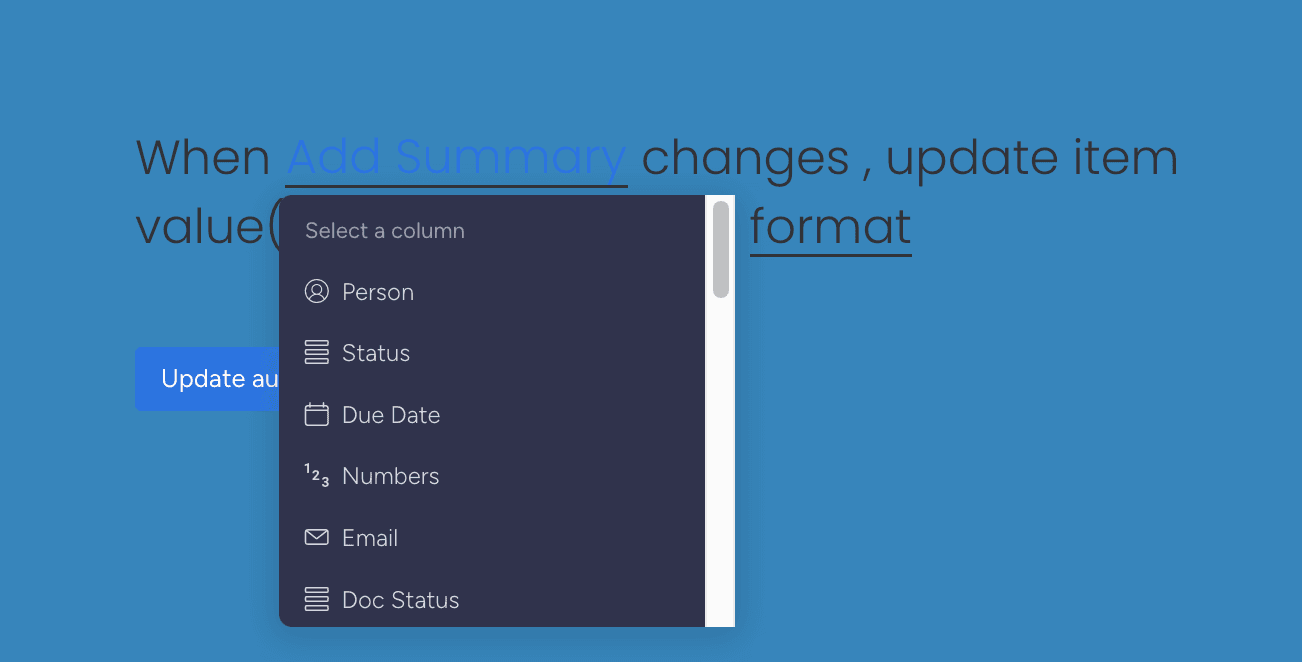
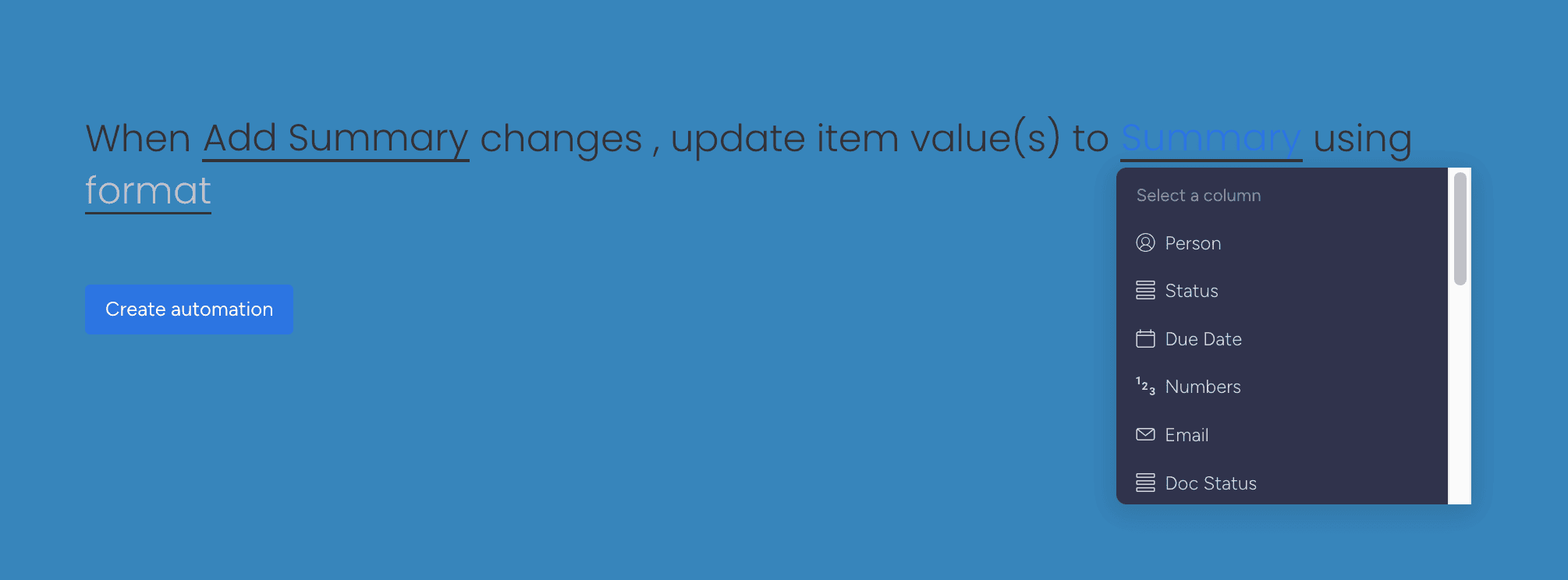
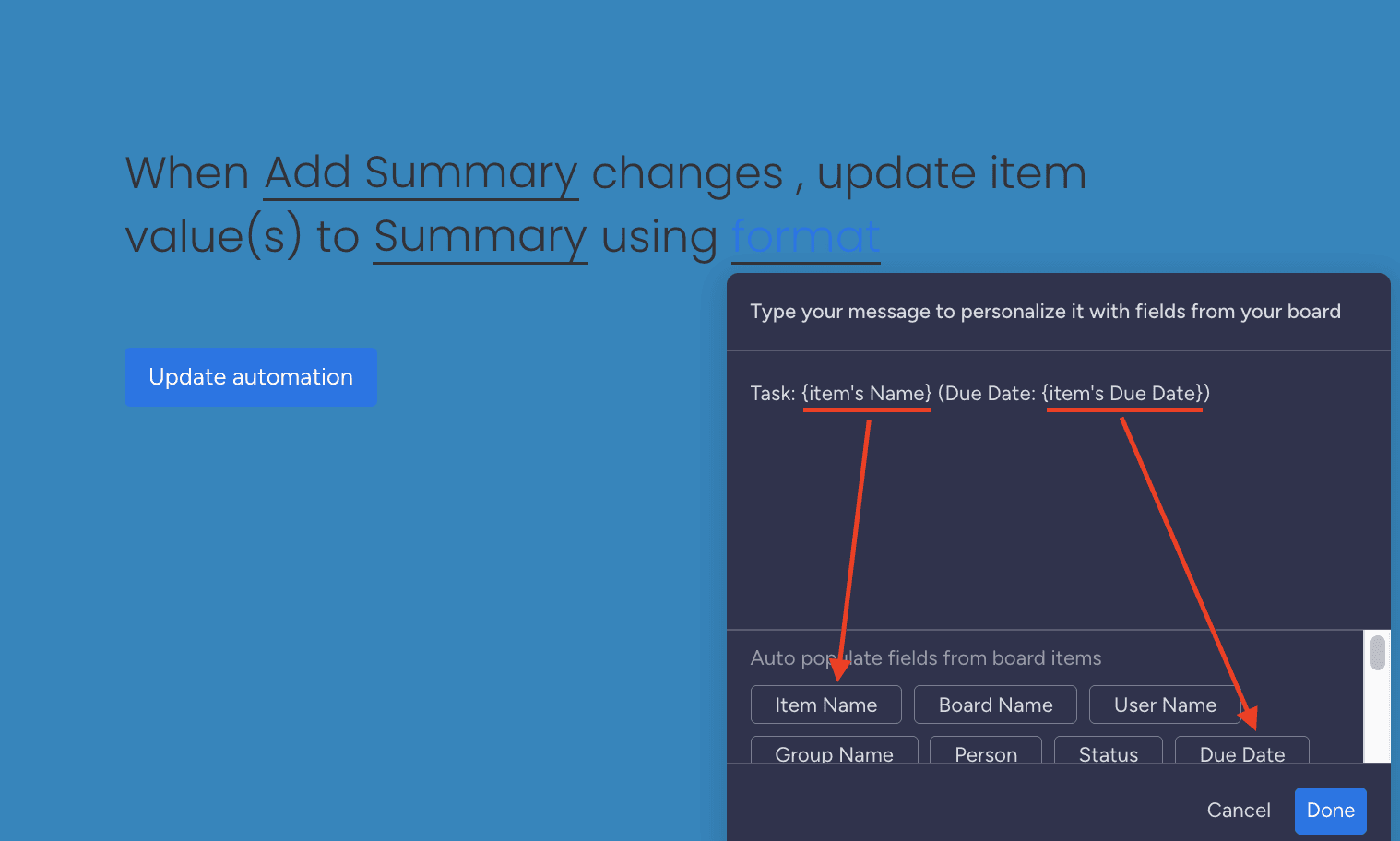
Use Case: Combine Task Name and Due Date in a Summary column
Example Board:


2. Item to Mirror Column
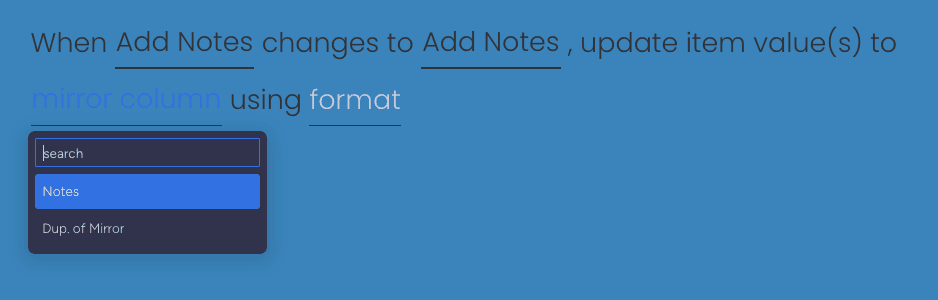
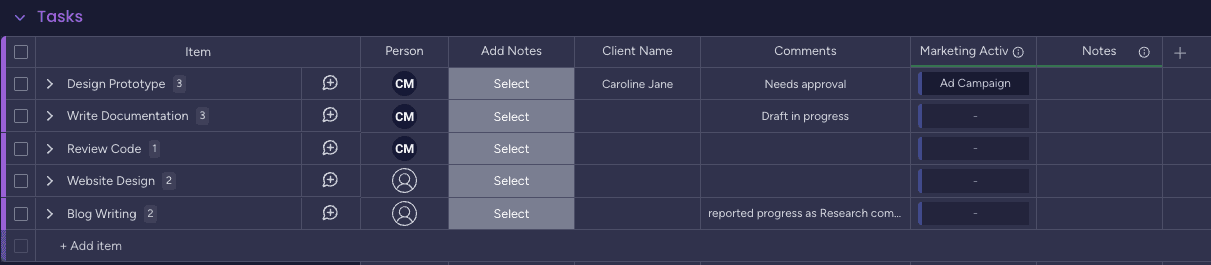
Copy data from item column(s) and paste into an item mirror column.
Overview
Available Integrations
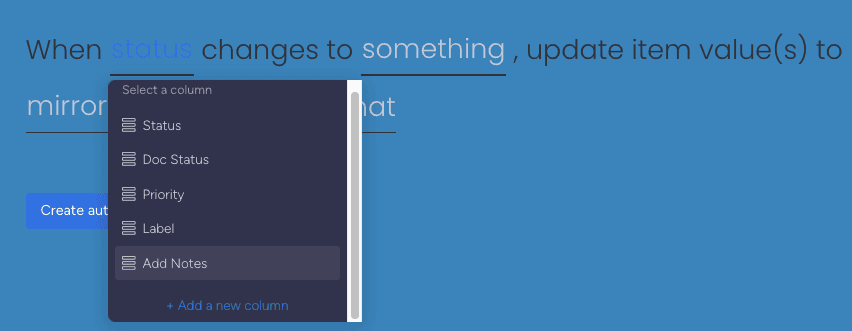
✓ When column changes, update item value(s) to mirror column using format
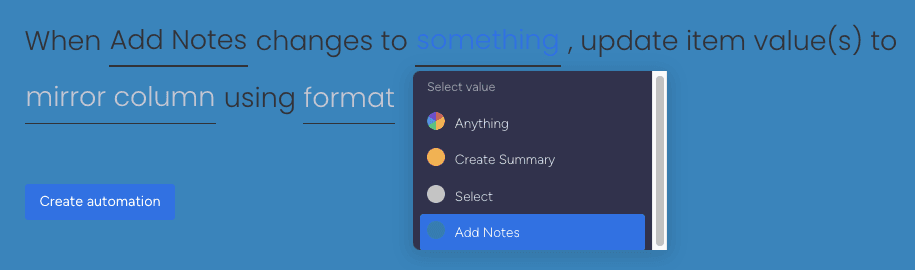
✓ When status changes to something, update item value(s) to mirror column using format
✓ When item name changes, update item value(s) to mirror column using format
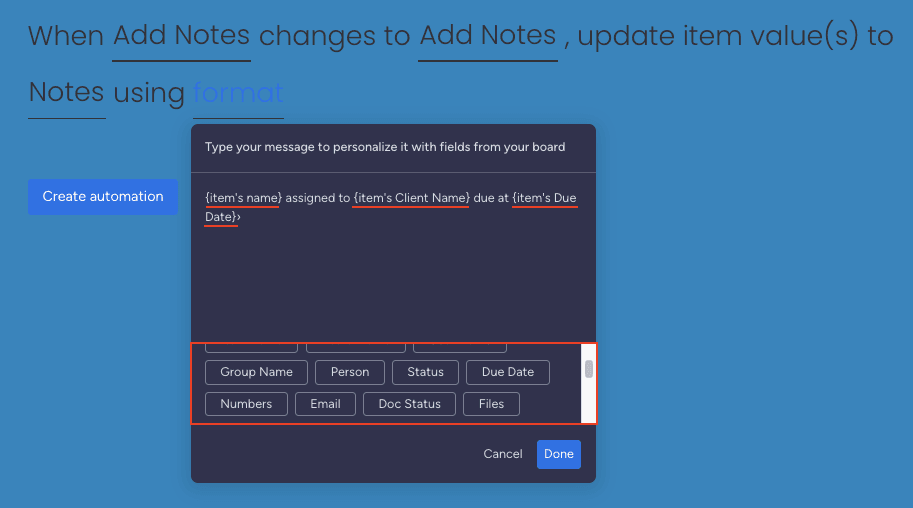
Use Case: Combine Task Name, Client Name, and Due Date in a Notes mirror column

3. Mirror to Mirror Column
Copy data from item mirror column(s) and paste into another mirror column.
Overview
Available Integrations
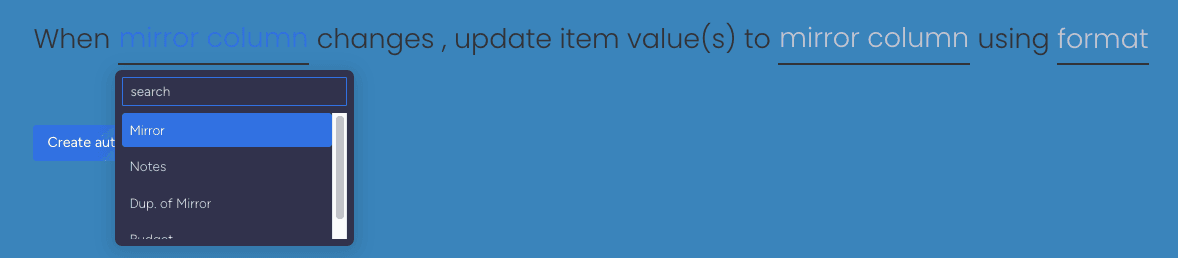
✓ When mirror column changes, update item value(s) to item name using format
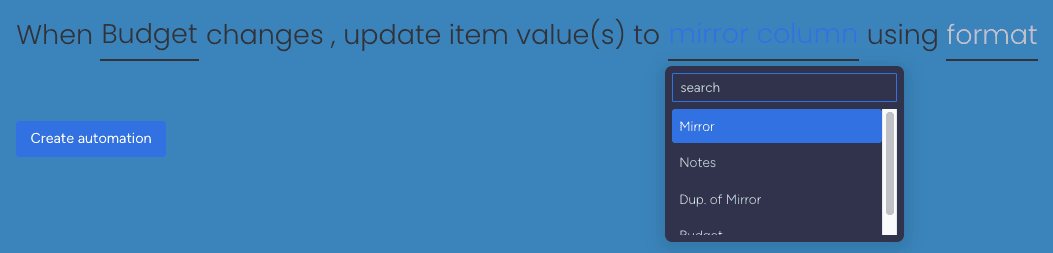
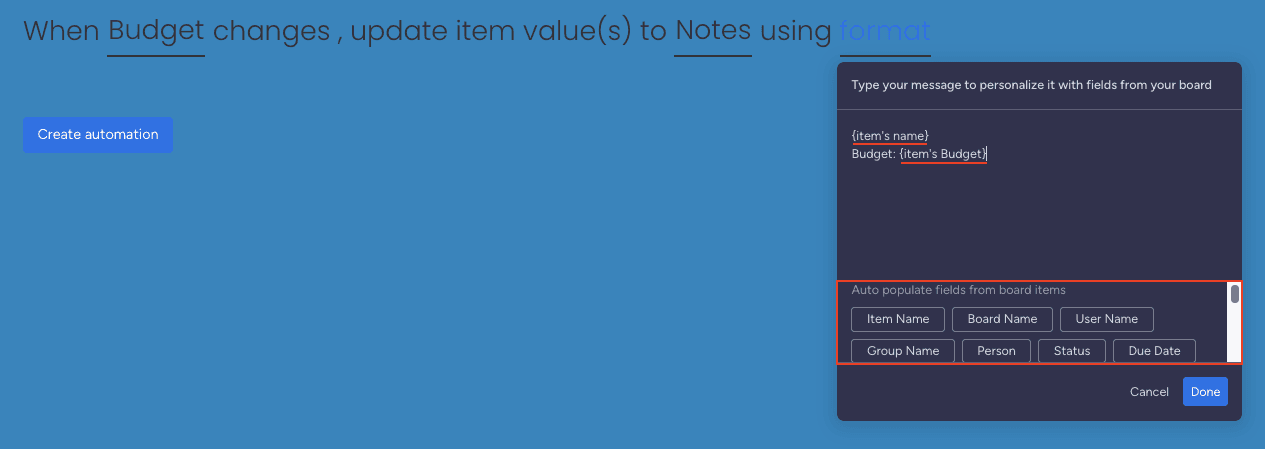
✓ When mirror column changes, update item value(s) to mirror column using format
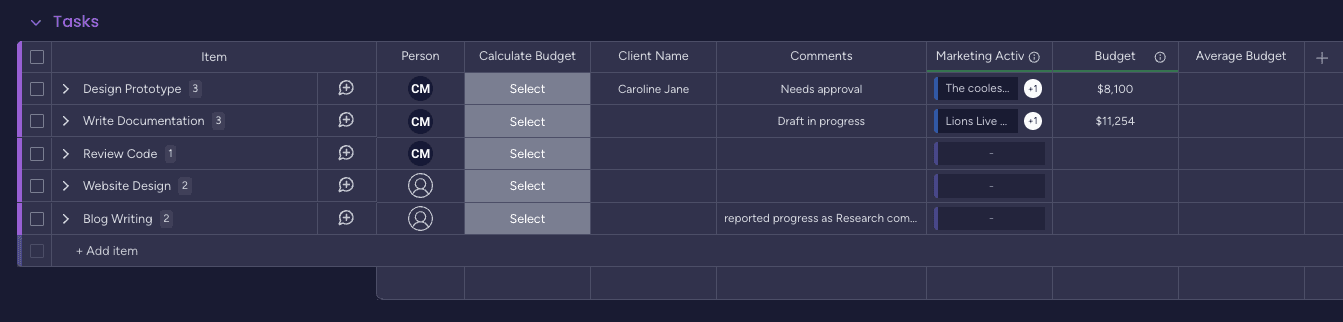
Use Case: Combine Task Name and Budget mirror column into Notes mirror column
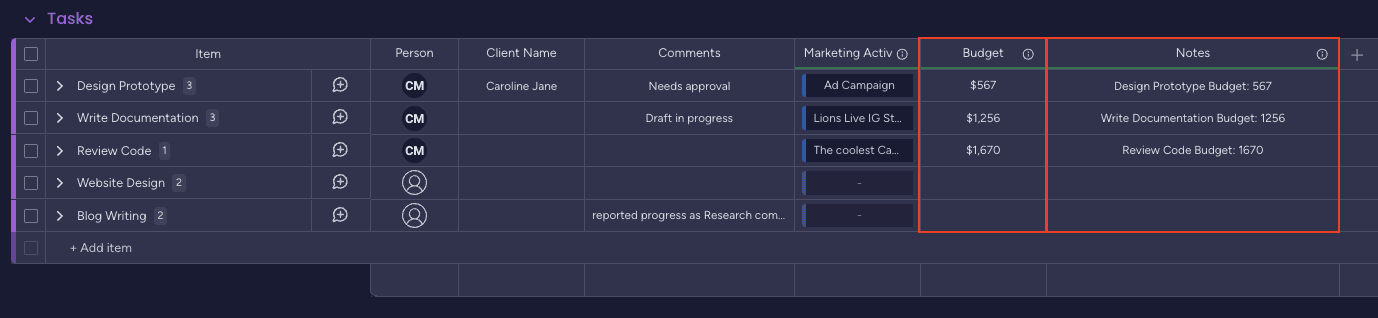
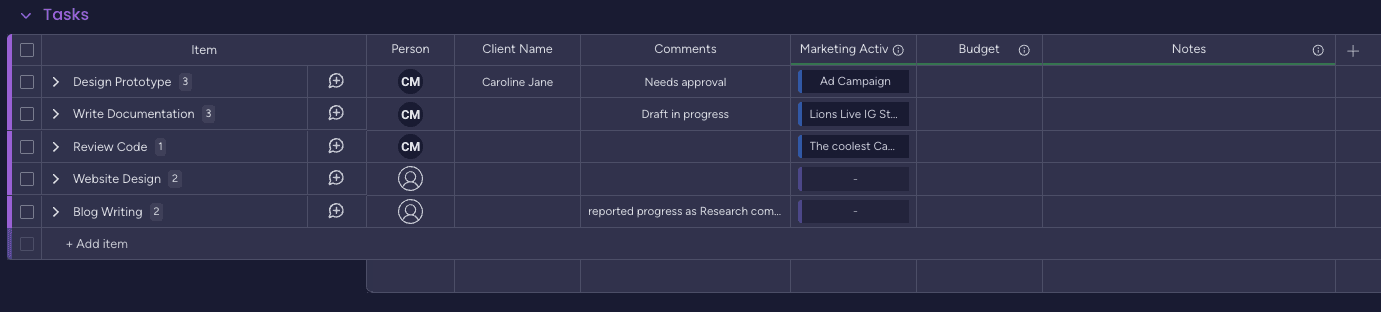
4. Mirror with Formula Calculation
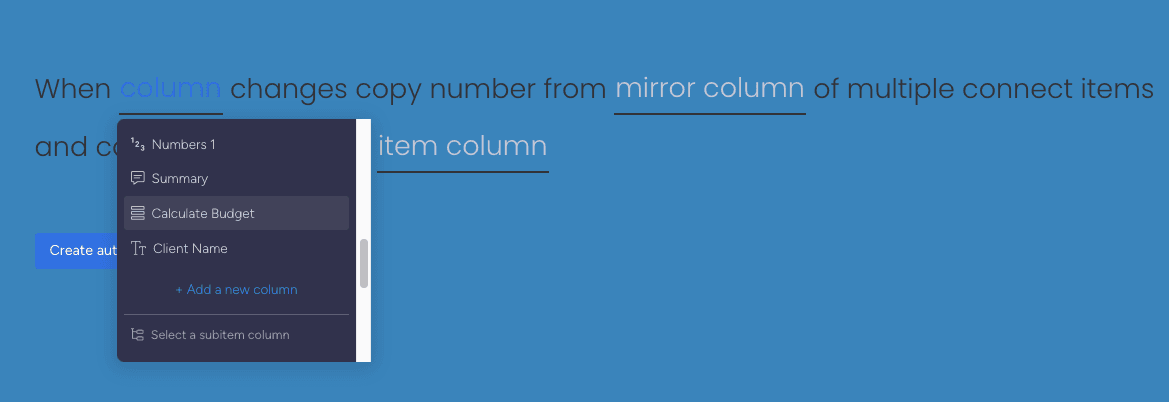
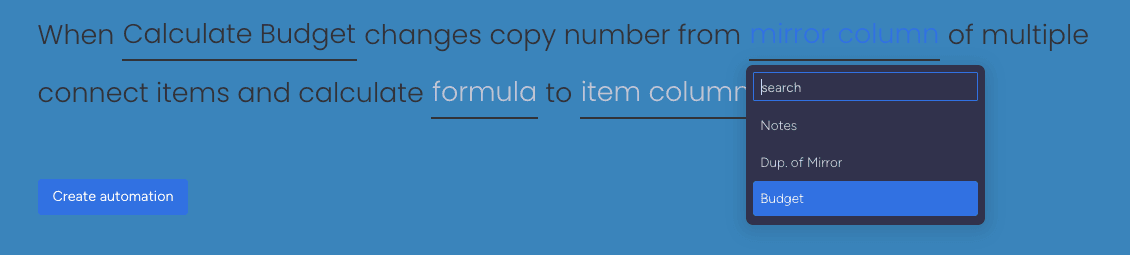
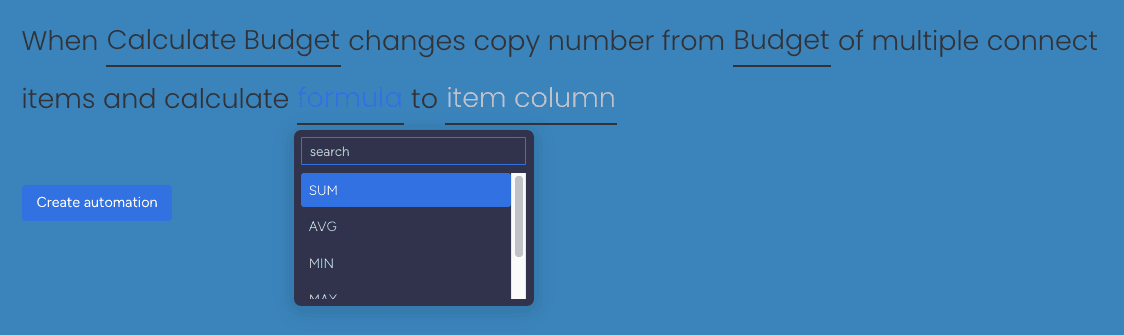
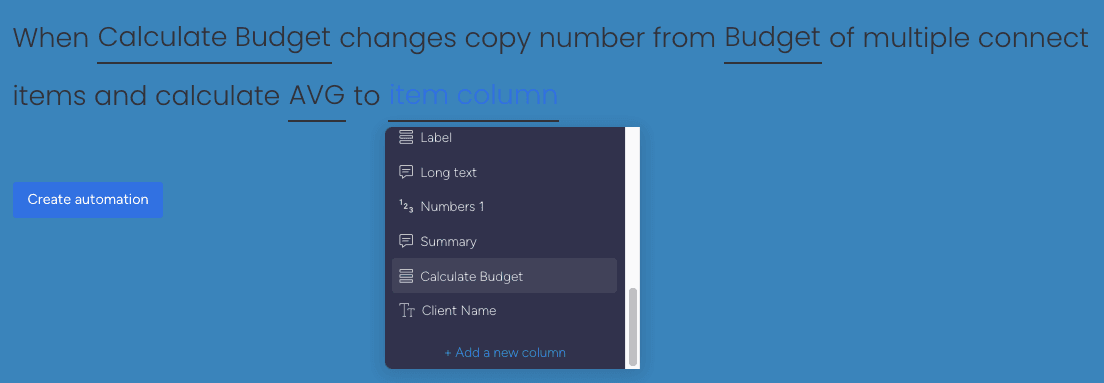
Copy numbers from mirror columns of multiple connected items and calculate using formulas.
Overview
Available Integrations
✓ When column changes, copy date from mirror column of multiple connected items and calculate formula
✓ When column changes, copy number from mirror column of multiple connected items and calculate formula
Supported Formulas:
- Sum
- Average
- Minimum
- Maximum
- Count
Performance Note: If you connect multiple items, processing time increases. The app needs to fetch and calculate data from all connected items.
5. Subitem to Subitem Column
Copy data from subitem column(s) and paste into another subitem column.
Overview
Available Integrations
✓ When a subitem is created, update subitem value(s) to subitem name using format
✓ When a subitem is created, update subitem value(s) to subitem column using format
✓ When subitem name changes, update subitem value(s) to subitem column using format
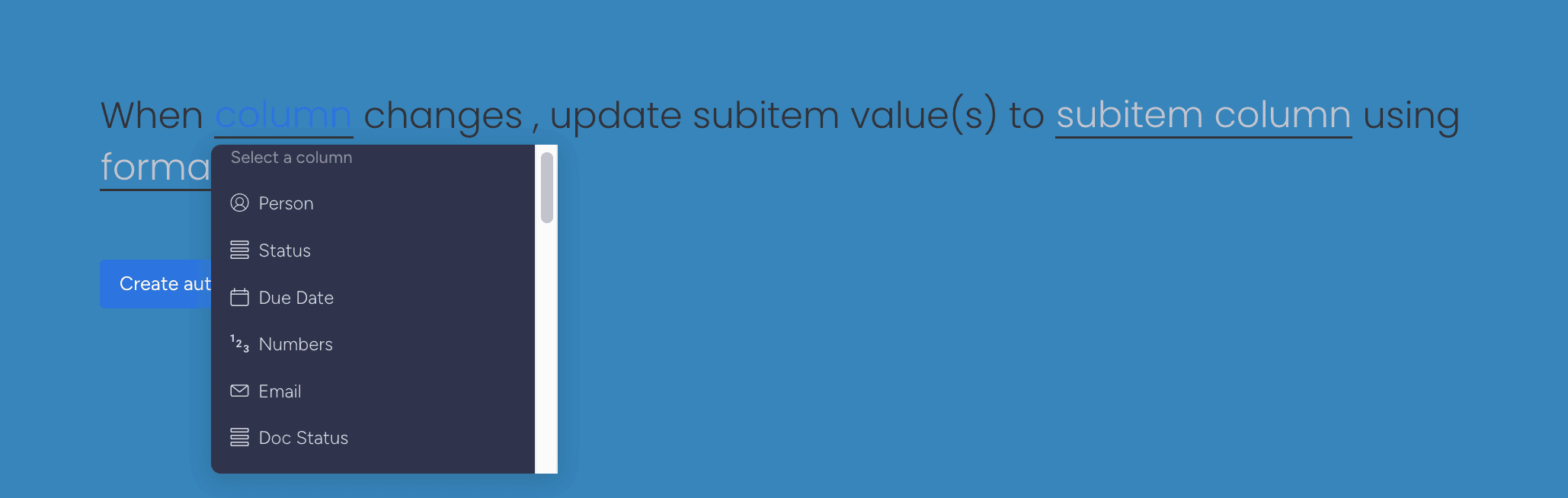
✓ When column changes, update subitem value(s) to subitem column using format
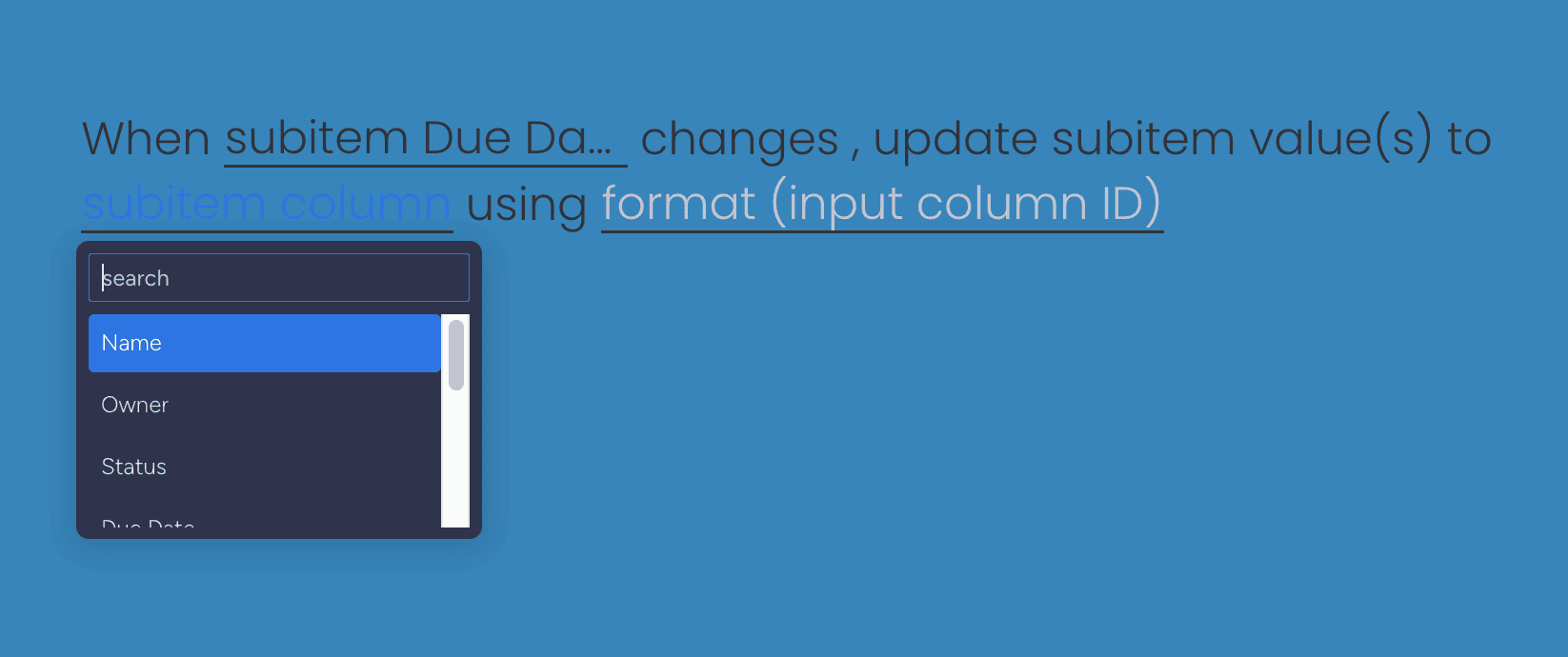
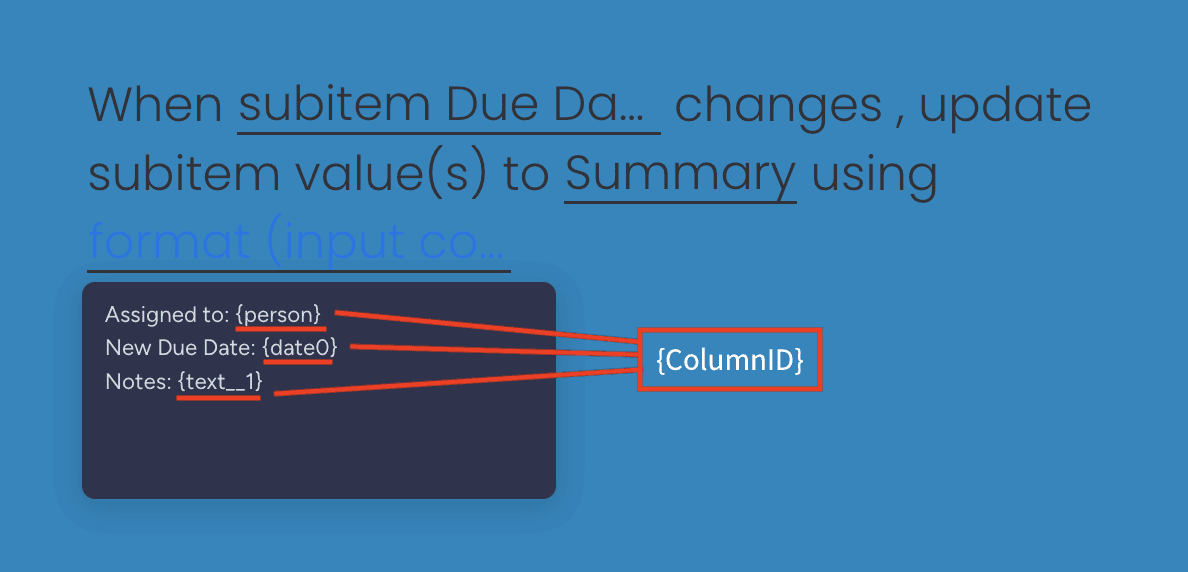
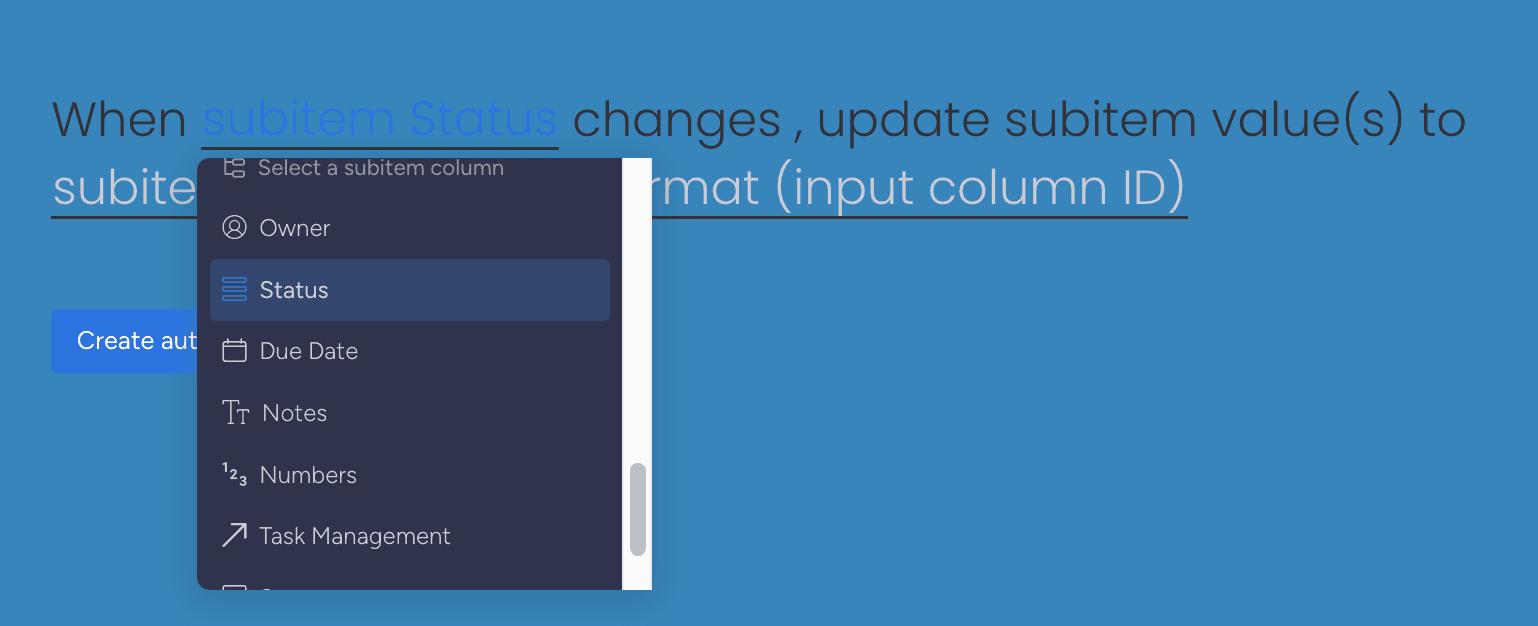
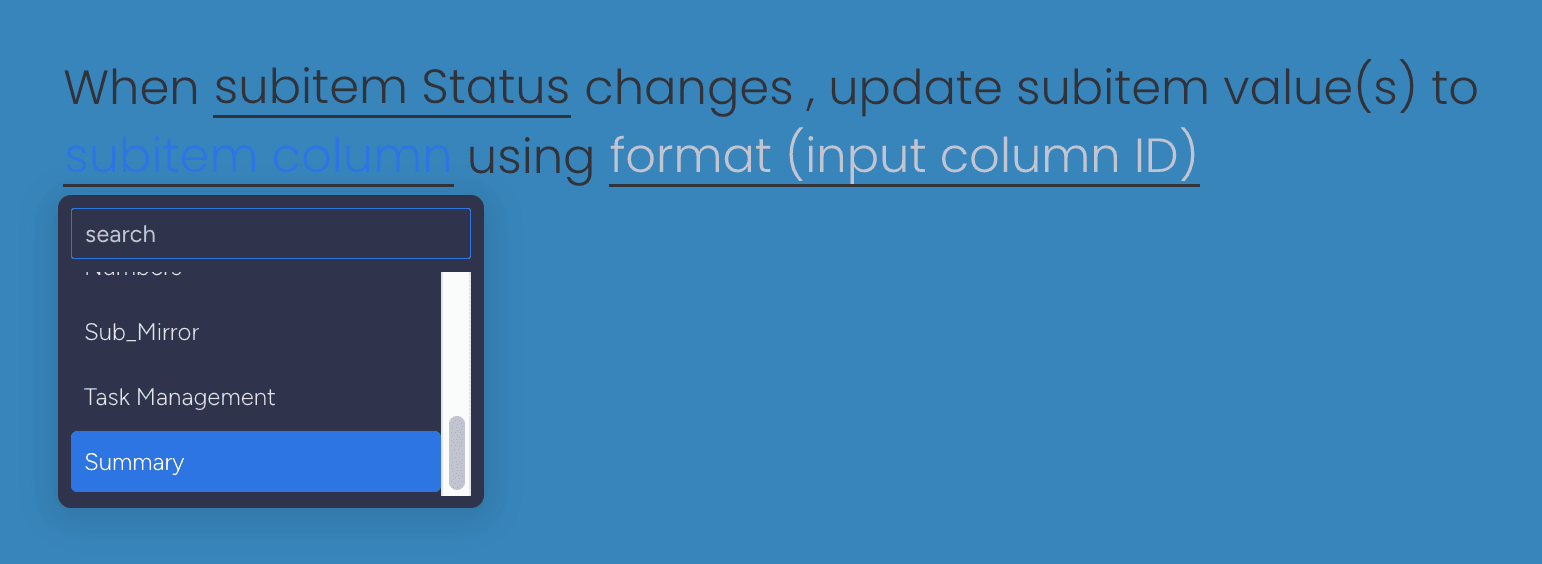
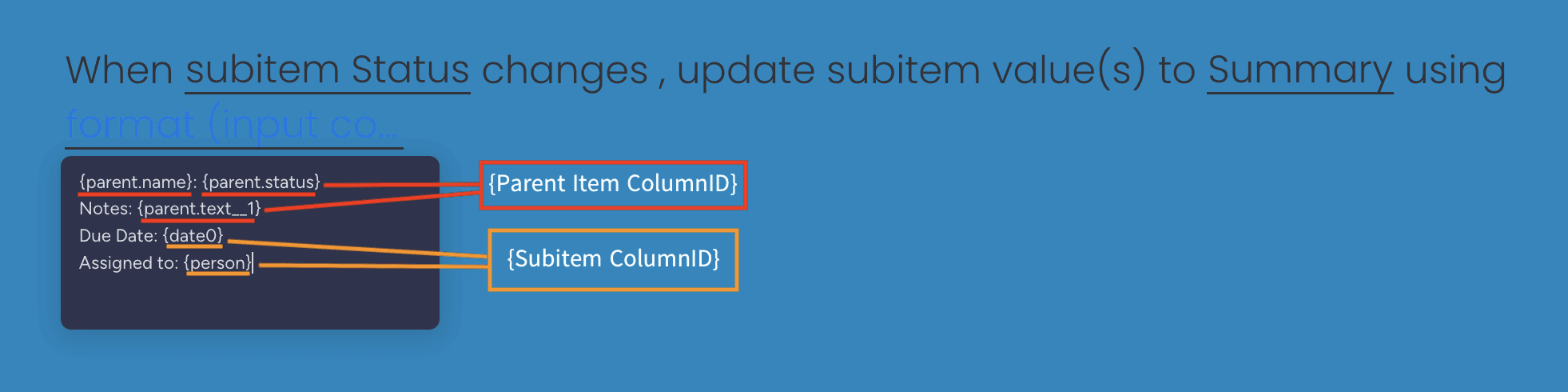
Important: For subitem operations, you must use Column IDs in the format field instead of the auto-populate feature.
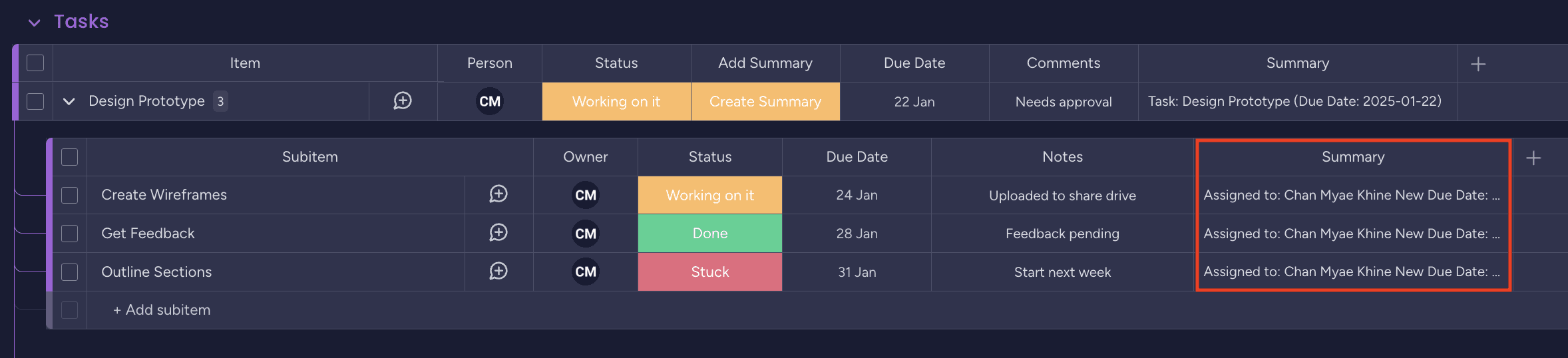
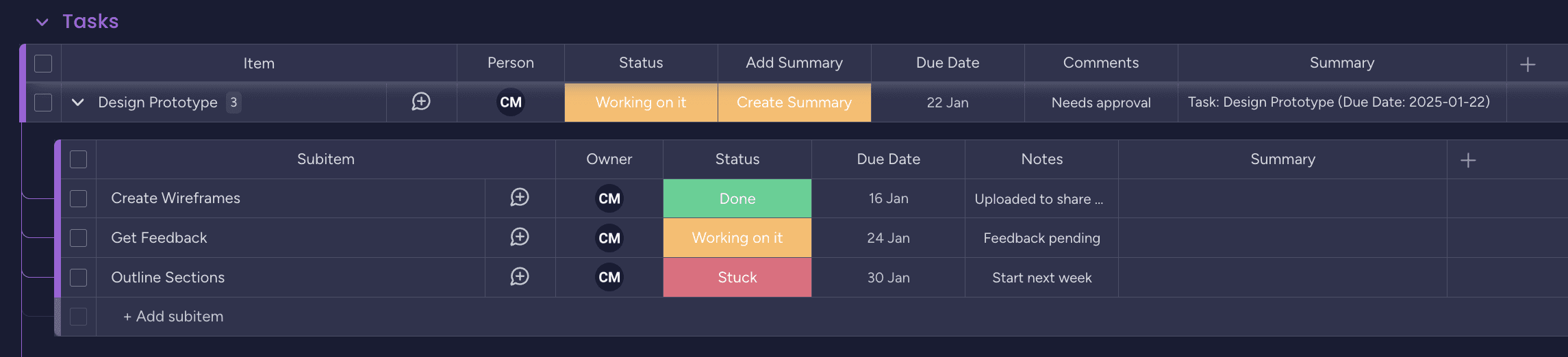
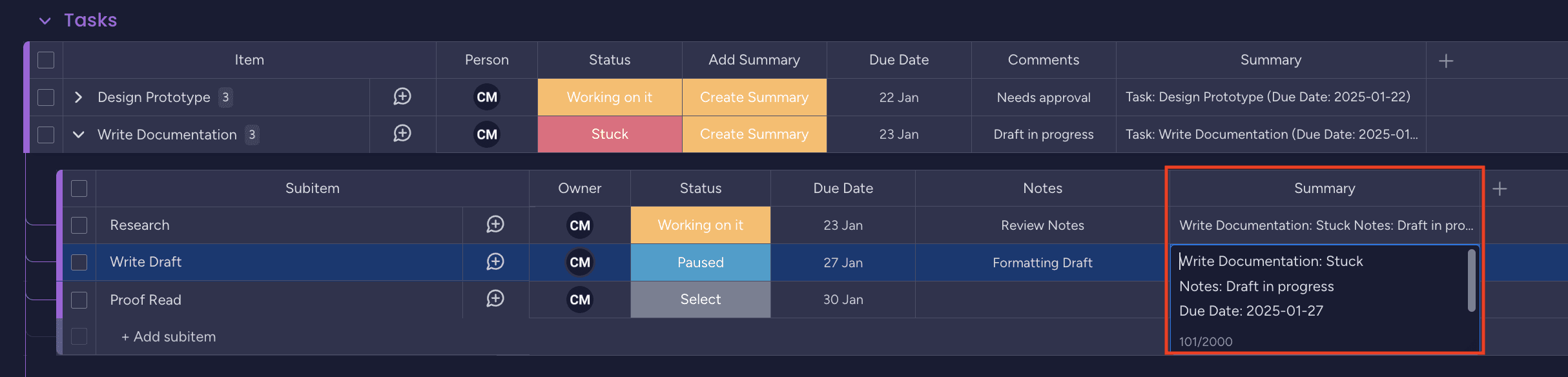
Use Case: Combine Owner, Due Date, and Notes in a Summary subitem column
6. Item + Subitem to Subitem Column
Combine data from both item and subitem columns, then paste into a subitem column.
Overview
Available Integrations
✓ When column changes, update item value(s) to all subitem column using format
✓ When column changes, update subitem value(s) to subitem name using format
✓ When column changes, update subitem value(s) to subitem column using format
✓ When status changes to something, update item value(s) to all subitem column using format
Use Case: Combine parent Task Name and Status with subitem Due Date and Owner
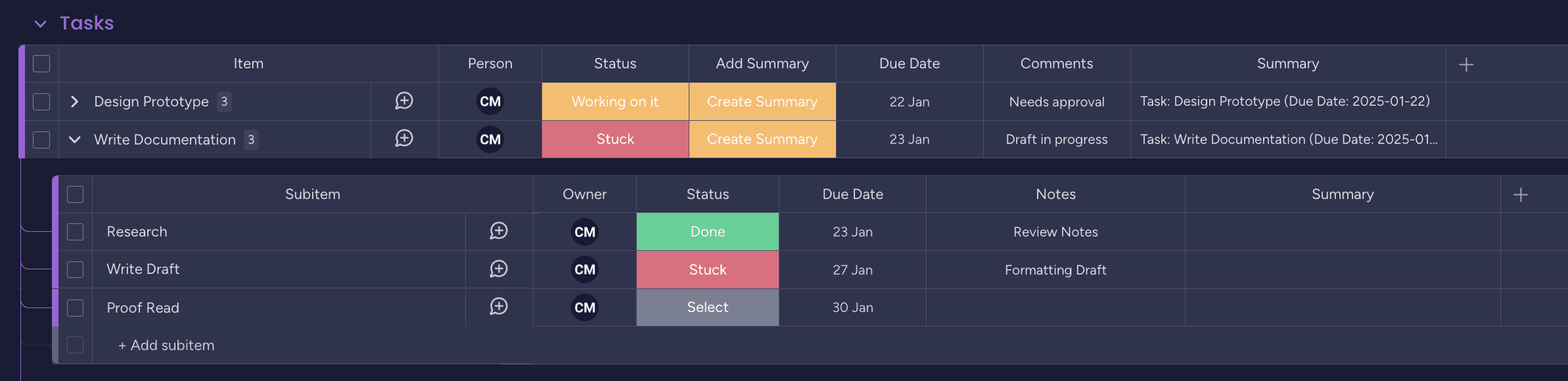
7. Subitem to Parent Item Column
Copy data from subitem column(s) and paste into the parent item column.
Overview
Available Integrations
✓ When subitem name changes, update subitem value(s) to item name using format
✓ When column changes, update subitem value(s) to item name using format
✓ When a subitem is created, update subitem value(s) to item column using format
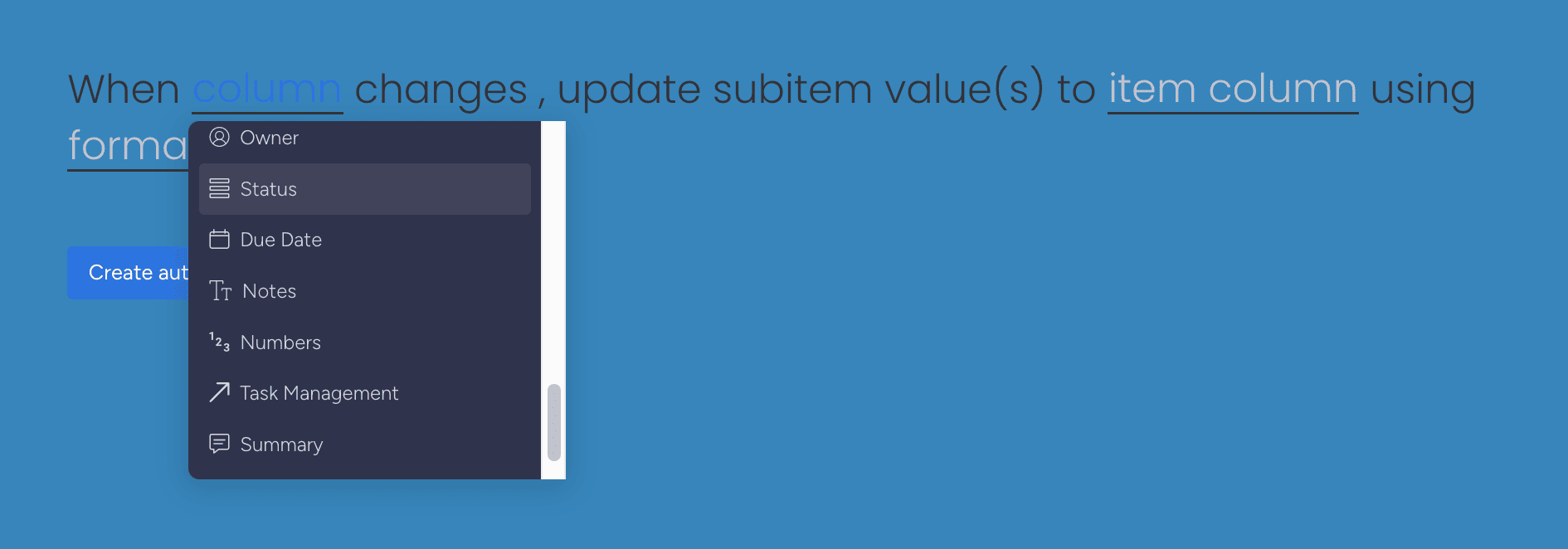
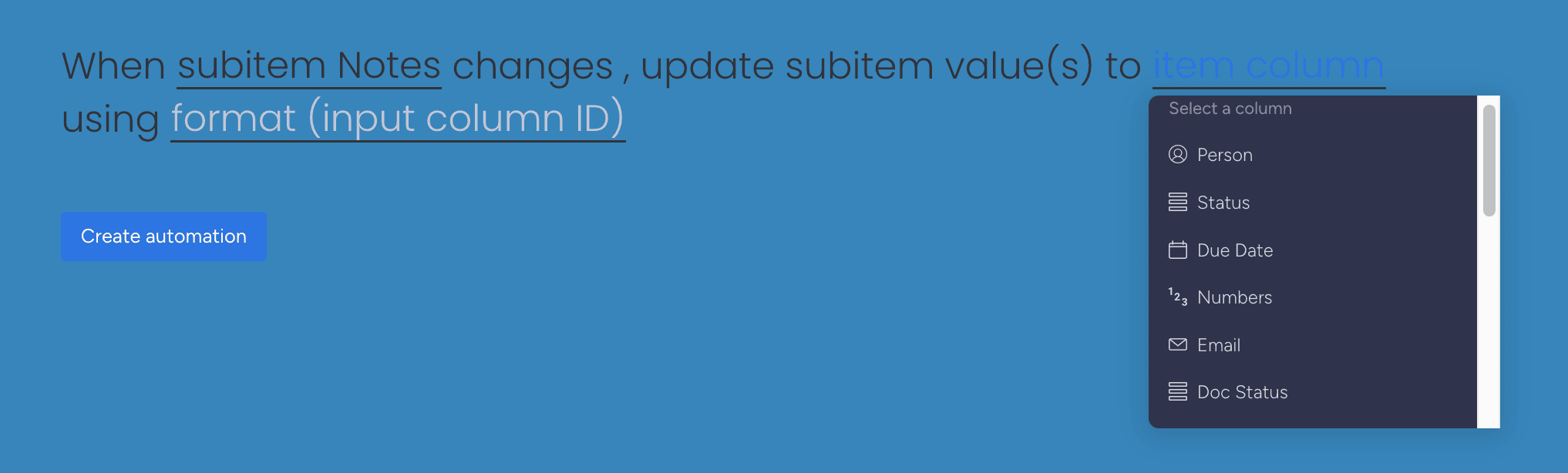
✓ When column changes, update subitem value(s) to item column using format
✓ When subitem name changes, update subitem value(s) to item column using format
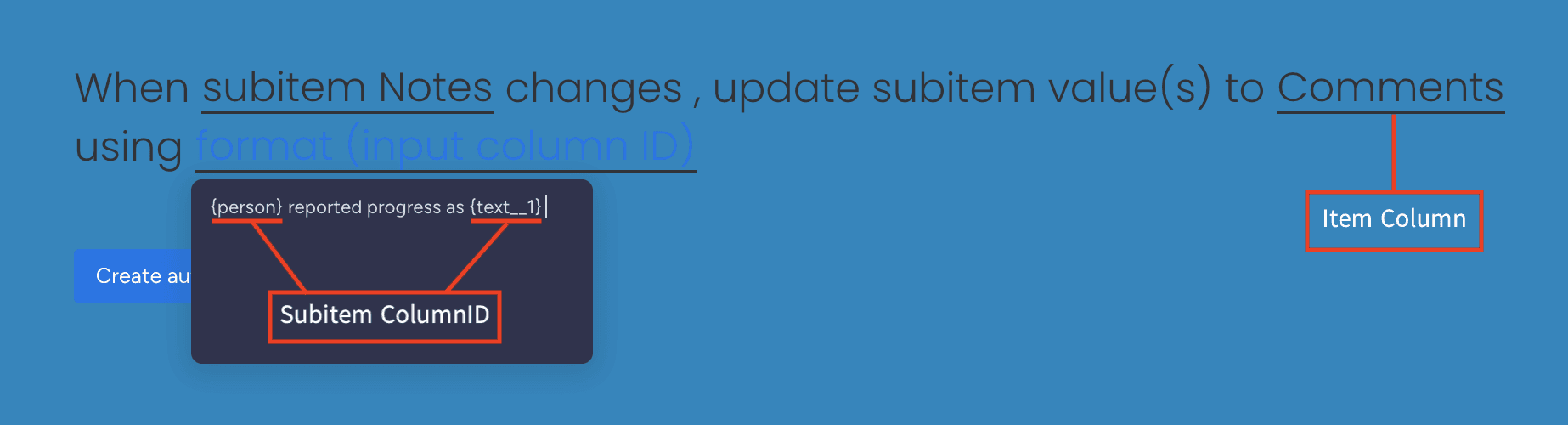
Use Case: Push subitem Owner and Notes to parent item Comments column
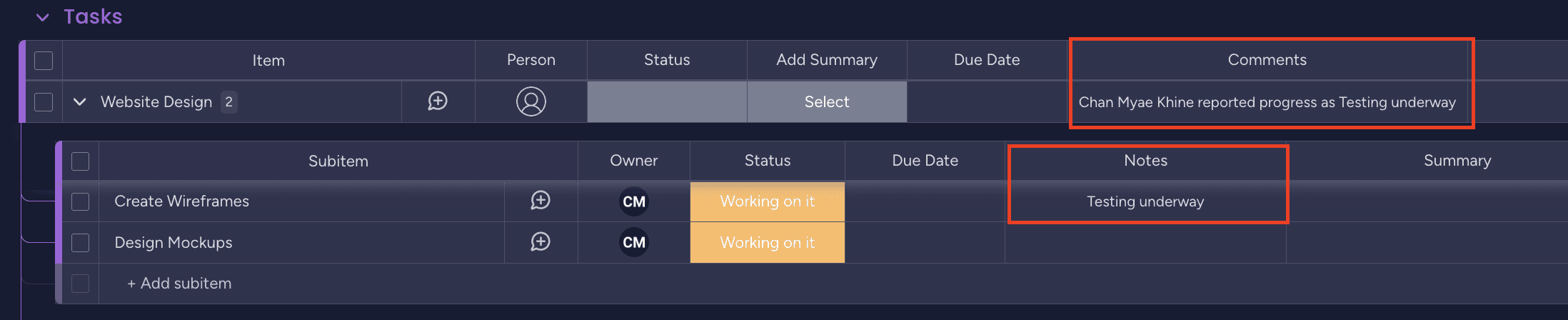

8. Item to All Subitems
Copy data from item column(s) and paste into all subitem columns at once.
Overview
Available Integrations
✓ When column changes, update item value(s) to all subitem column using format
✓ When status changes to something, update item value(s) to all subitem column using format
Batch Operation: This integration updates ALL subitems at once. Use carefully to avoid overwriting existing data.
Use Case: Propagate Client Name from item to all subitems combined with each subitem’s Due Date
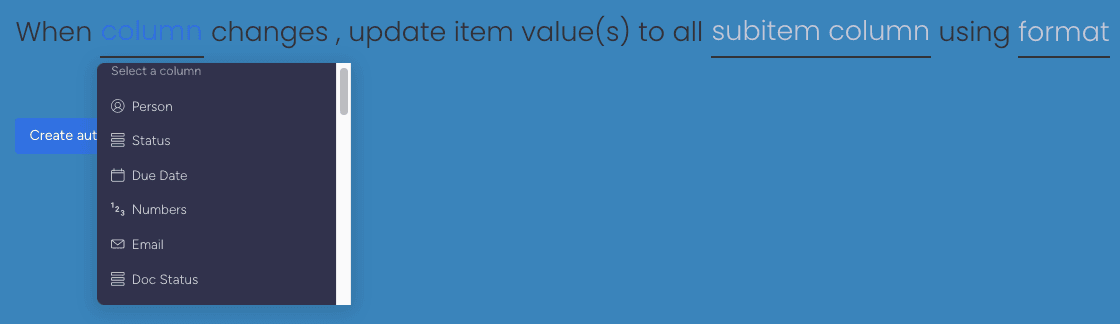
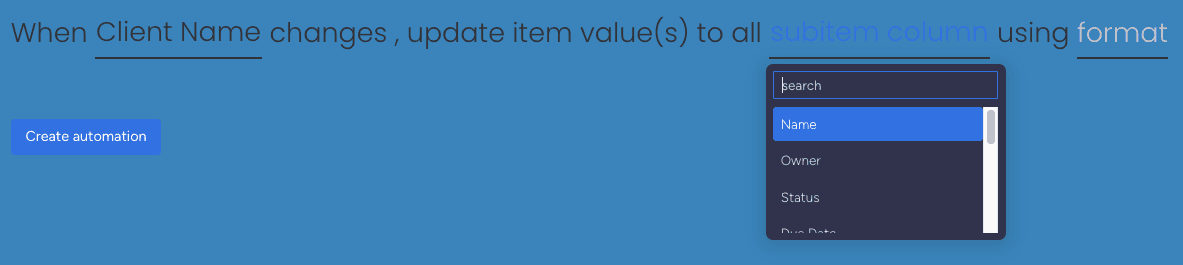
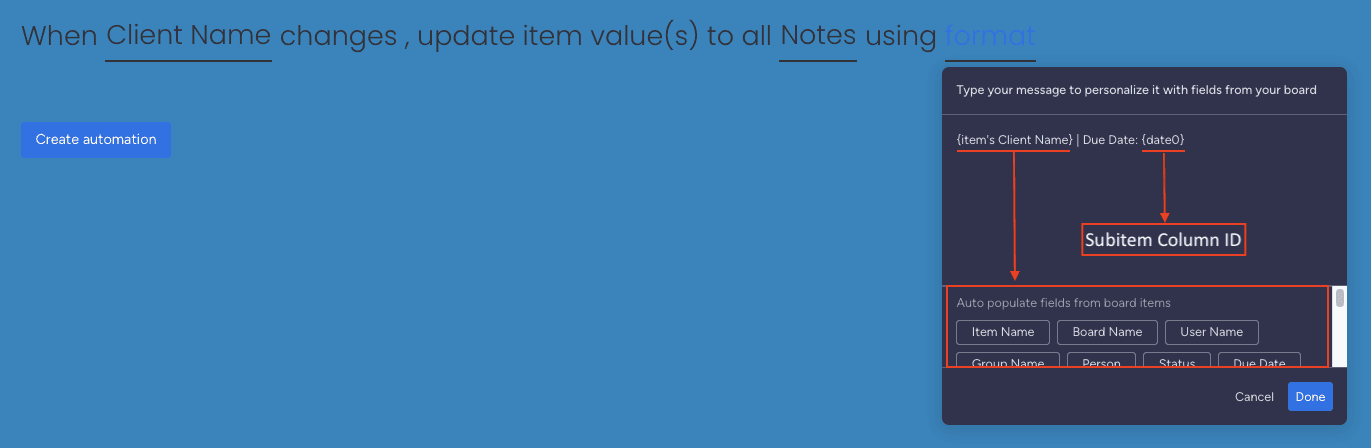
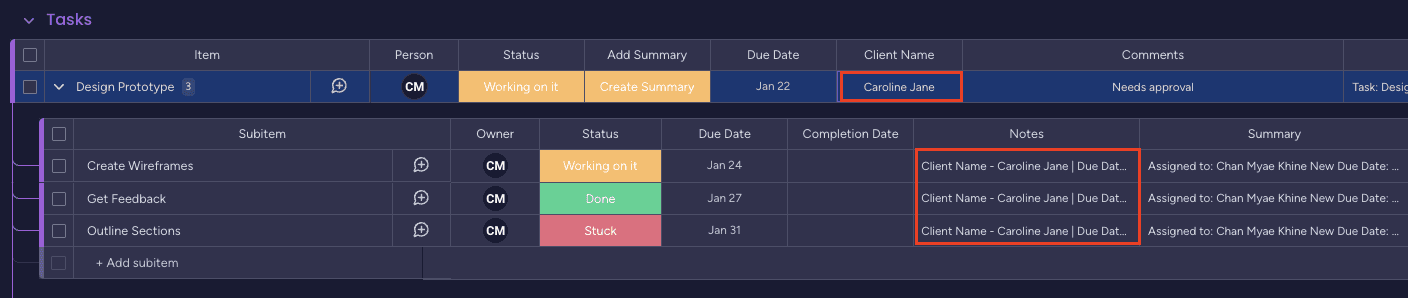

9. Subitem to Subitem Mirror Column
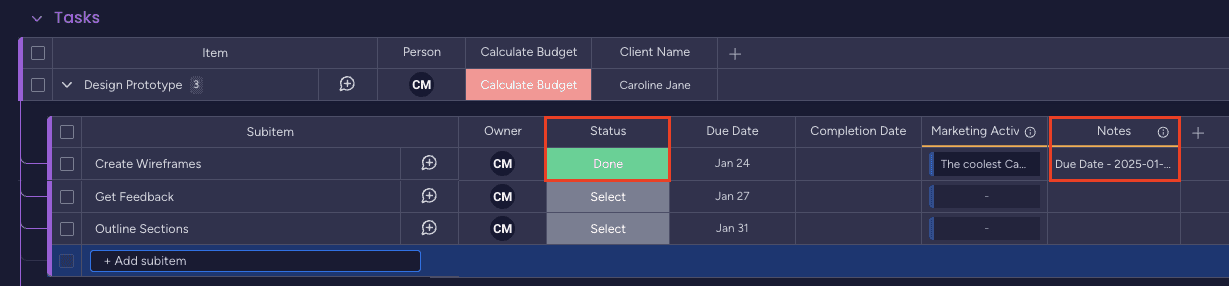
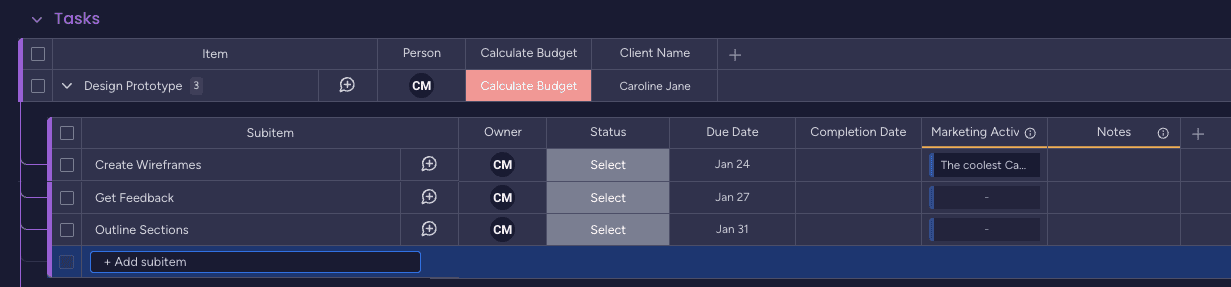
Copy data from subitem column(s) and paste into a subitem mirror column.
Overview
Available Integrations
✓ When column changes, update subitem value(s) to subitem’s mirror column using format
✓ When subitem name changes, update subitem value(s) to subitem’s mirror column using format
Use Case: Combine Due Date and Status in a Notes mirror column
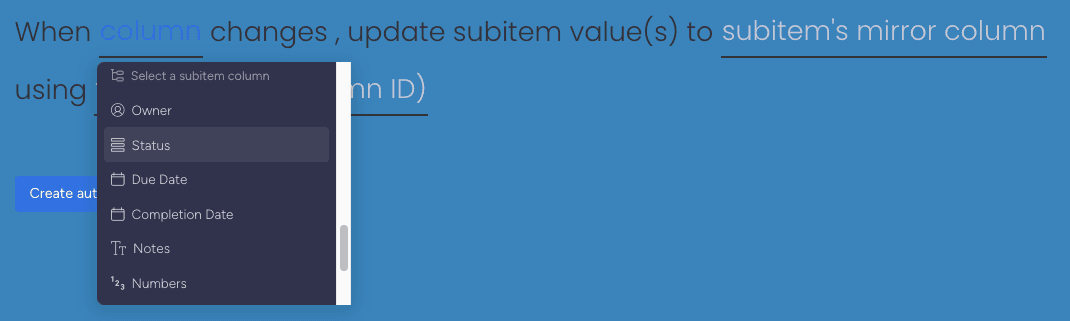
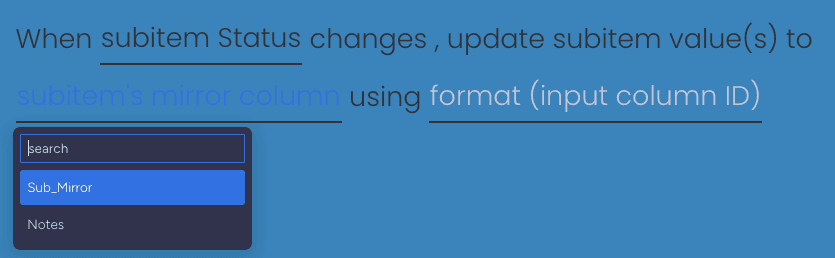
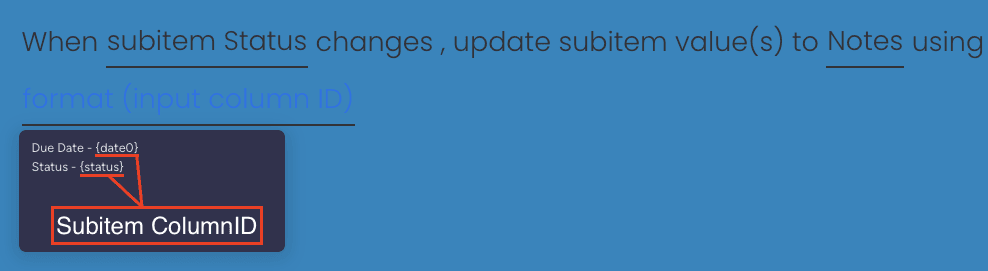
10. Subitem Mirror to Subitem Column
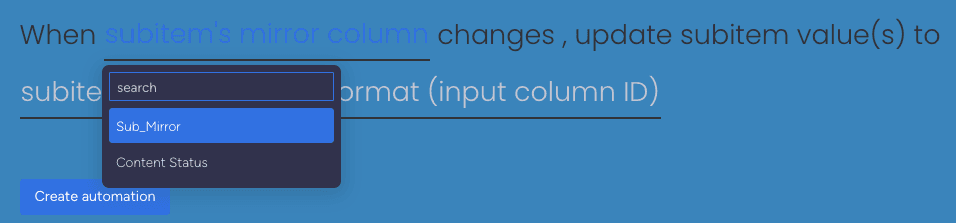
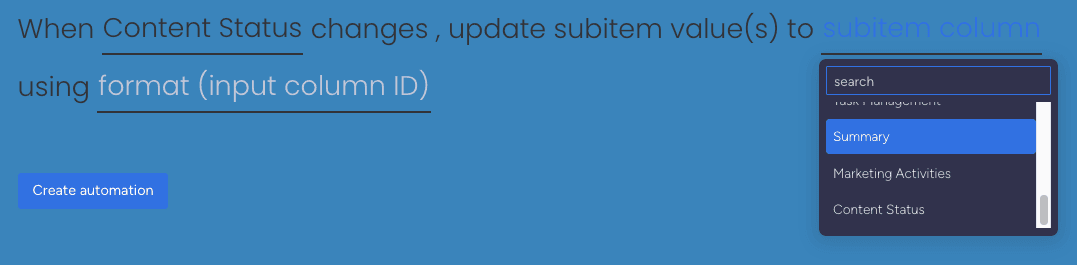
Copy data from subitem mirror column(s) when the mirror changes, and paste into subitem columns.
Overview
Available Integrations
✓ When mirror column changes, update item value(s) to all subitem column using format
✓ When subitem’s mirror column changes, update subitem value(s) to subitem column using format
✓ When subitem’s mirror column changes, update subitem value(s) to subitem name using format
✓ When subitem’s mirror column changes, update subitem value(s) to item name using format
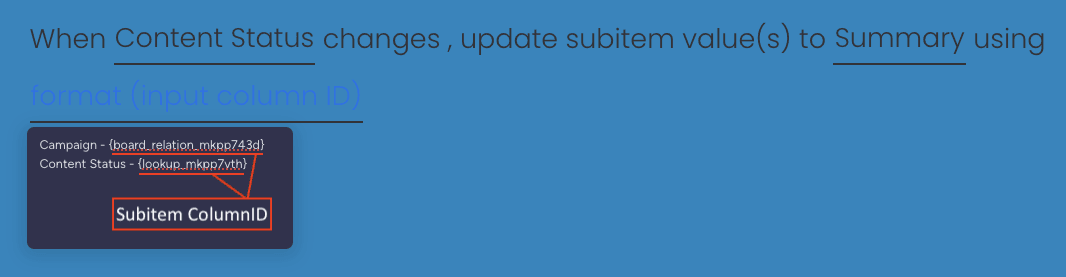
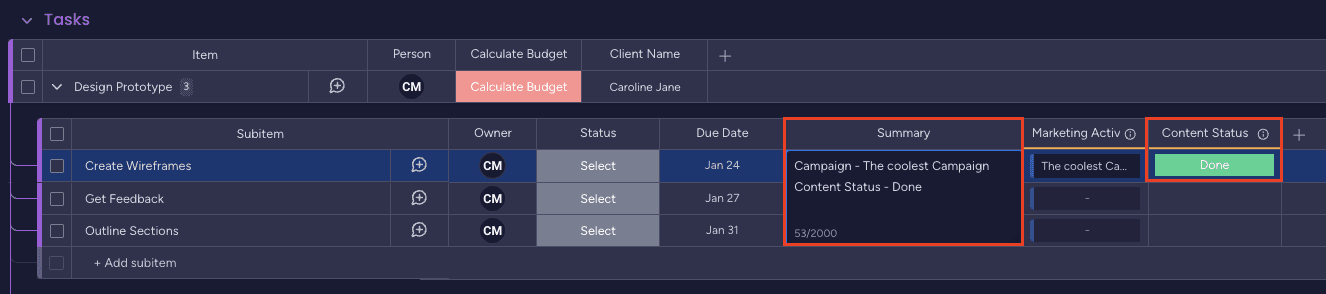
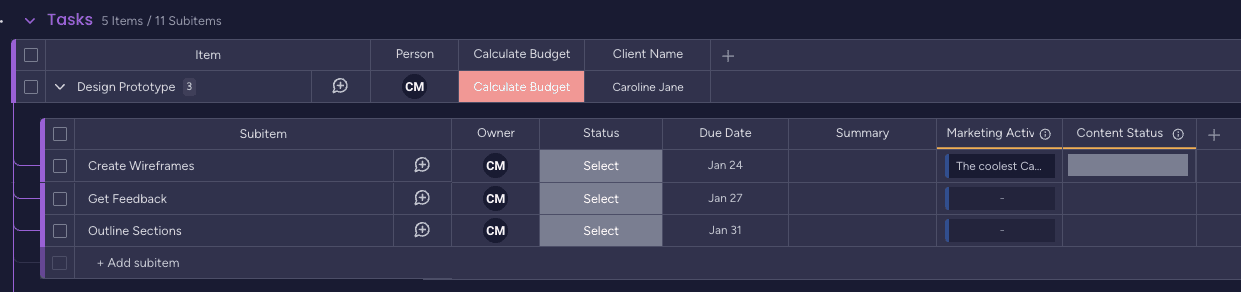
Use Case: Combine Marketing Activities (connect board) with Content Status (mirror) in Summary
Appendix
Supported Column Types
Understanding which column types support copy and paste operations is crucial for setting up your automations correctly.
| Column Type | Copy From | Paste To | Notes |
|---|---|---|---|
| 📝 Name | ✅ | ✅ | Full support |
| 📄 Text | ✅ | ✅ | Full support |
| 📑 Long Text | ✅ | ✅ | Full support |
| 🔘 Status | ✅ | ✅ | Full support |
| 🏷️ Label | ✅ | ✅ | Full support |
| 📋 Dropdown | ✅ | ✅ | Full support |
| 📅 Date | ✅ | ⚠️ | Only to same type |
| 🔢 Number | ✅ | ⚠️ | Only to same type |
| 👥 People | ✅ | ❌ | Copy only |
| 🔗 Link | ✅ | ❌ | Copy only |
| 🔗 Connect Boards | ✅ | ❌ | Copy only |
| 🪞 Mirror | ✅ | ❌ | Copy only |
| 📊 Timeline | ✅ | ❌ | Copy only |
| 📝 Creation Log | ✅ | ❌ | Copy only |
| 🆔 Item ID | ✅ | ❌ | Copy only |
| 📱 Phone | ✅ | ❌ | Copy only |
| ✅ | ❌ | Copy only | |
| ➗ Formula | ❌ | ❌ | Not supported |
Understanding Support Levels
Full Support
Can copy FROM and paste TO these columns. Example: Text column supports both operations.
Same Type Only
Can paste only to columns of the same type. Example: Date can only paste to Date columns.
Copy Only
Can copy FROM but cannot paste TO. You can paste these values to Text, Name, or Long Text columns.
Workaround for Copy-Only columns: While you cannot paste directly into People, Link, or Mirror columns, you can copy their values and paste them into Text, Name, Long Text, Status, or Dropdown columns.
How to Find Column IDs
Column IDs are required when working with subitem operations. Here’s how to find them:
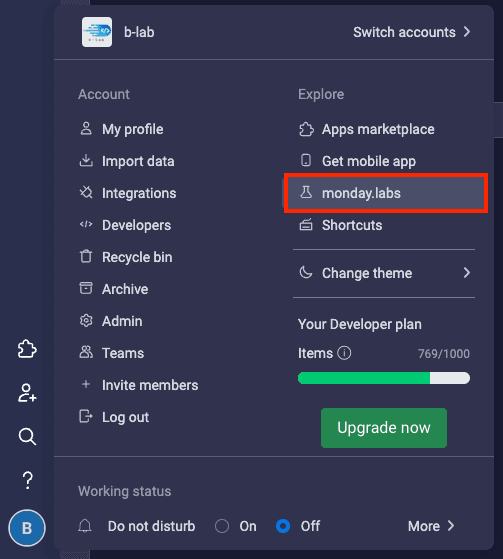
Enable Developer Mode
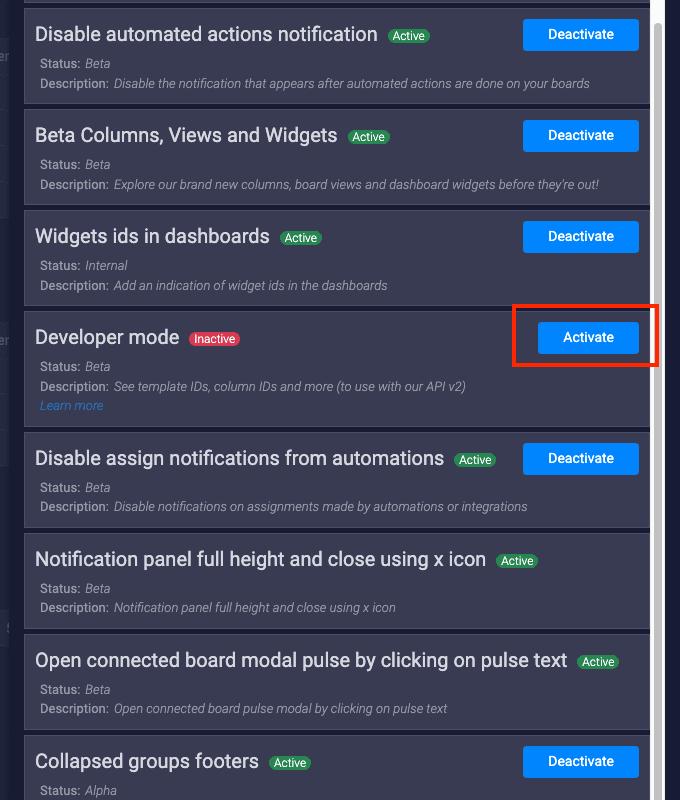
Go to your avatar in Monday.com, then click on monday.labs
Activate the Feature
A popup window will appear. Find the Developer mode section and click Activate
Access Column Settings
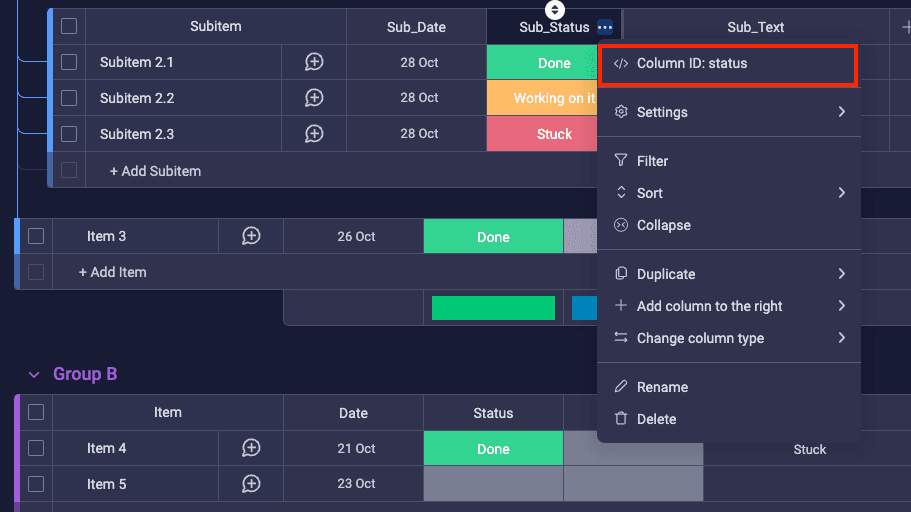
Once Developer mode is active, go to any column and click the 3 dots (⋮) on the right side of the column name
Copy the Column ID
The Column ID will appear on the first line of the menu. Click on it to copy it to your clipboard
Use in Format Field
Paste the Column ID in your format field using curly brackets: {columnID}
Example: {text0}, {status}, {date4}, {person5}Quick tip: Keep a document with your board’s column IDs for easy reference when setting up multiple automations.
Column ID Syntax Reference
Format Syntax Guide
{columnID}Example: {text0}, {date4},
{person5}Parent Item Columns (from subitem context):
{parent.columnID}Example: {parent.text0},
{parent.status}Text {columnID1} more text {columnID2}Example:
Owner: {person5} | Due: {date4} | Notes: {text8}Support & Resources
Need additional help or want to learn more about Copy Paste Master?
Need Assistance?
Our dedicated support team is ready to help you get the most out of Copy Paste Master. Whether you have questions about setup, column ID configuration, or advanced automation recipes, we’re here to assist.
Contact Support Team →