Auto Increment Numbers User Guide

Auto Increment Numbers allows you to generate sequential numbers in text columns of items or subitems in Monday.com, with custom formats. Perfect for creating IDs, tracking numbers, tickets, or structured labels.
Introduction
The Auto Increment Numbers (AIN) app allows you to generate sequential numbers in text columns of items or subitems in Monday.com. You can customize the format of the numbers (prefix, suffix, number of digits, starting value) and trigger their generation through specific events (item creation, status change, column update, etc.).
Important Limitation: Processing multiple items at the same time may result in random numbering order, and delays
Getting Started
Step 1: Open your Monday.com board
Navigate to the board where you want to set up AIN.
Step 2: Choose a preset integration or create a custom automation
Go to the Integration Center of your board and select an AIN recipe or create a custom automation.
Step 3: Fill in the required fields
• Column: Select the text column where the number will be generated.
• Prefix or Suffix: Choose whether to apply the format before (prefix) or after (suffixe) the number.
• Format: Enter a text value (e.g., INV_,
_TASK).
• Number of Digits: Define the total digit length (e.g., 3 will produce 001, 002, etc.).
• Number: Enter the starting value (e.g., 10 will start at 010).
Step 4: Use preset recipes or create your own custom automation
AIN offers preset recipes for common use cases.
Items : 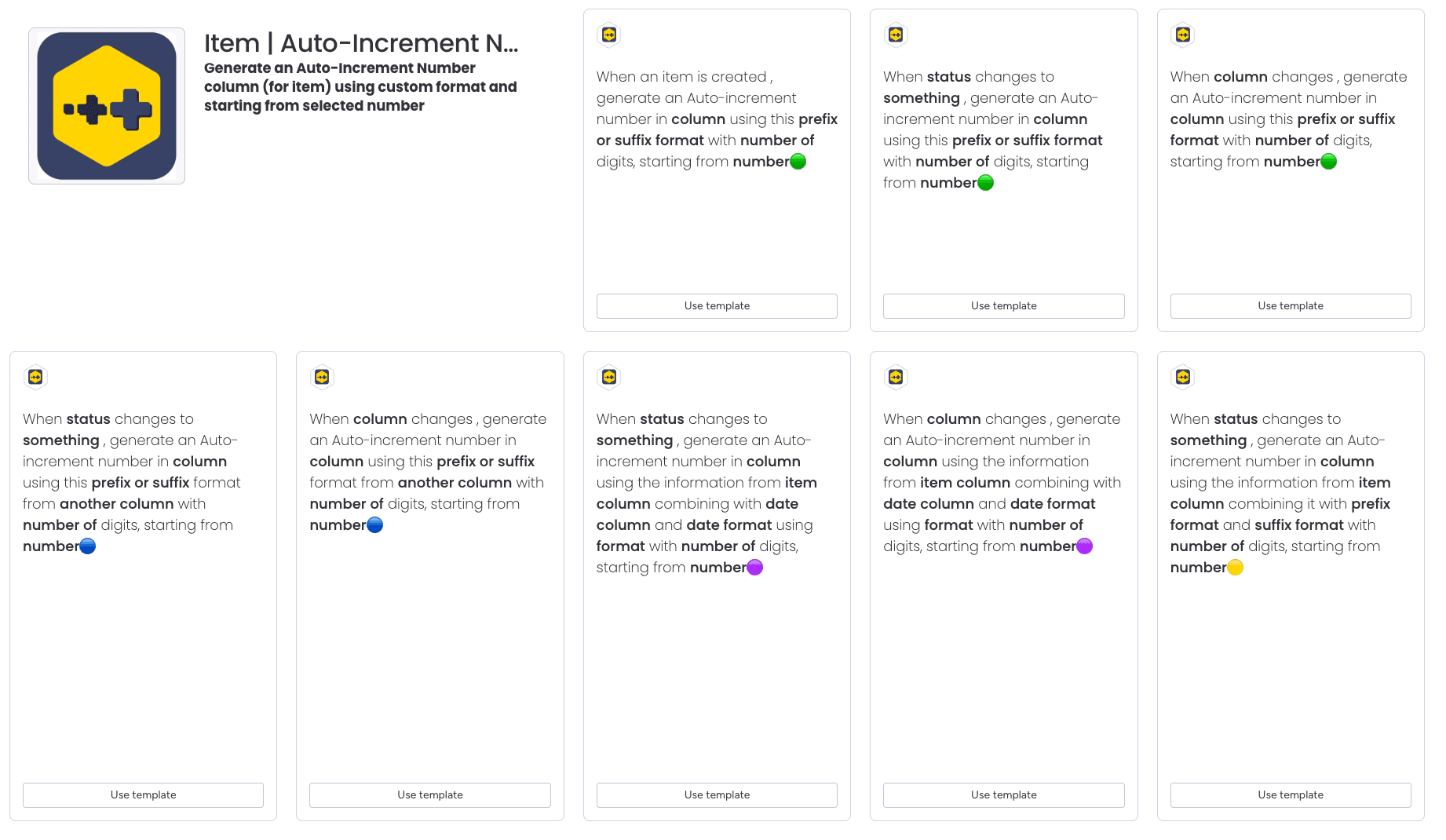
Subitems : 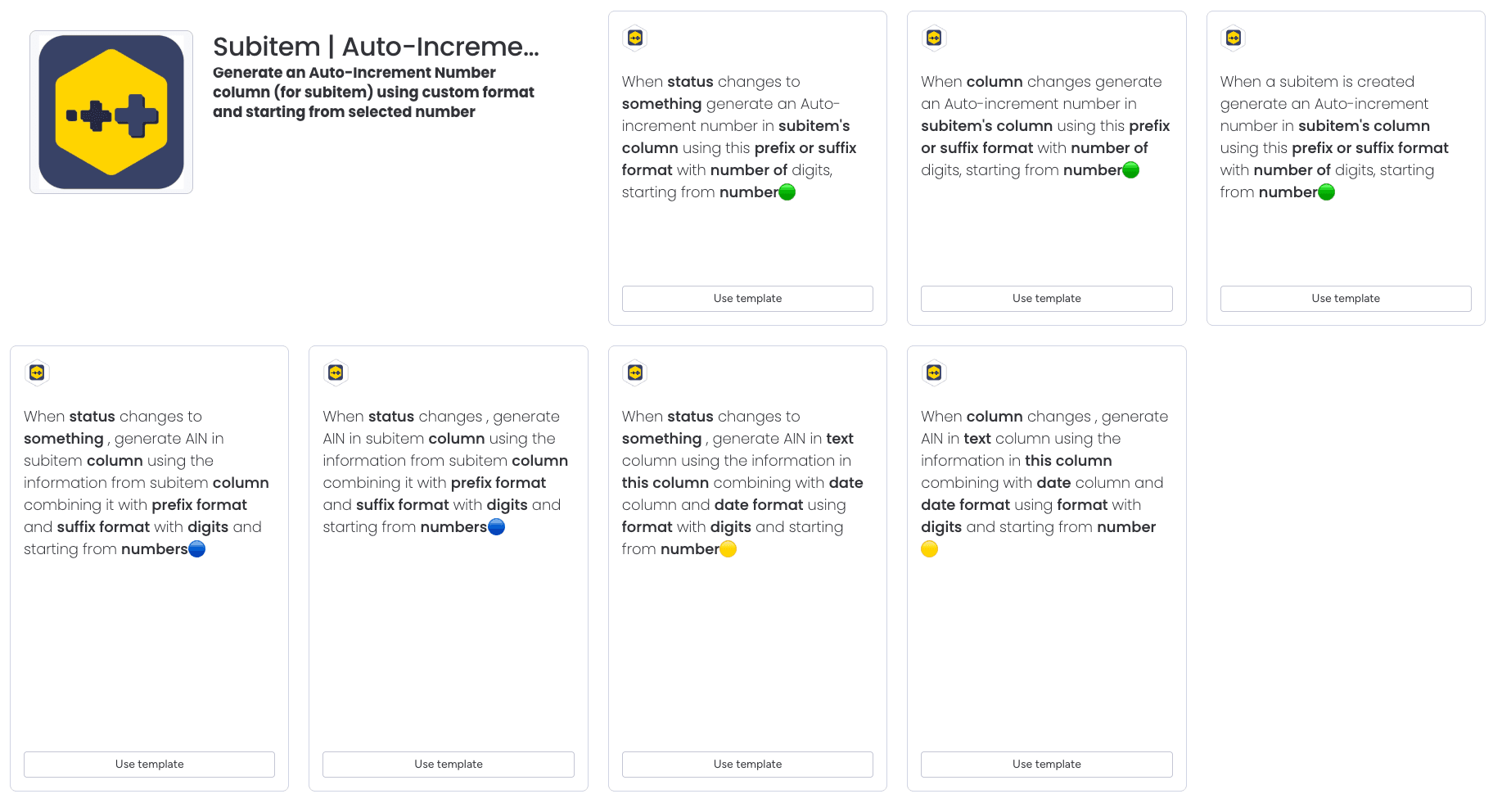
You can also create custom automations for specific needs. 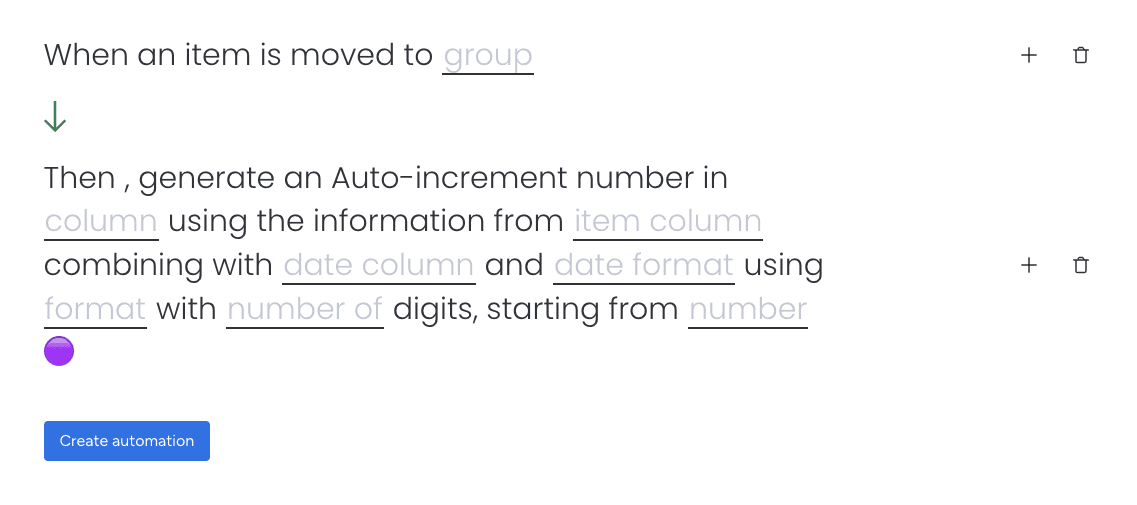
Tip: Start by identifying your target column and the trigger event, then select the matching recipe.
Automation Recipes
Available recipes
AIN provides preset recipes for items and subitems. Here are the available options:
Item Recipes
🟢 When an item is created, generate an auto-increment number in column using this prefix or suffix format with number of digits, starting from number
🟢 When status changes to something, generate an auto-increment number in column using this prefix or suffix format with number of digits, starting from number
🟢 When column changes, generate an auto-increment number in column using this prefix or suffix format with number of digits, starting from number
🔵 When status changes to something, generate an auto-increment number in column using this prefix or suffix format from another column with number of digits, starting from number
🔵 When column changes, generate an auto-increment number in column using this prefix or suffix format from another column with number of digits, starting from number
🟣 When status changes to something, generate an auto-increment number in column using the information from item column combining with date column and date format, using format with number of digits, starting from number
🟣 When column changes, generate an auto-increment number in column using the information from item column combining with date column and date format using format with number of digits, starting from number
🟡 When status changes to something, generate an auto-increment number in column using the information from item column combining it with prefix format and suffix format with number of digits, starting from number
Recipe Explanation & Use cases
1. 🟢 Generate an auto-increment number with a prefix/suffix
How to use
Define a fixed prefix or suffix (e.g., REQ, DONE), specify the number of digits, and the starting value. Each time the trigger runs, a new sequential value is generated (e.g., REQ001, REQ002).
Example:
- Prefix:
Test_ - Number of digits: 3
- Starting value: 10
Result: Test_010, Test_011, Test_012, …
2. 🔵 Generate an auto-increment number by combining a column with a prefix/suffix
How to use
Pull a value from another column (e.g., client name, project code) and combine it with a prefix and suffix to create dynamic IDs.
Example:
- Prefix:
ID- - Column value:
Alpha - Suffix:
-X - Number of digits: 2
- Starting value: 1
Result: ID-Alpha01-X, ID-Alpha02-X, …
3. 🟣 Generate an auto-increment number by combining a column with a date
How to use
Use a value from a column (e.g., client name) and combine it with a formatted date (e.g., YYYYMMDD) to create traceable IDs.
Custom Format: Your format string should contain these placeholders:
{source}: Value from the source column{date}: Value from the date column in the selected date format{ain}: Auto-increment number
Example:
- Column value:
ClientA - Date:
2025-08-01 - Date format:
YYYYMMDD - Custom format:
ID-{source}-{date}{ain} - Number of digits: 3
- Starting value: 5
Result: ID-ClientA-20250801005, ID-ClientA-20250801006, …
4. 🟡 Generate an auto-increment number with custom prefix and suffix
How to use
Dynamically insert a value from an item column and wrap it with a prefix and suffix.
Example:
- Column value:
Alpha - Prefix:
PRE- - Suffix:
-X - Number of digits: 2
- Starting value: 1
Result: PRE-Alpha01-X, PRE-Alpha02-X, …
Appendix
Supported Column Types
AIN supports the following column types for generating sequential numbers:
| Column Type | Supported | Notes |
|---|---|---|
| 📝 Text | ✅ | Full support |
| 📑 Long Text | ✅ | Full support |
| 🆔 Item ID | ✅ | Full support |
| 🪞 Mirror | ✅ | Full support |
Support & Resources
Need additional help or want to learn more about Auto-Increment Number?
Need Assistance?
Our dedicated support team is ready to help you get the most out of Auto-Increment Number. Whether you have questions about setup, custom formats, or advanced automation recipes, we’re here to assist.
Contact Support Team →