Action Form
Create actionable emails with clickable buttons that update your Monday.com board status columns — all without the recipient needing a Monday account.
Creating an Action Form
In the SmartForm board view, create a new form and select Action Form to build one alongside your existing Item, Subitem, and Survey forms.
The Form Editor
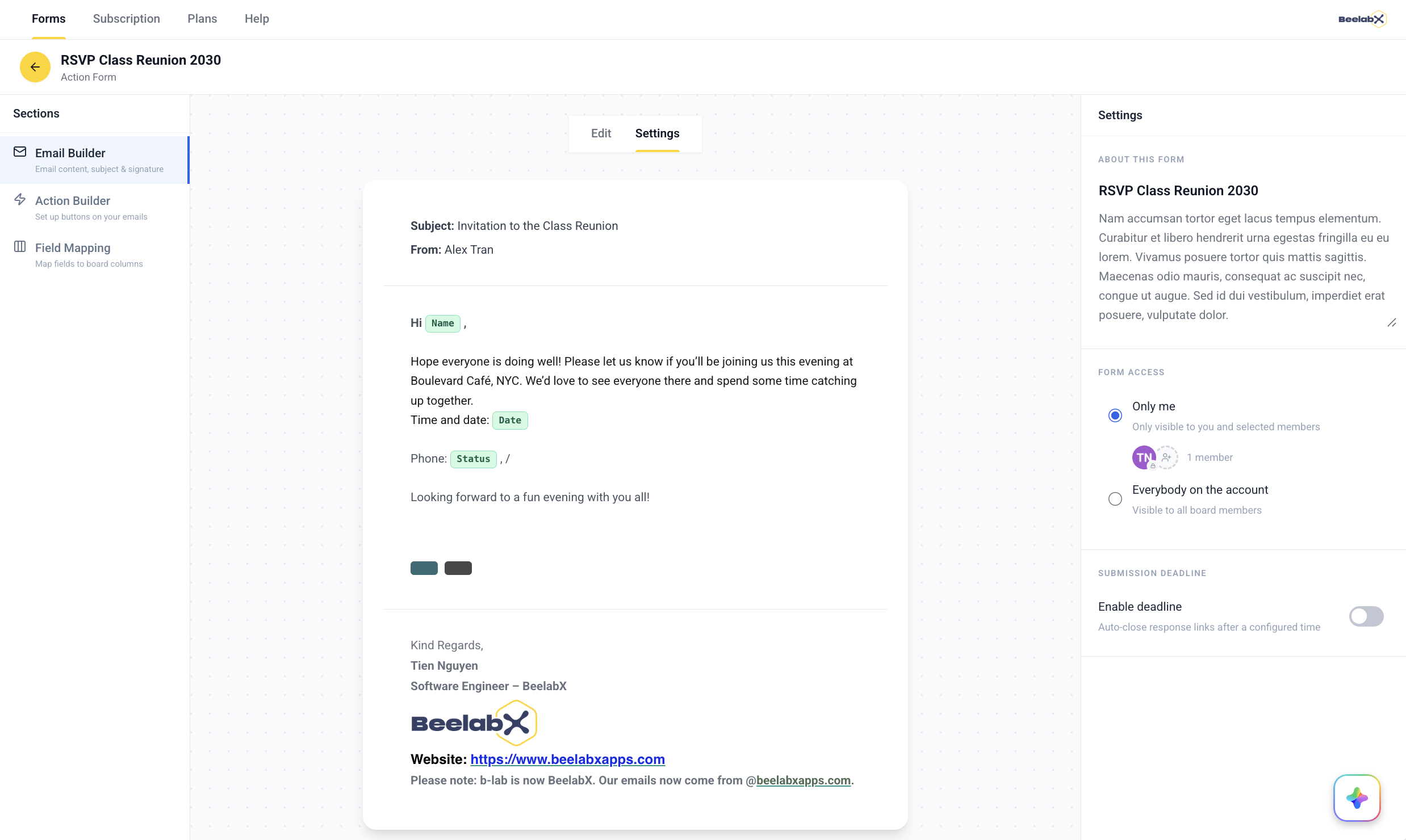
The Action Form editor uses a three-panel layout:
| Area | Purpose |
|---|---|
| Left sidebar | Switch between the three build steps: Email Builder, Action Builder, and Field Mapping |
| Center canvas | A live, inline-editable preview of the email your recipients will receive |
| Right panel | Context-aware controls for the selected step |
A tab switcher at the top of the canvas moves between Edit (build the email and actions) and Settings (form metadata and behavior).
Changes are saved automatically. The left sidebar shows an amber indicator on Action Builder or Field Mapping when a required setting is still missing.
Email Builder
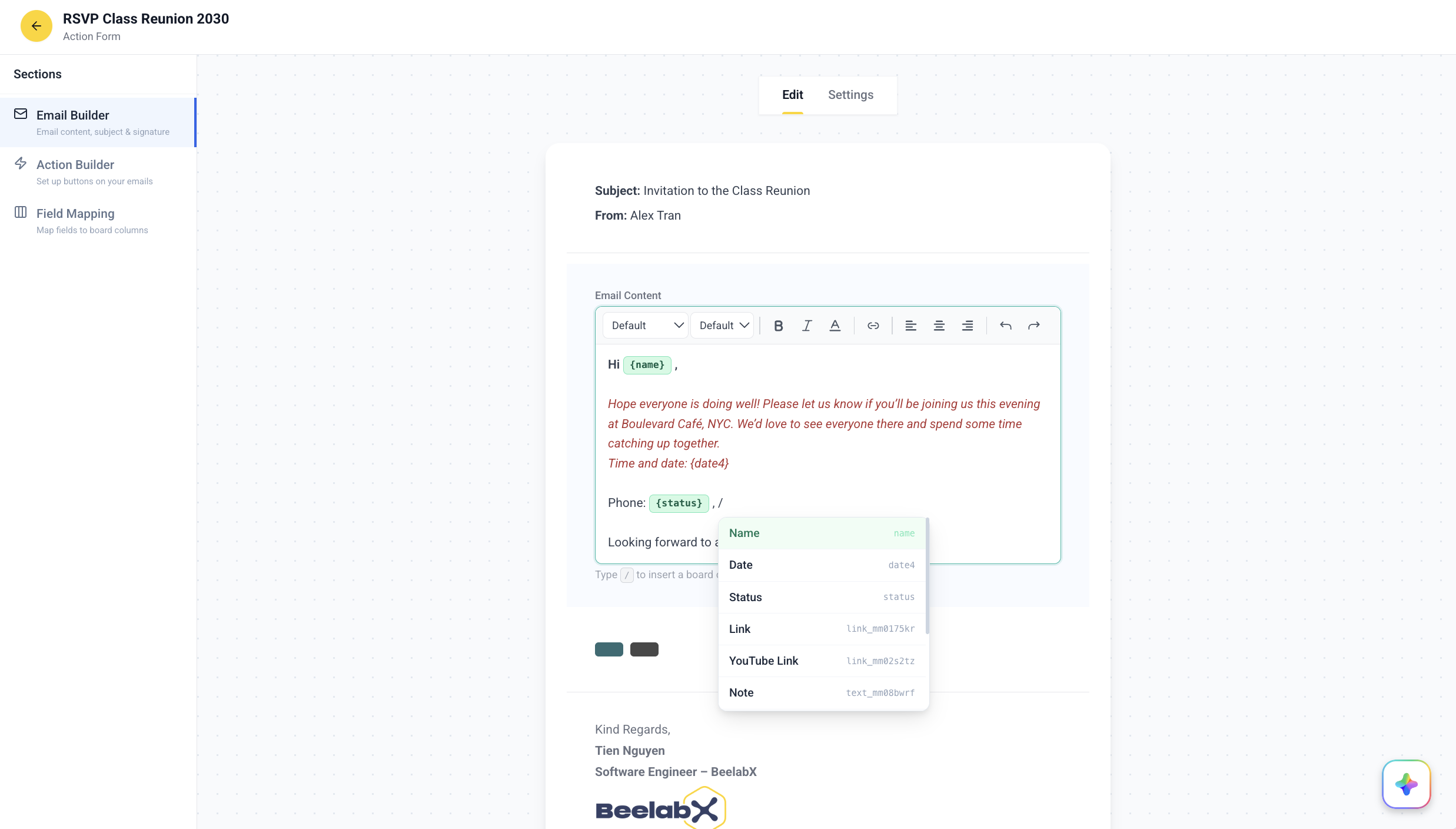
Select Email Builder to design the email your recipients receive. The email preview on the canvas is edited inline — click any zone to edit it.
Email Configuration
| Field | Description |
|---|---|
| Email Subject | Subject line shown in the recipient’s inbox |
| From | Display name of the sender |
| Email Content | Body text of the email — supports dynamic column references and rich formatting |
| Email Signature | Appended at the bottom — supports column references, links, and inline images |
Dynamic Column References
Personalize your emails by inserting values from your Monday.com board columns.
Type the / key
While editing the Email Content or Signature, press / to open the column reference menu.
Select a column
Choose from the list of available board columns (e.g., “Client Name”, “Company”).
Token is inserted
A column token (e.g., {client_name}) is inserted into the text. At send time, it is replaced with the actual item value.
Supported Column Types
Only columns matching the types below will appear in the / reference menu. Other column types are not supported for dynamic references.
| Column Type | Monday API Name |
|---|---|
| Text | text |
email | |
| Long Text | long-text / long_text |
| Numbers | numeric / numbers |
| Status | status / color |
| Link | link |
| Date | date |
| Phone | phone |
| Location | location |
| Rating | rating |
| Item Name | name |
Some types have multiple aliases (e.g., long-text / long_text, numeric / numbers, status / color) to handle inconsistencies in the Monday API naming.
Not supported: Timeline, People, Dropdown, Checkbox, File, Hour, Week, World Clock, Tags, Country, Mirror, Formula, Dependency, Board Relation, and Subitems columns cannot be used as dynamic references.
Email Signature with Images
The signature editor supports rich formatting including inline images. Use the toolbar to add a logo or branding asset, links, and text formatting to your signature.
Success Screen
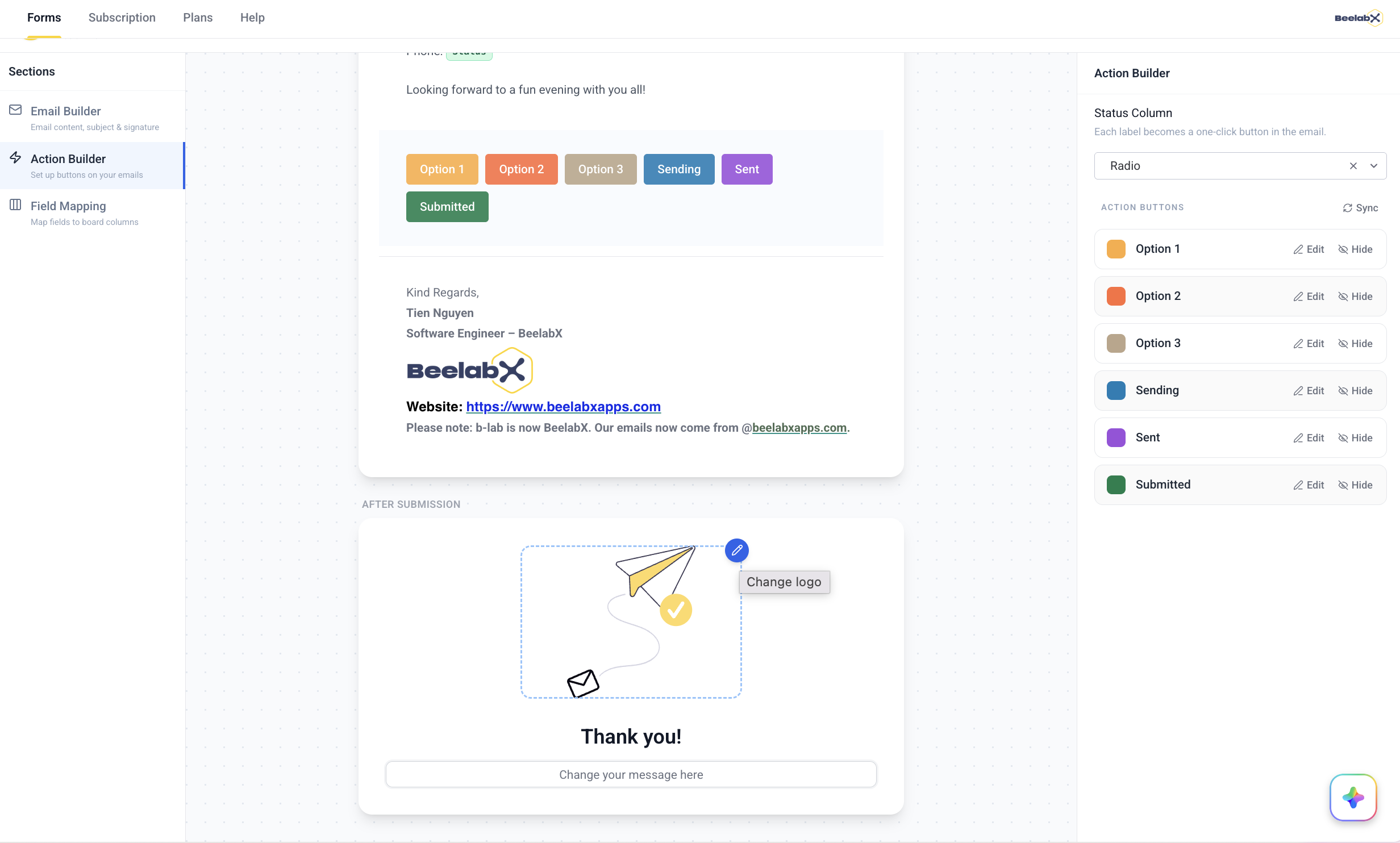
Below the email preview, the After Submission card previews what recipients see after clicking an action button.
| Element | Description |
|---|---|
| Success image | Hover the image and click edit to choose Hide Logo, Company Logo, or Upload Custom |
| Success Title | Heading shown after submission (default: “Your response has been submitted!”) |
| Success Message | Message shown below the heading (default: “Thank you for filling out this form.”) |
Action Builder
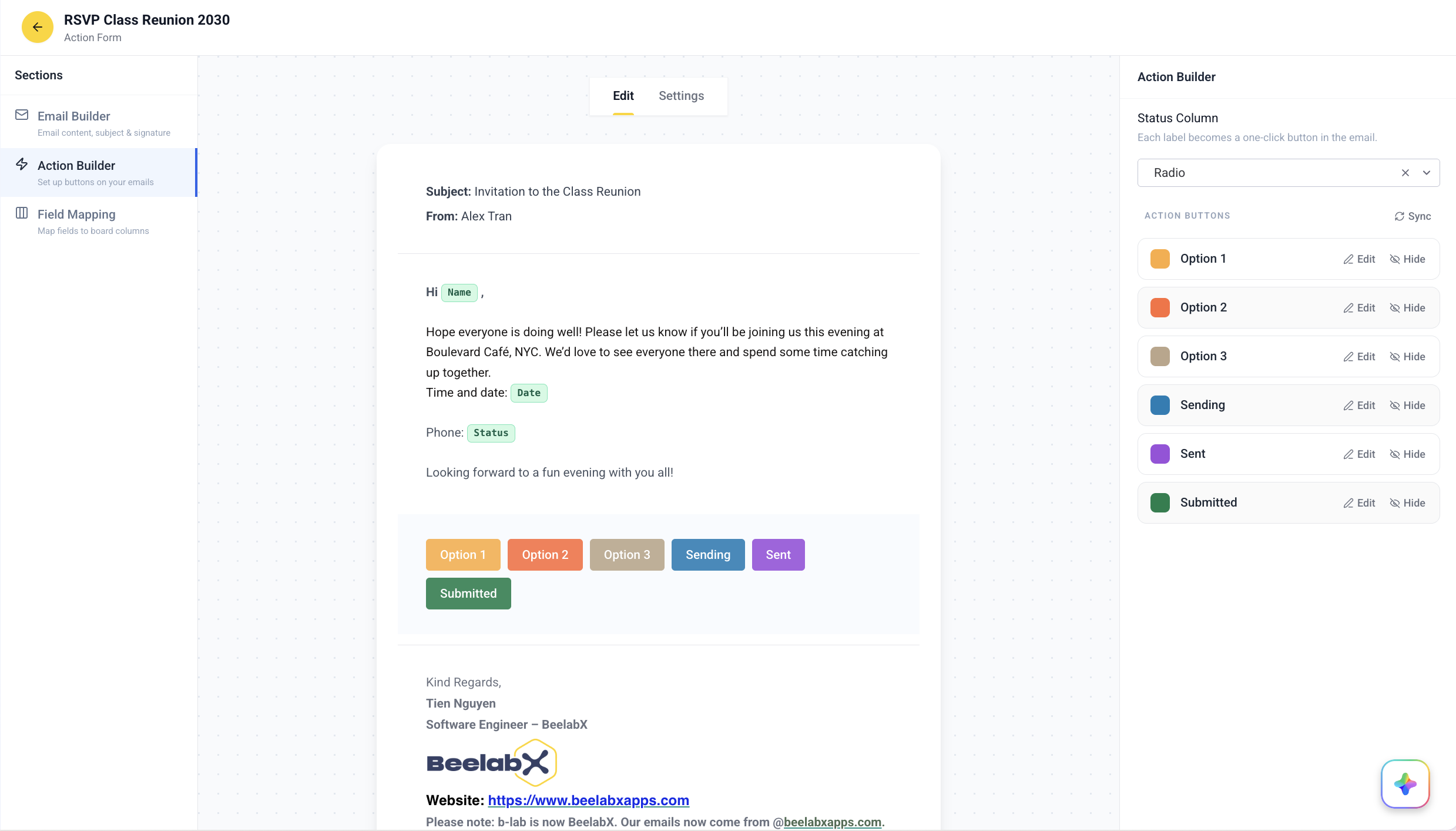
Select Action Builder to choose a Status column from your board and configure the clickable buttons that appear in the email. The controls appear in the right panel.
Selecting a Status Column
Open the Status Column Dropdown
Under Status Column, open the dropdown to view all available status and radio columns from your board.
Select a Column
Choose the column whose labels will become your action buttons. Existing status labels are automatically loaded as buttons.
Or Add a New Column
Each dropdown includes an Add new column option that opens the Column Center, so you can create the right column type without leaving the editor.
Only Status and Color/Radio column types are available for selection in the Action Builder.
Managing Action Buttons
Once a status column is selected, all of its labels are automatically loaded under Action Buttons. Each button’s color comes directly from the Monday.com status column.
| Action | How |
|---|---|
| Edit a button label | Click Edit on a button row — the label becomes an editable field. Press Enter to save or Escape to cancel |
| Hide a button | Click Hide on an active button to remove it from the email |
| Show a button | Click Show on a hidden button to reactivate it |
| Sync buttons | Click Sync (top-right of the Action Buttons heading) to refresh the list from your Monday.com status column |
Button labels and colors come directly from your Monday.com status column. Use Sync after making changes to the column in Monday to pull in the latest labels.
Field Mapping
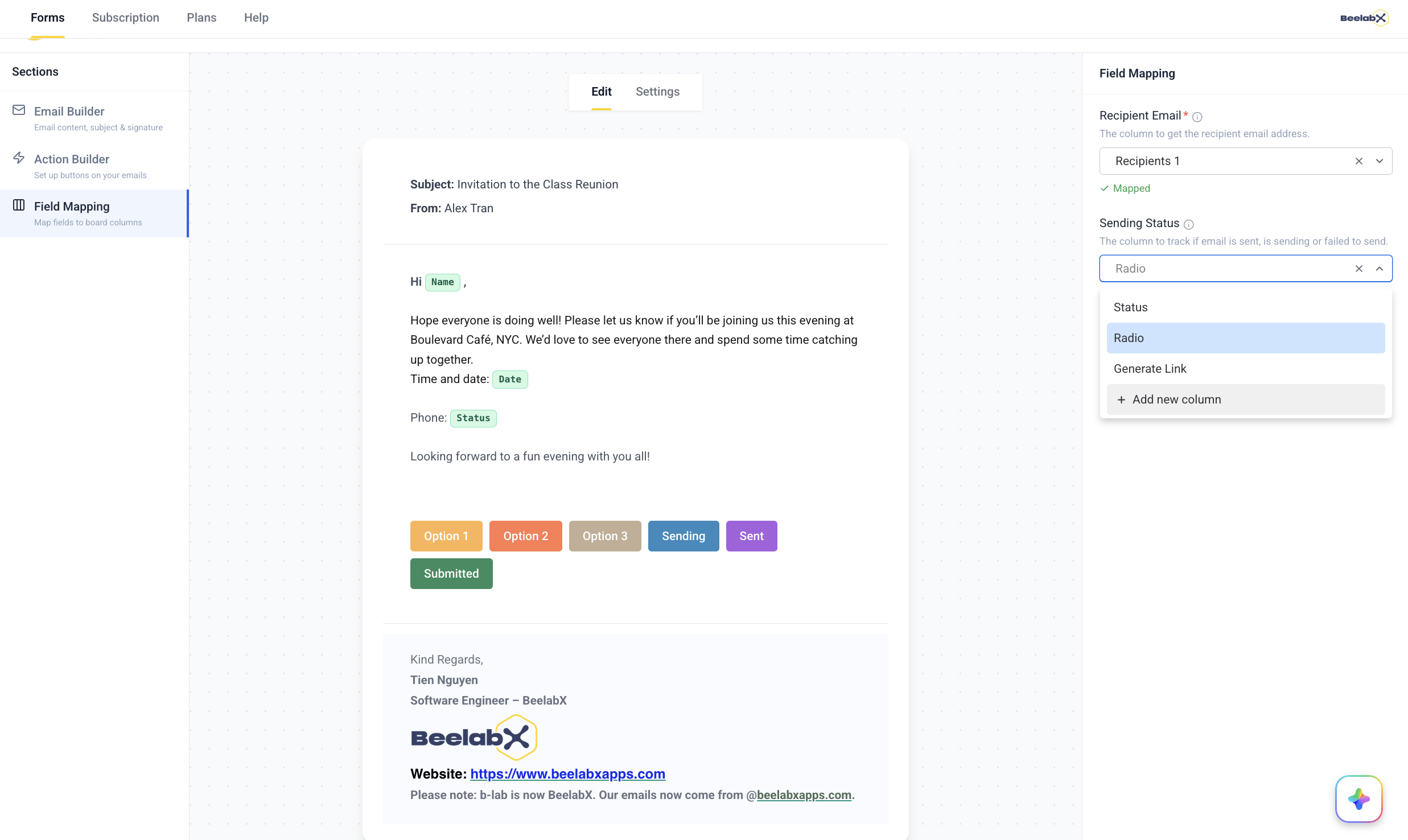
Select Field Mapping to connect action form fields to columns on your Monday.com board. This determines where recipient data and sending status are stored.
Field Requirements
| Action Form Field | Required | Allowed Column Types | Purpose |
|---|---|---|---|
| Recipient Email | Yes | Email, Text | The column to get the recipient email address |
| Sending Status | No | Status, Color | Tracks whether the email is sent, sending, or failed |
Recipient Email is a required mapping. The automation will not run without it.
Add New Column & Sync
Each dropdown includes an Add new column option that opens the Column Center, so you can create the right column type inline. If you change your board columns in Monday.com, use the Sync button to refresh the column list.
A green check (Mapped) means the field is mapped successfully. An amber warning means a required field is still unmapped — “Required — automation won’t run without this mapping.” Columns already in use are excluded from other dropdowns.
Settings
Open the Settings tab to configure the form’s metadata, access, and deadline.
About This Form
| Field | Description |
|---|---|
| Form Title | Internal name to identify your action form (e.g., “RSVP Class Reunion 2030”) |
| Description | Optional internal notes for your team — not shown to recipients |
Form Access
| Level | Description |
|---|---|
| User Level (default) | Only you and selected members can view and edit this form |
| Account Level | All board members can view and edit this form |
Submission Deadline
Enable Enable deadline to auto-close response links after a configured time, then choose a mode:
| Mode | Description |
|---|---|
| Fixed date | All recipients share the same deadline. Choose a specific calendar date |
| Relative | Each recipient expires individually after their email is sent. Specify a duration in days or hours |
Example: Set a fixed deadline of December 31 for an end-of-year RSVP, or a relative deadline of 3 days so each recipient has 3 days from when they receive the email.
Once an email has been sent, changing the submission deadline will not affect emails that were already delivered. The new deadline only applies to future emails.
Sending Action Emails
Action emails are sent using Monday.com automations. This connects your action form configuration to actual email delivery.
Setting Up the Automation
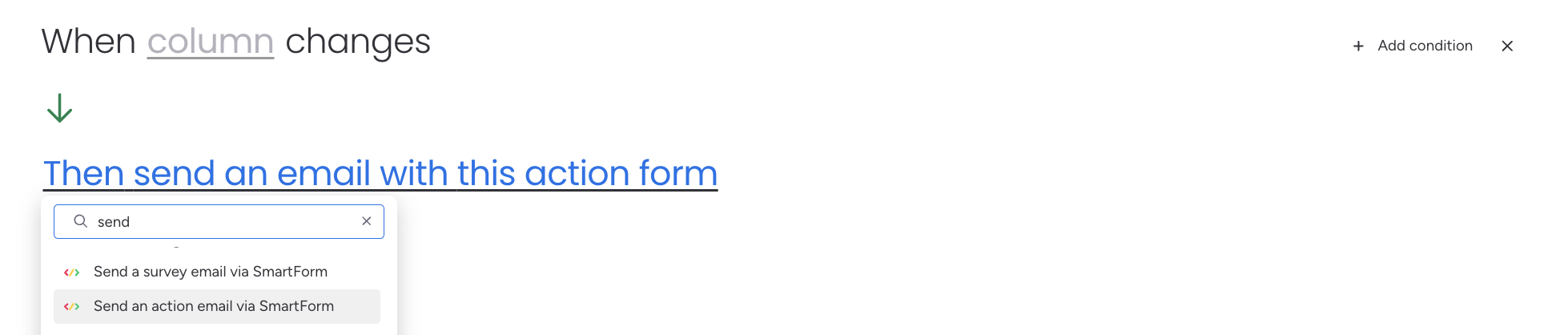
Go to Integrations
Open your board’s Integrations section in Monday.com.
Configure the trigger and action
- When: a specific status column changes to a specific value
- Then: send an action email via SmartForm for the selected action form
Save the automation
Your automation is now active and will send action emails whenever the trigger condition is met.
What Happens When Triggered
When the automation fires, the system:
- Reads the recipient email from the mapped column
- Generates a unique action link tied to the specific board item
- Sends the email with the configured action buttons embedded
- Updates the Sending Status column (if mapped)
Each board item generates a unique action link tied to that specific recipient and item. This ensures responses are tracked per-item on your board.
Emails with Actionable Buttons
This section covers the recipient experience — from receiving the email to clicking an action button.
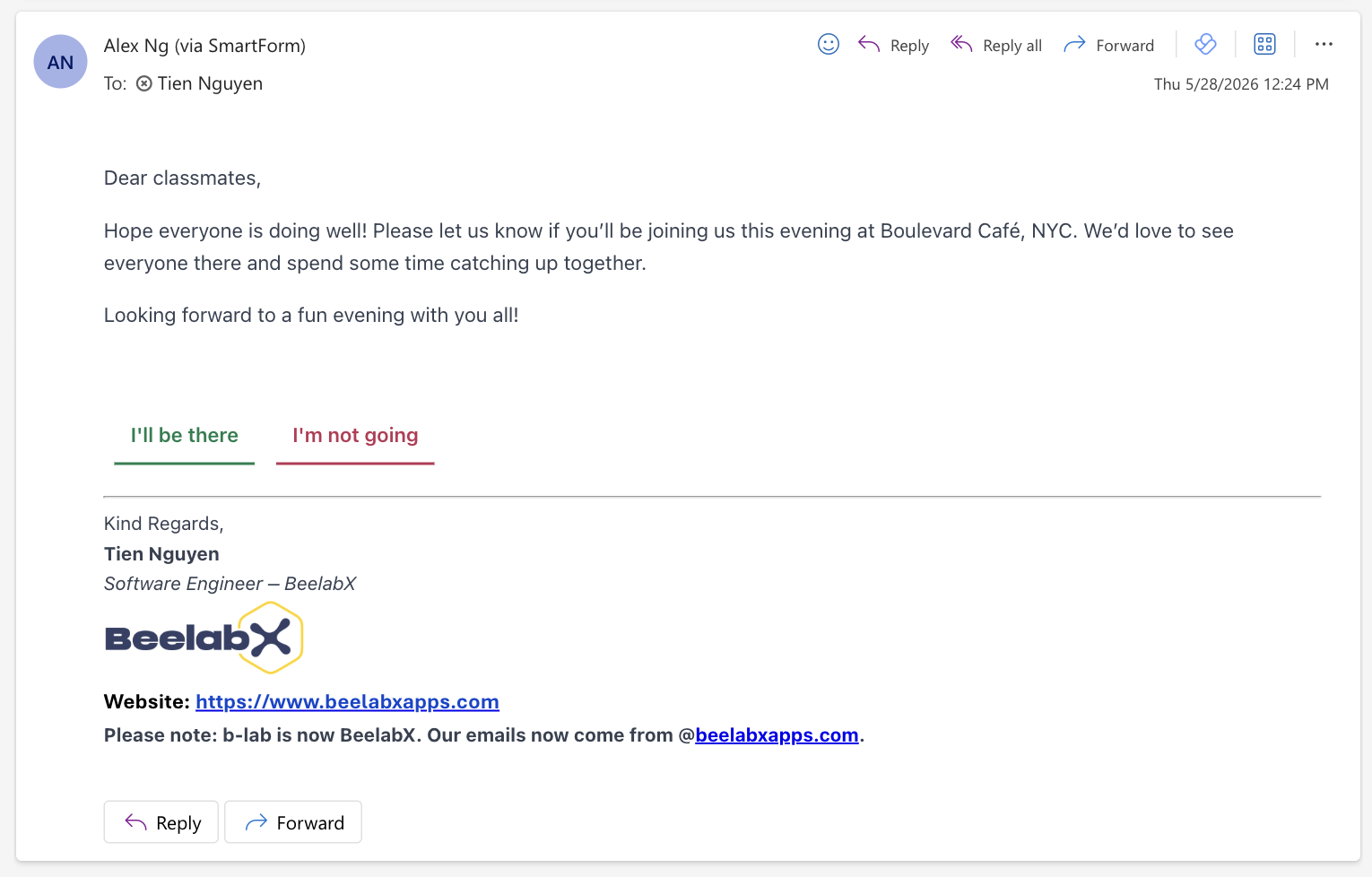
What Happens When a Button is Clicked
- Recipient opens the email and clicks one of the action buttons
- They are taken to a confirmation page showing the selected action
- The corresponding status value is updated on the Monday.com board item
- The recipient sees the configured success title and message
Error States
The action form handles edge cases with clear error messages:
| Error | Cause |
|---|---|
| Form Not Found | Action form was deleted by an admin |
| Inactive Form | Action form was disabled by an admin |
| Inactive Link | The submission deadline has passed |
| Subscription Expired | App subscription needs renewal |
Contact Support
Need help with Action Forms or other SmartForm features?
Need Assistance?
Our dedicated support team is ready to help you get the most out of SmartForm. Whether you have questions about setup, configuration, or advanced features, we’re here to assist.
Contact Support Team →