Standard Form
Create powerful, customizable forms that map directly to your Monday.com board columns — with password protection, conditional logic, subitem collection, and full visual styling controls.
Installation
Find SmartForm in Board Views
Open your Monday.com board and click Views in the top navigation. Search for SmartForm and add it as a Board View.
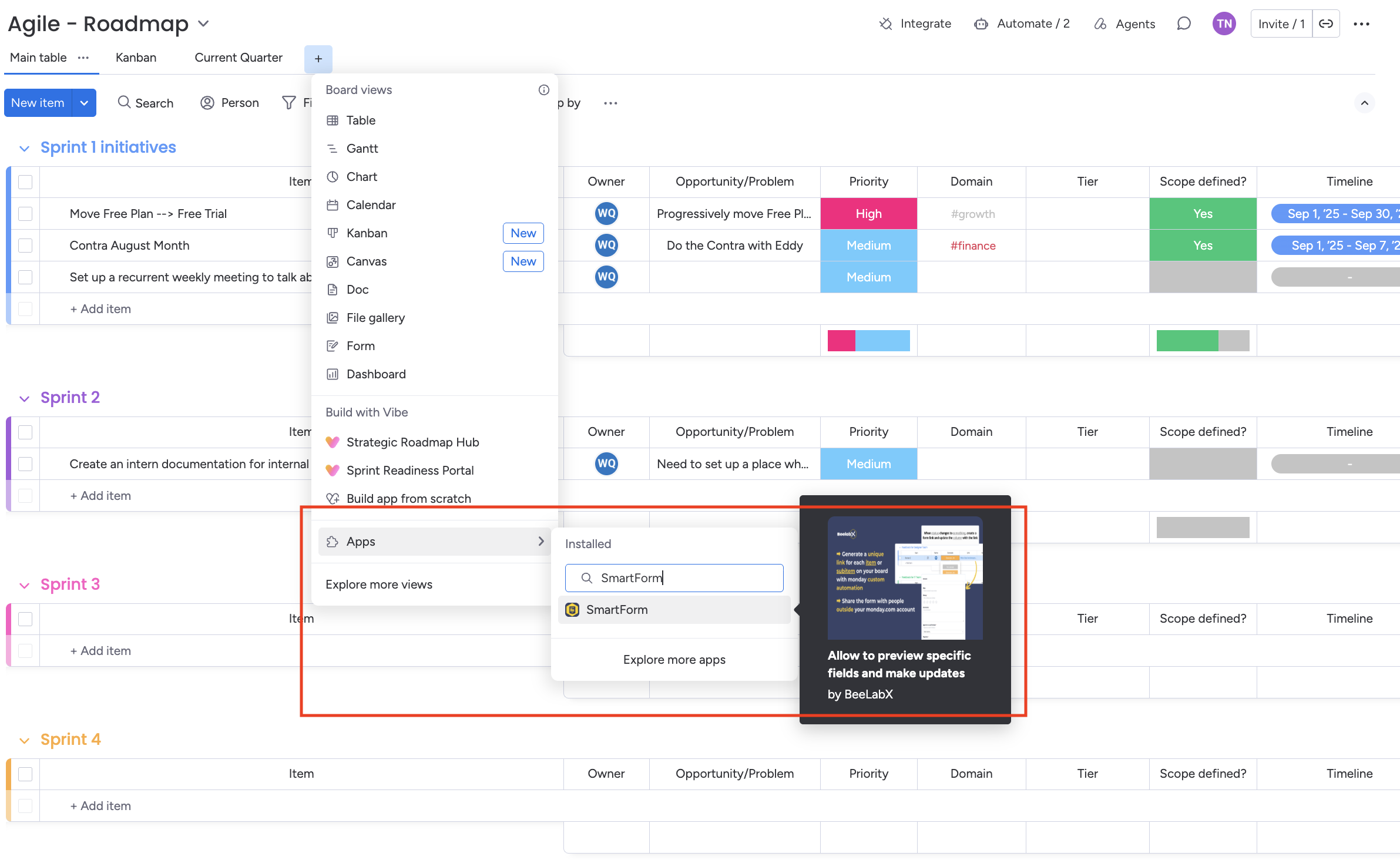
Access Your Settings View
Once installed, SmartForm automatically creates a Board View called “SmartForm” — your central hub for creating and managing all form types.
Quick Start
New to SmartForm? Take the guided in-app tour to learn the essentials in just a few minutes.
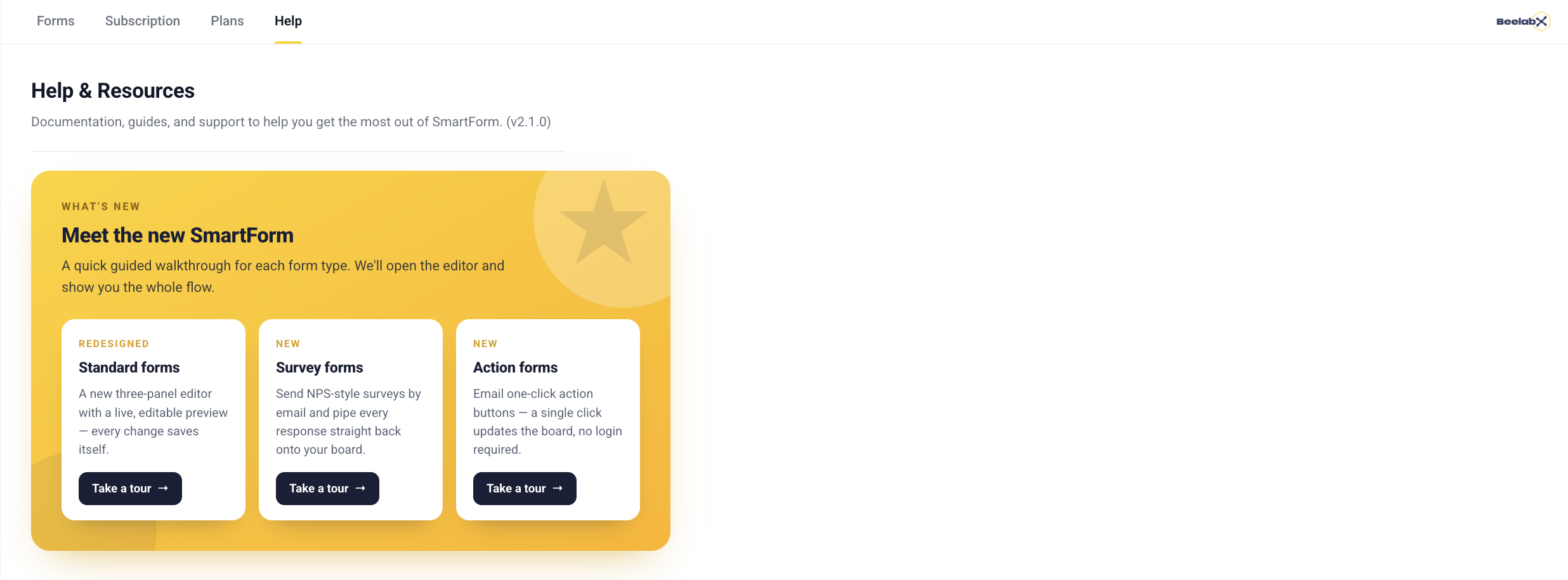
Open the Help page inside SmartForm and start the tour to learn how to use the app directly, step by step.
Creating a Form
In the SmartForm board view, navigate to the Form Management table and find the Quick Create section. Hover over a form type to read its description, then click the icon to create one.
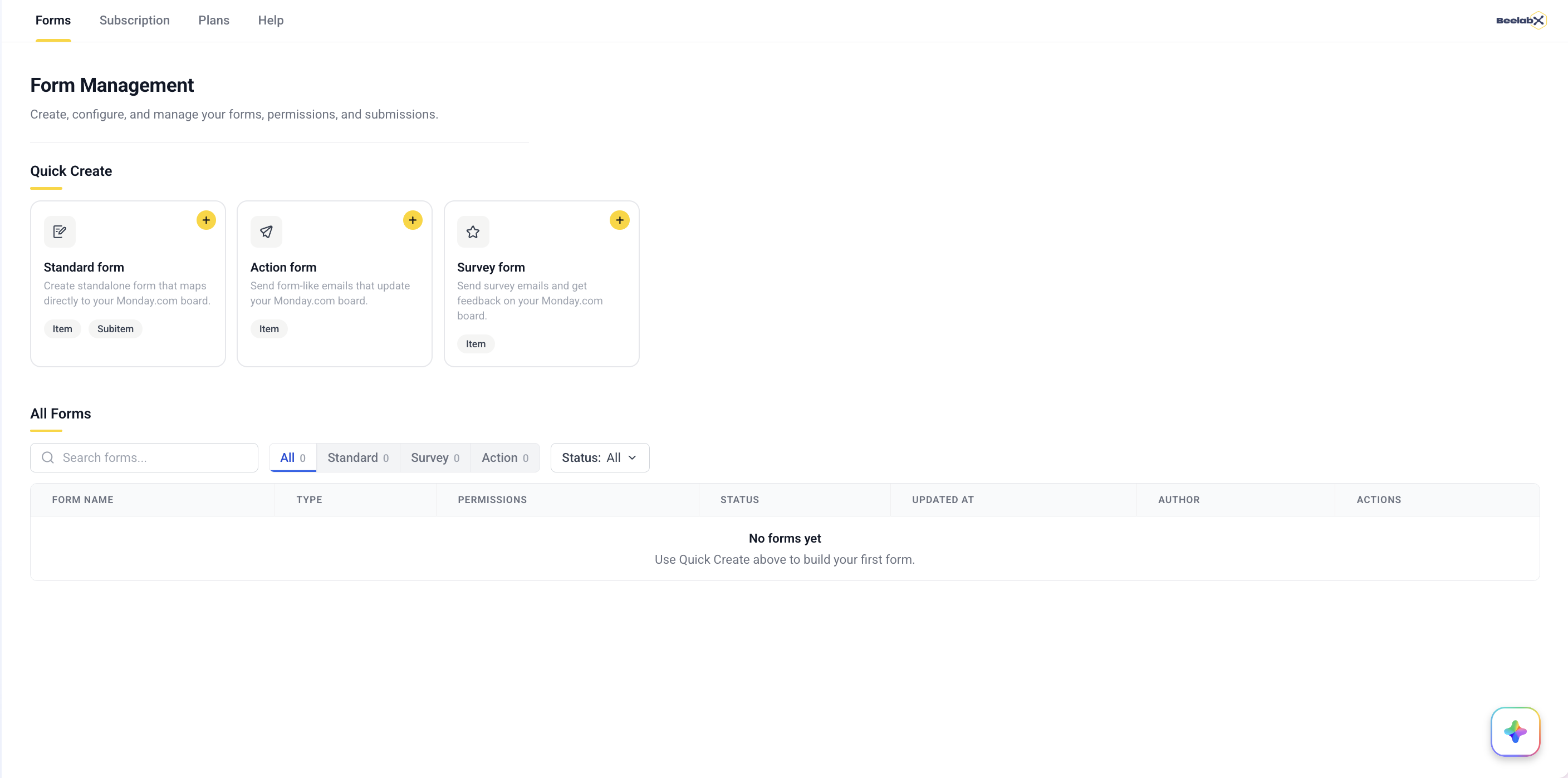
Form Types
| Type | Source Columns | Use Cases |
|---|---|---|
| Item Form | Main item columns | Customer intake, project requests, application submissions |
| Subitem Form | Subitem columns | Task details, multi-step workflows, nested data collection |
| Action Form | Status / Radio columns | Actionable emails with clickable buttons — no Monday account needed |
| Survey Form | Number, Rating, Text columns | NPS and star-rating feedback collected via email |
The Form Editor
Opening a form launches the redesigned three-panel editor:
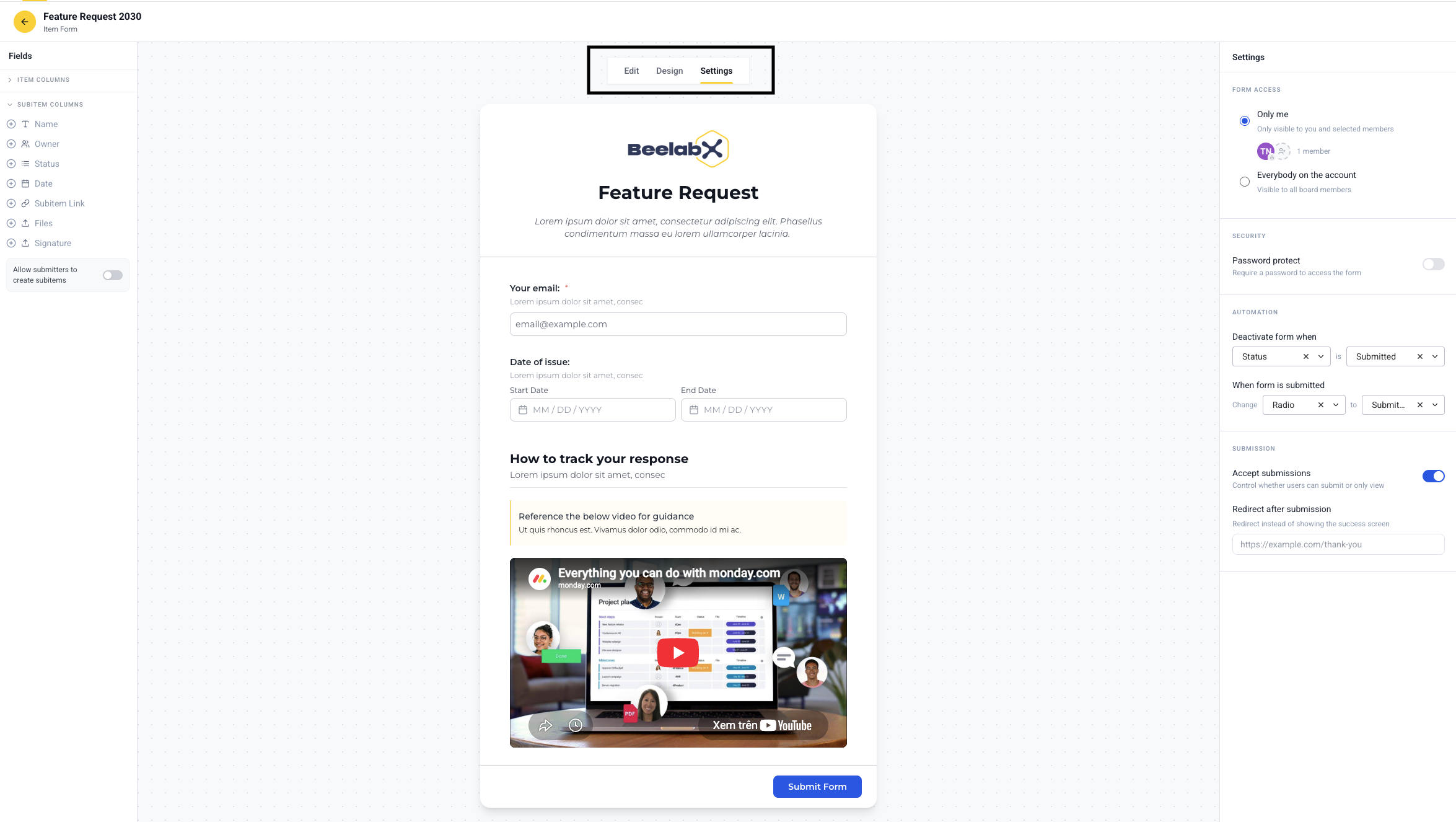
| Area | Purpose |
|---|---|
| Left sidebar — Fields | Add or remove board columns and configure subitem collection |
| Center canvas | A live, inline-editable preview of the form exactly as respondents will see it |
| Right panel | Context-aware settings — field options, design, or form-wide settings |
At the top of the canvas, a tab switcher moves between three modes:
| Tab | What it controls |
|---|---|
| Edit | Add, arrange and configure form fields |
| Design | Logo, fonts, width, and colors |
| Settings | Access, security, automation, and submission behavior |
Changes are saved automatically. A Saving… indicator appears in the header while your edits are being stored.
Editing Fields
The Edit tab is where you build the form. Fields are managed from the left sidebar and edited directly on the center canvas.
Adding & Removing Fields
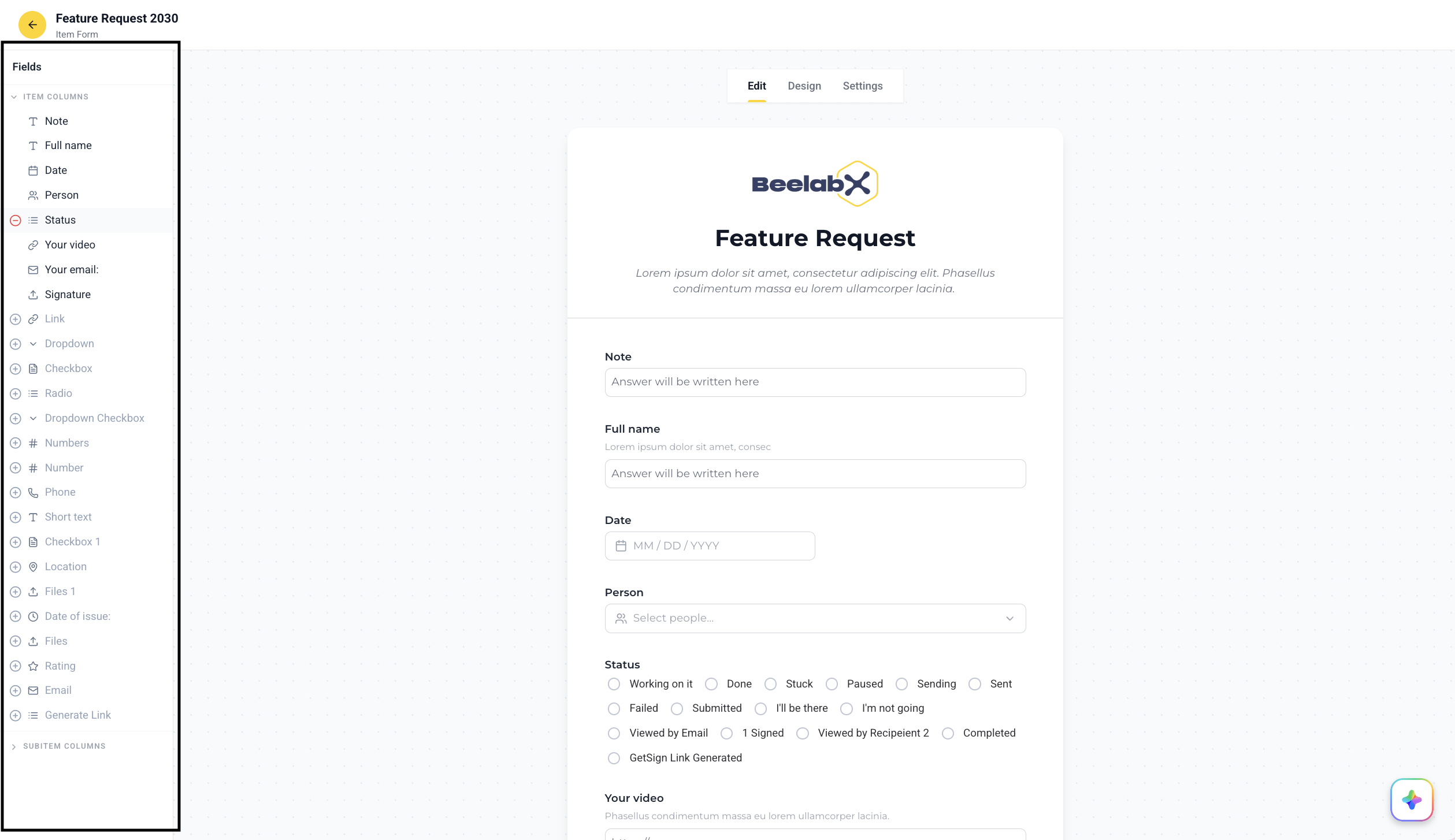
The left Fields sidebar lists your board’s columns grouped under Item Columns (and Subitem Columns on Item Forms). Click a section header to expand it.
| Action | How |
|---|---|
| Add a field | Click the + icon on a column that isn’t yet on the form |
| Remove a field | Hover a column that’s on the form and click the – icon |
Selecting a field on the canvas highlights its row in the sidebar.
Editing Field Content
Fields are edited inline on the canvas. Click any field to expand it, then edit:
| Setting | Description |
|---|---|
| Label | The display name shown to respondents. The original Monday.com column name is preserved |
| Description | Helper text displayed below the field |
| Editable | Allow respondents to fill in or change this field. When unchecked, the field is read-only |
| Required | Force respondents to complete this field before submitting. Only available when Editable is on |
| Remove | Deletes the field from the form |
You can also edit the form’s title and description directly at the top of the canvas by clicking on them.
The Required checkbox is automatically disabled when Editable is unchecked, since read-only fields cannot be filled in by the respondent.
Field Options (Right Panel)
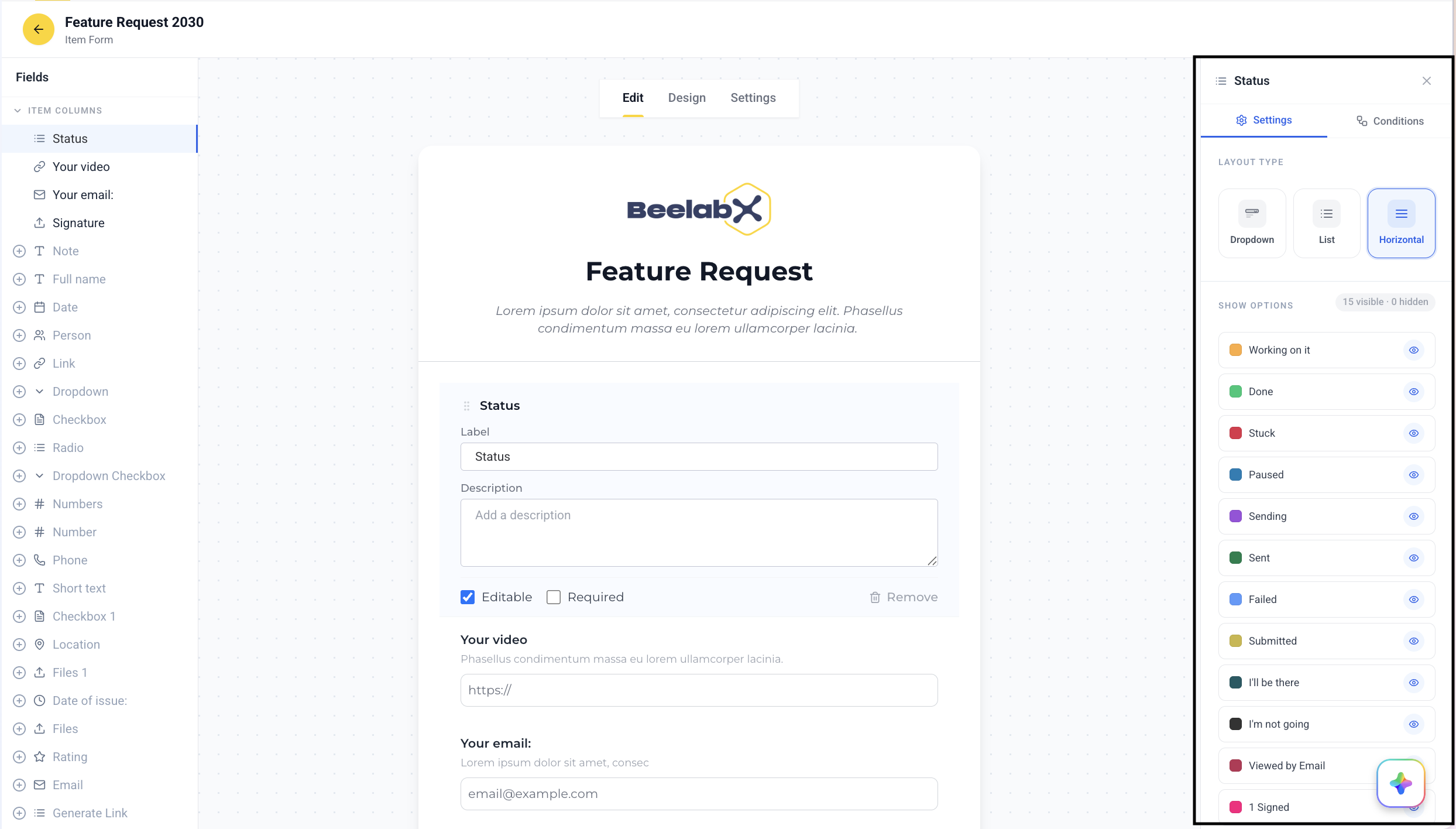
Selecting a field opens the Field Settings panel on the right, with two tabs: Settings (column-type-specific options) and Conditions (conditional logic).
File Columns
| Option | Description |
|---|---|
| Signature capture | Replaces the field with a digital signature pad. Respondents draw their signature and it is saved to the file column on submission |
| Upload files | Lets respondents attach one or more files during submission |
When Upload files is enabled, choose one of three upload modes:
| Mode | Behavior |
|---|---|
| Upload only | Respondents can upload new files, but existing files are not shown |
| Display only | Existing files are shown for reference; respondents cannot upload new files |
| Upload & display | Both uploading new files and viewing existing ones are enabled |
A file column cannot simultaneously be used for signatures and file uploads. Create two separate file columns if you need both capabilities.
Link Columns
Enable Show link preview to display an inline preview of the linked content (e.g., YouTube videos, Dropbox files) directly inside the form.
Link preview is currently in Beta. Contact support if you encounter any issues.
Status, Color & Dropdown Columns
These fields offer two controls:
- Layout Type — choose how choices are presented: Dropdown, List, or Horizontal.
- Show Options — toggle the eye icon next to any option to hide it from the form. A count of visible and hidden options is shown at the top.
Other Columns
Text, number, date and similar fields offer a Layout control to display the field at Full width or Half width.
Mirror, Formula & Board Relation Columns
These column types are display-only in the form. They show live data from connected boards but do not have Editable or Required controls.
Conditional Logic
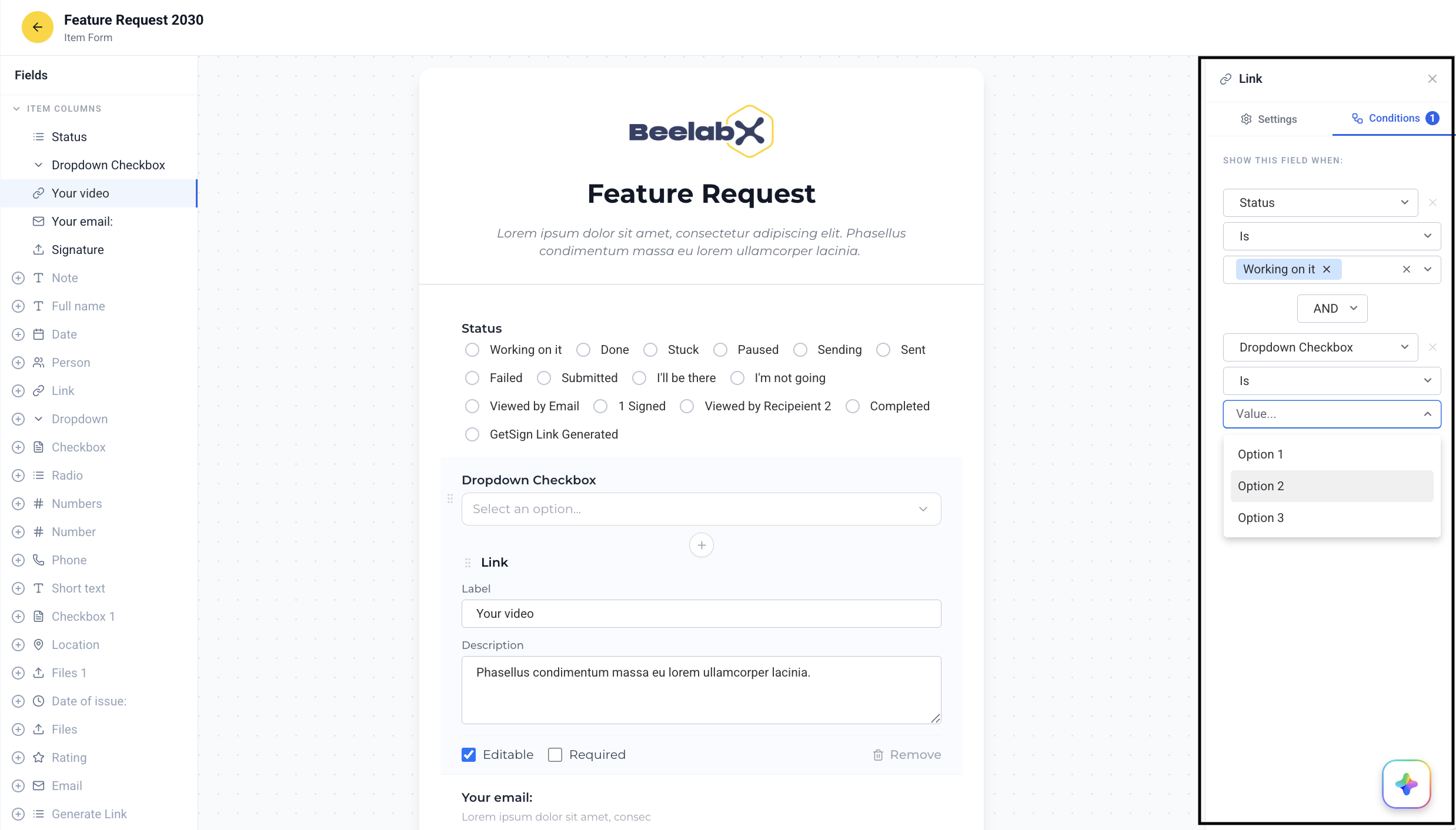
Open the Conditions tab in the Field Settings panel to control when a field is shown to the respondent.
Add a Condition
Click Add condition. Each condition has three parts:
- Field — the other form field whose value is evaluated
- Operator — the comparison rule (e.g., “Is”, “Contains”, “Greater than”)
- Value — what the field should equal for the condition to pass
Set AND / OR Logic
When a second condition is added, choose AND (all conditions must be true) or OR (any condition must be true) using the connector dropdown.
Save
Conditions are saved automatically. The Conditions tab shows a badge with the active condition count.
Conditional logic is currently in Beta. Up to 3 conditions per field are supported. A field with conditional logic cannot be positioned above the fields it depends on.
Supported field types for conditions:
| Column Type | Supported Operators |
|---|---|
| Status, Color, Dropdown | Is, Is not, Is empty, Is not empty |
| Date | Is, Is not, Before, After, Is empty, Is not empty |
| Numbers | Equals, Not equals, Greater than, Less than, Is empty, Is not empty |
| Checkbox | Is checked, Is not checked |
| Text, Long Text, Phone, Email, Link | Equals, Contains, Does not contain, Starts with, Is empty, Is not empty |
Inserting Notes, Headings, Videos & Images
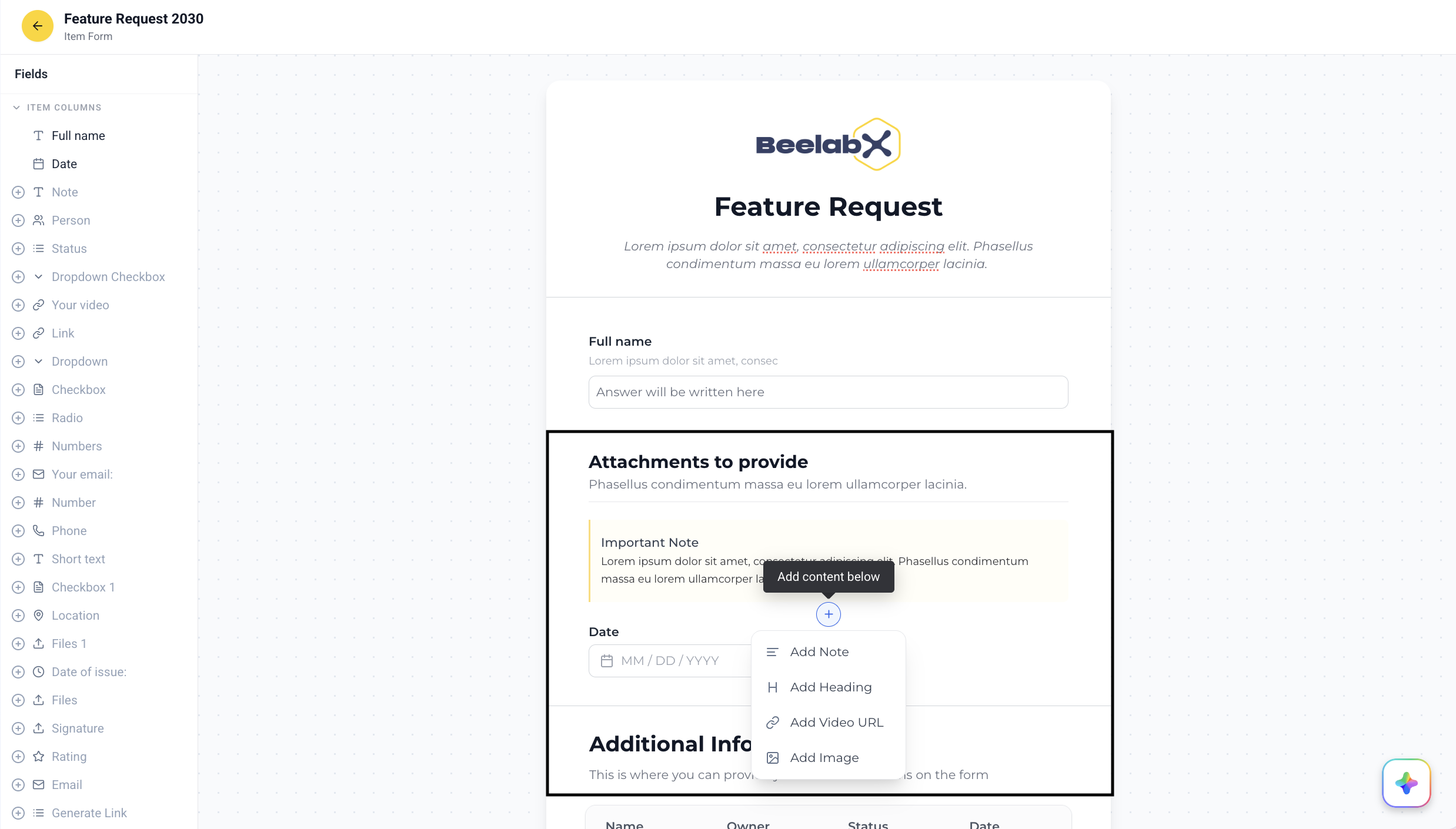
Hover between fields to reveal a + button. Click it to insert one of the following:
| Insert Type | Description |
|---|---|
| Add Note | A block of descriptive text to give respondents context |
| Add Heading | A visual section header to group fields |
| Add Video URL | Embeds a video by URL (e.g., YouTube, Vimeo) |
| Add Image | Uploads and inserts an inline image |
Content blocks can be reordered by dragging, just like regular fields, and removed with their delete button.
Reordering Fields
Drag any field using the grip handle (⠿) on the left edge to reorder it. Fields with conditional logic dependencies cannot be moved above the fields they depend on.
Subitem Fields
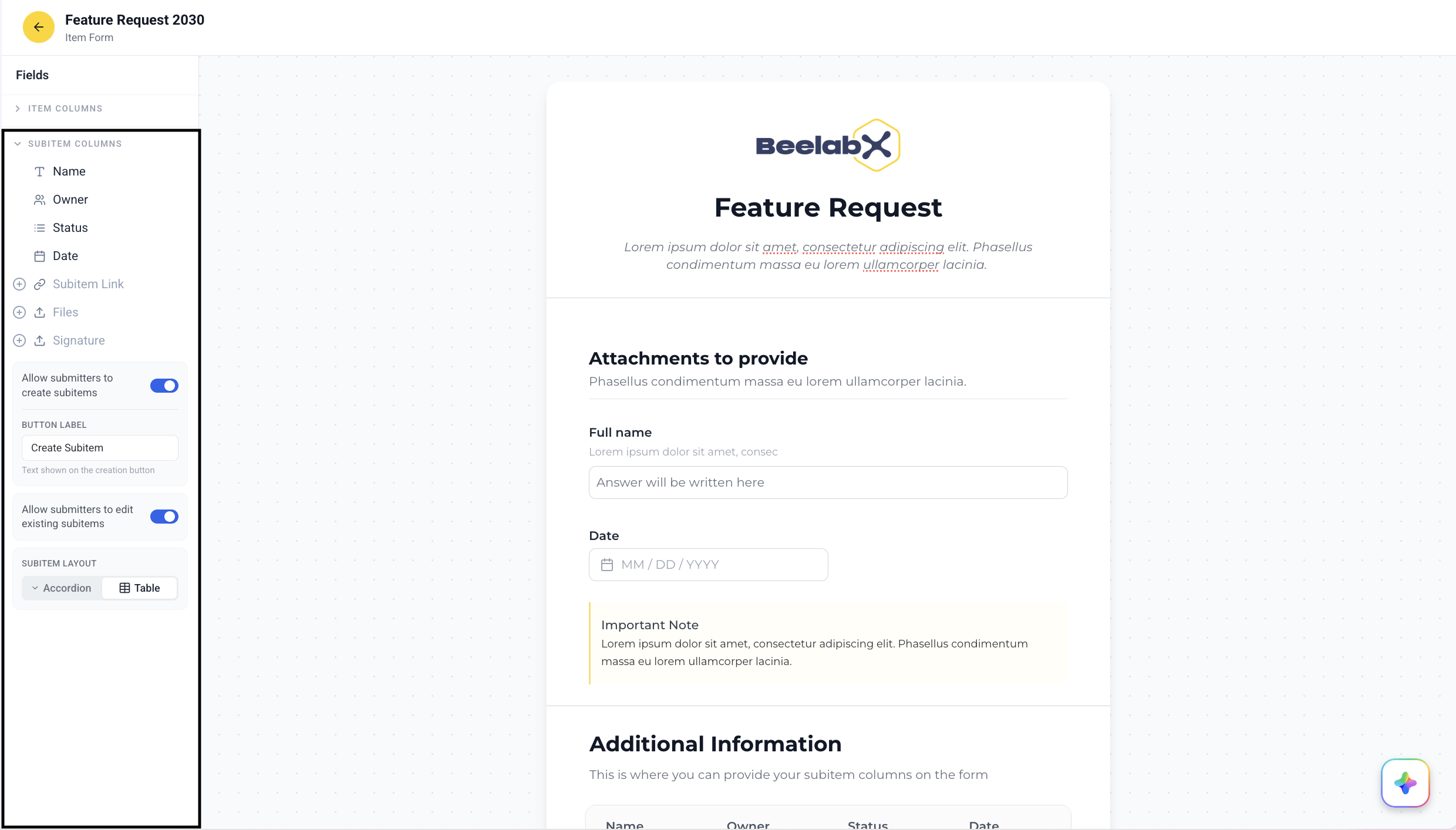
Display or collect subitem data as part of your Item Form. This is configured from the Subitem Columns section of the Fields sidebar and is only available on Item Forms.
Adding Subitem Fields
Expand Subitem Columns in the sidebar and click + on the columns you want to include. If the board has no subitems, a message is shown — add subitem columns to the board first.
Subitem Options
| Setting | Description |
|---|---|
| Allow submitters to create subitems | Lets respondents add new subitems within the form. A Button label field appears so you can customize the create button text (e.g., “Add Task”) |
| Allow submitters to edit existing subitems | Lets respondents modify the item’s existing subitems |
Both toggles can be enabled at the same time, letting respondents view and edit existing subitems and create new ones in the same session.
Subitem Layout
Choose how subitem fields are presented using the Subitem layout selector:
| Layout | Description |
|---|---|
| Accordion | Each subitem expands into a stacked panel — best for a few fields |
| Table | Subitems shown as rows in a table — best for many fields side-by-side |
You can also edit the section’s title (e.g., “Additional Information”) and description directly on the canvas.
Submit Button & Success Screen
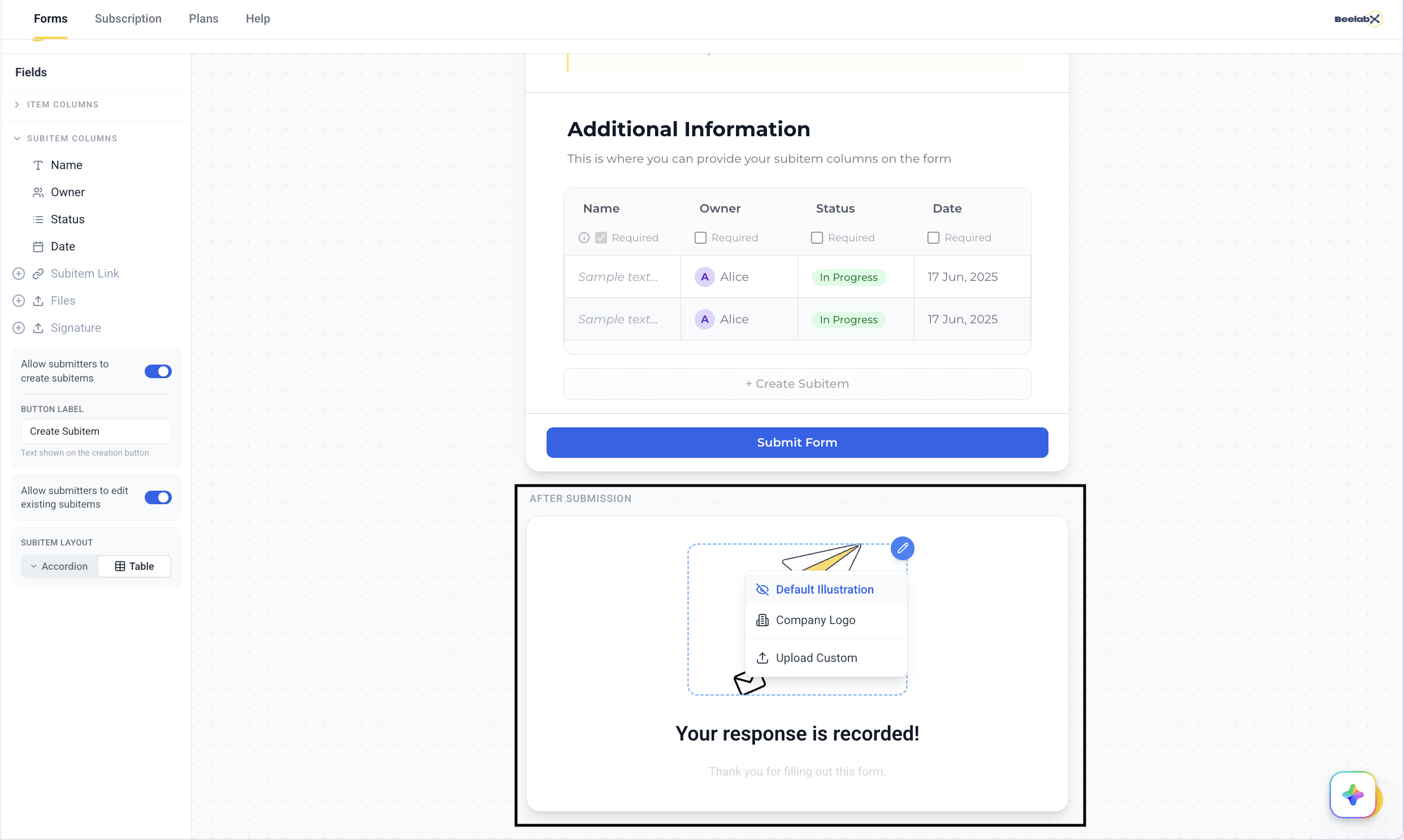
At the bottom of the canvas, click the submit button to rename it inline (e.g., “Apply Now”, “Register”, “Place Order”).
Below it, the After Submission card previews what respondents see after submitting.
| Element | Description |
|---|---|
| Success image | Hover the image and click the edit icon to choose Default Illustration, Company Logo, or Upload Custom |
| Success Title | The heading shown on the confirmation screen (default: “Your response has been submitted!”) |
| Success Message | The body text shown below the heading (default: “Thank you for filling out this form.”) |
To redirect respondents to another page instead of showing this success screen, set a Redirect after submission URL in the Settings tab.
Design
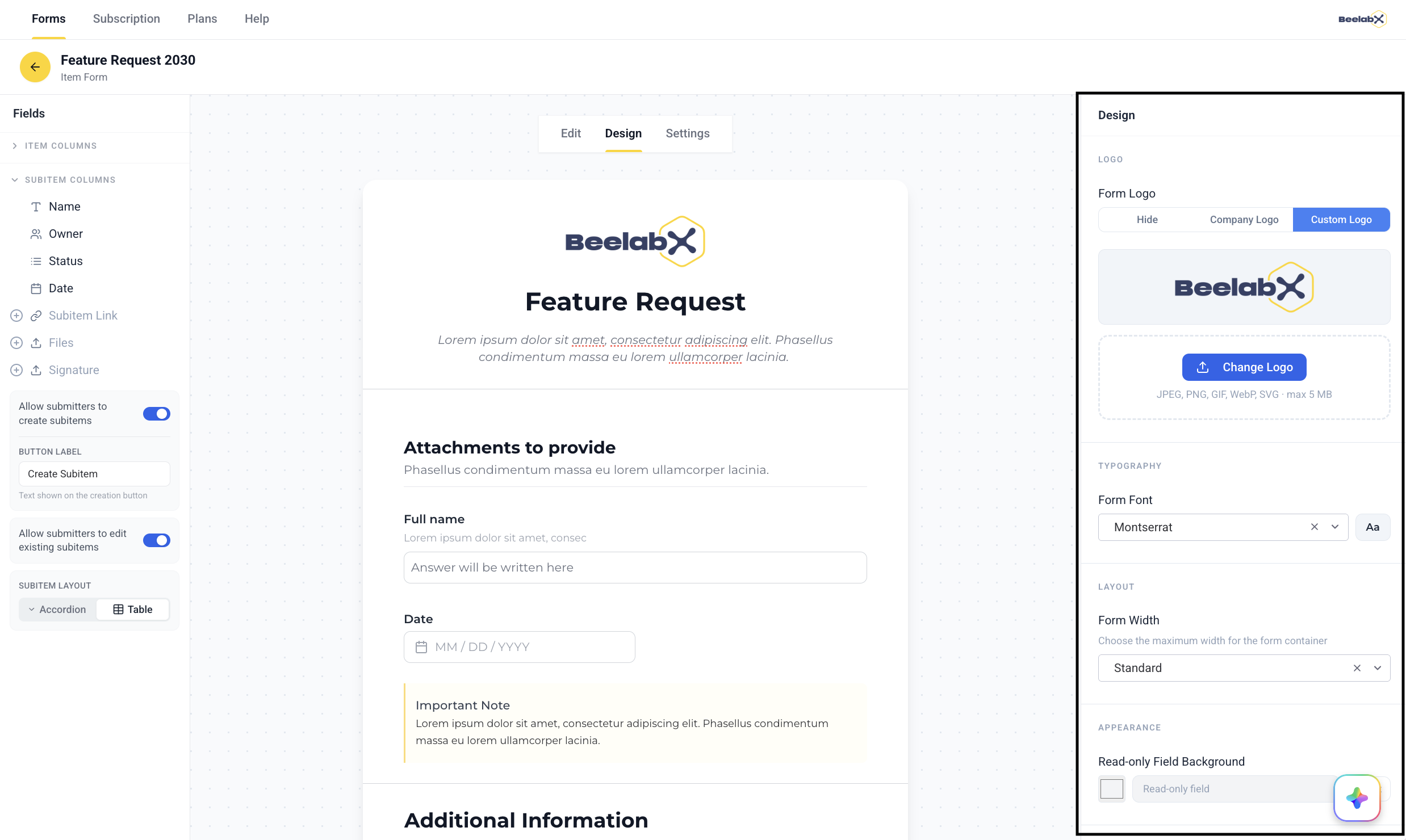
Open the Design tab to customize the visual appearance of your form.
Form Logo
| Option | Description |
|---|---|
| Hide | No logo is shown — minimal, distraction-free appearance |
| Company Logo | Uses your organization’s default Monday.com workspace logo |
| Custom Logo | Upload a form-specific image (JPEG, PNG, GIF, WebP, SVG — max 5 MB) |
When Custom Logo is selected, an upload button appears and the current logo is previewed once uploaded.
Typography
Select the Form Font used throughout the form. A live Aa preview updates as you change it:
Inter (Default), Roboto, Open Sans, Lato, Montserrat, Nunito, and Poppins.
Layout
Choose the Form Width — the maximum width of the form container:
| Option | Description |
|---|---|
| Standard | Default width — suitable for most forms |
| Wide | Wider layout — useful for forms with many columns side-by-side |
| Extra Wide | Maximum width — best for data-dense or complex forms |
Appearance
Set the Read-only Field Background color applied to non-editable fields. Use the color picker to choose a custom color, or click Reset to restore the default light gray (#f3f4f6).
Settings
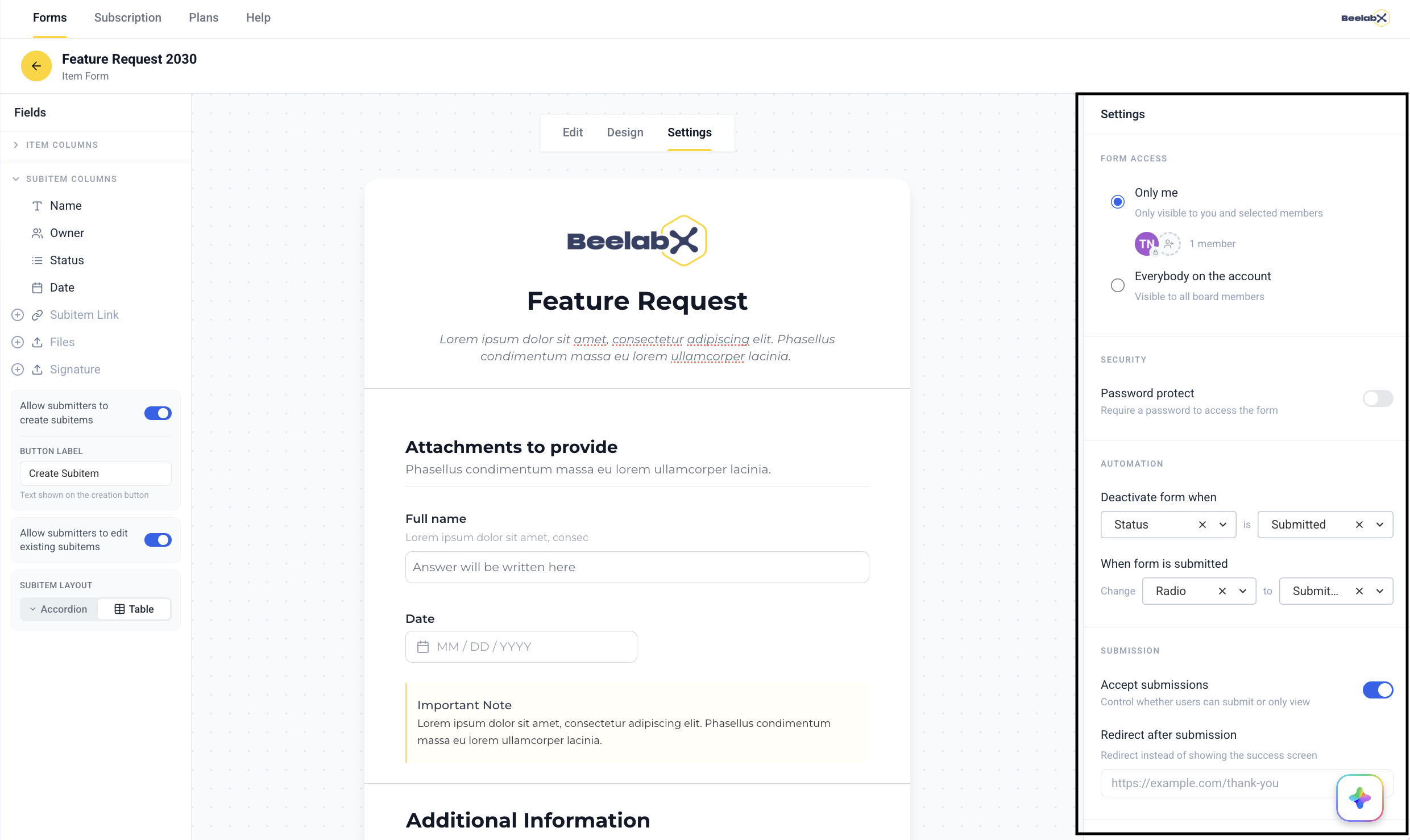
Open the Settings tab to configure access, security, automation, and submission behavior.
Form Access
Controls who can view and edit this form’s configuration inside SmartForm.
| Level | Description |
|---|---|
| Only me (default) | Only you and members you add can view and edit this form. Use the member picker to share it with specific board members |
| Everybody on the account | All board members can view and edit this form |
Before deactivating a user who created forms set to Only me, switch those forms to Everybody on the account first. Otherwise the form becomes permanently inaccessible to everyone.
Security — Password Protection
Enable Password protect to require a password before the form can be opened.
Enable the Toggle
Turn on Password protect in the Security section.
Set a Password
Click Set, enter the desired password, and click Save. The password is displayed in plain text so you can copy it.
Share the Password
Use the copy icon to copy the password, then share it with your intended recipients manually.
Change or Remove
Click Change to update the password at any time. Toggle off the switch to remove password protection entirely.
When password protection is enabled, respondents who open the form link will see a password entry screen before accessing the form content.
Automation
Configure triggers that fire automatically based on status column values.
| Trigger | Behavior |
|---|---|
| Deactivate form when | Choose a status column and value — when an item reaches it, the form stops accepting submissions. Example: “Application Status” is “Closed” |
| When form is submitted | Automatically change a status column to a chosen value on every submission. Example: change “Lead Status” to “New Submission” |
Combine these with Monday.com automations (e.g., notify a team member, create a task) to build end-to-end workflows triggered by form submissions.
Submission
| Setting | Description |
|---|---|
| Accept submissions | Toggle whether respondents can submit. When off, the form is visible but read-only |
| Redirect after submission | Enter a URL to automatically redirect respondents after they submit, instead of showing the success screen. Leave blank to show the success screen |
Create and Send Your Form Link
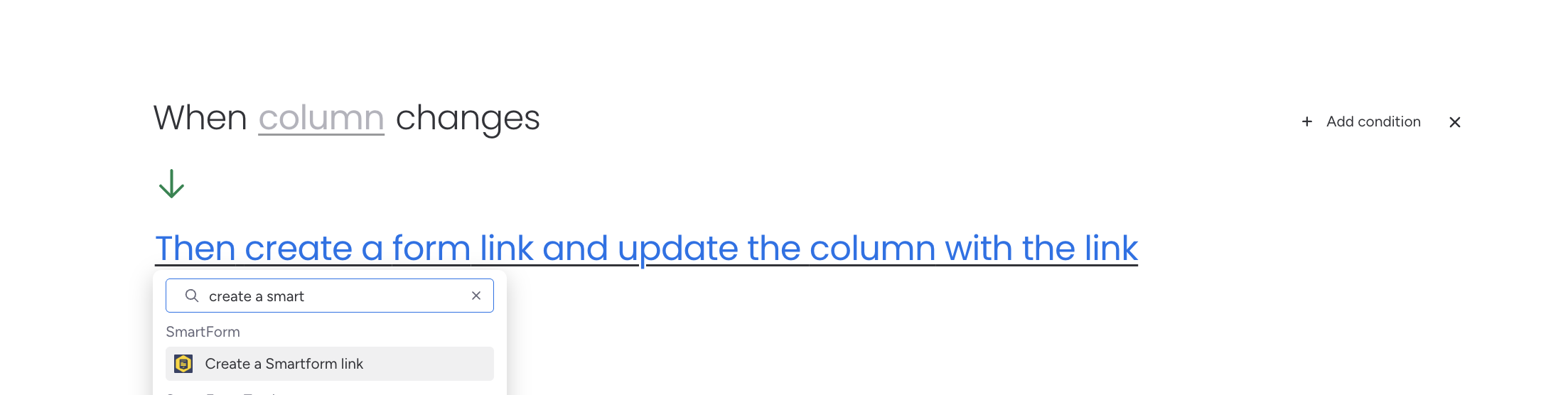
Once your form is built, generate a shareable link for each board item using a Monday.com automation. When the trigger fires for an item, SmartForm writes that item’s unique form link into the column you select.
Set Up a Trigger
Open your board’s Integrations (or automations) and choose the event that should generate a link — for example, when a status changes or when an item is created.
Add the Create a SmartForm Link Action
Add the Create a SmartForm link action, then choose which form to use and the column where the generated link should be stored.
Let the Automation Run
When the trigger fires for an item, the form link is generated and written to the selected column on that item. Share that link with your recipient to collect their submission.
Each item gets its own unique form link tied to that specific item, so submissions are mapped back to the correct row on your board.
Contact Support
Need help with Item & Subitem Forms or other SmartForm features?
Need Assistance?
Our dedicated support team is ready to help you get the most out of SmartForm. Whether you have questions about setup, configuration, or advanced features, we’re here to assist.
Contact Support Team →